
The animal counting feature is designed to make it as easy as possible to keep track of livestock in real time—for example, during loading or herding. The guide below explains how to properly start using the counter and how to use key features, such as batching and summaries.
1. Start counting
To proceed to the counting process:
- Make sure the system is ready (green indicator light in the corner of the screen).
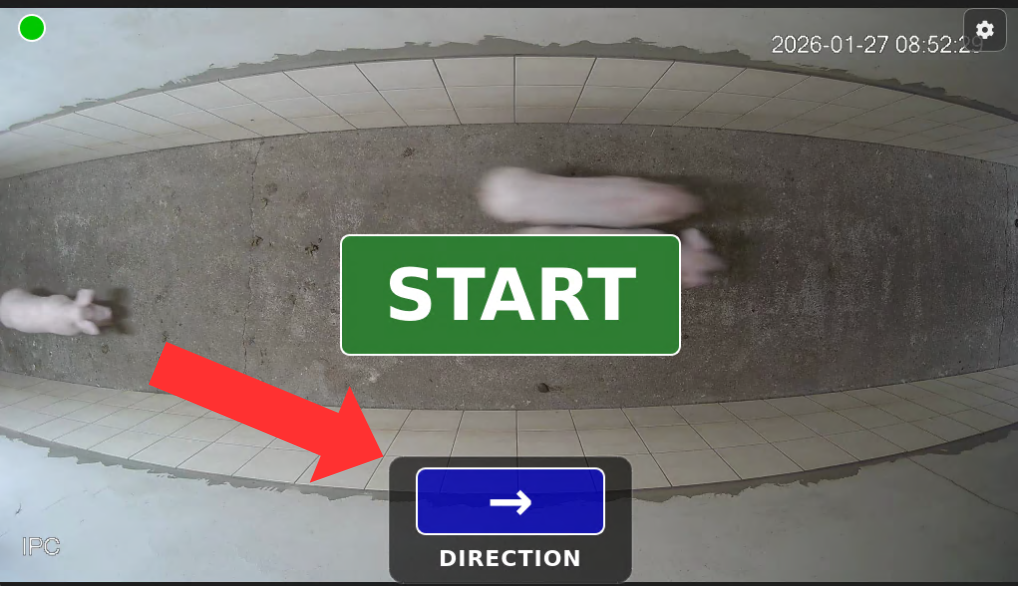
- Select the counting direction using the blue button at the bottom of the screen.
- Click the Start button.
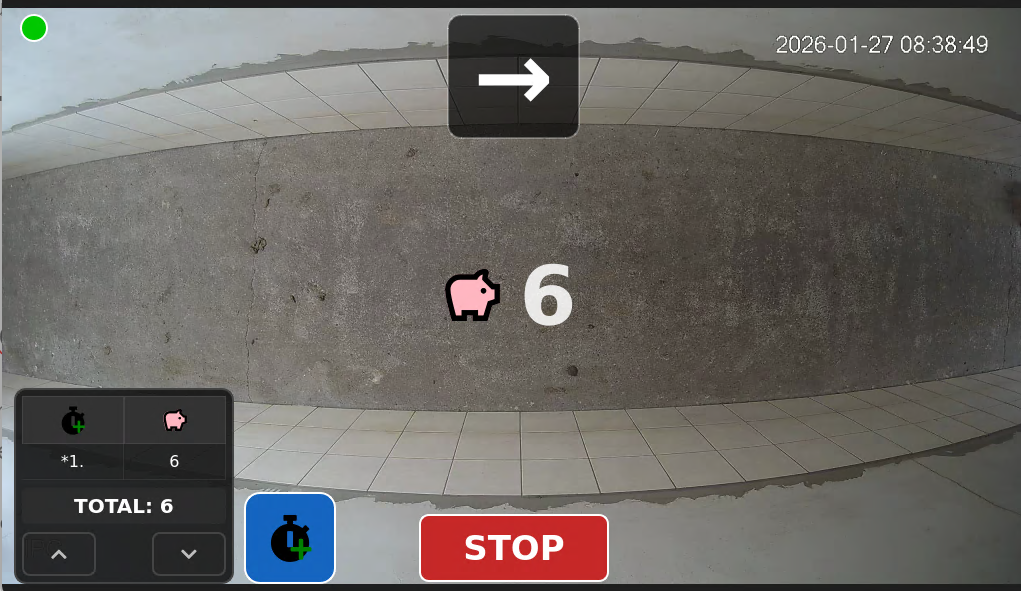
- On the main screen, you’ll see the current live feed from the camera and the main counter, which increments in real time as animals pass by.
2. Handling groups and saving partial results
When counting a large number of animals (e.g., an entire shipment), it is helpful to divide them into smaller groups. The history panel in the lower-left corner of the screen is used for this purpose:
- Saving a Group: Once you’ve herded a specific group of animals, you can save its partial score by clicking the blue button with the stopwatch icon. The current score is then added to the list as the next group.
- Resetting the counter: After saving a group, the current counter is reset, allowing you to start counting the next group without worrying about mixing up the results.
- List of groups: In the side panel, you can see a clear history of all previously recorded partial measurements.
3. Summing the Results
You don’t have to add individual groups yourself:
- TOTAL: At the very bottom of the side panel is the TOTAL field, which automatically sums all previously saved groups.
- This way, you’ll always know the total number of animals counted since the start of the session.
4. Finishing up
Once the entire counting process is complete:
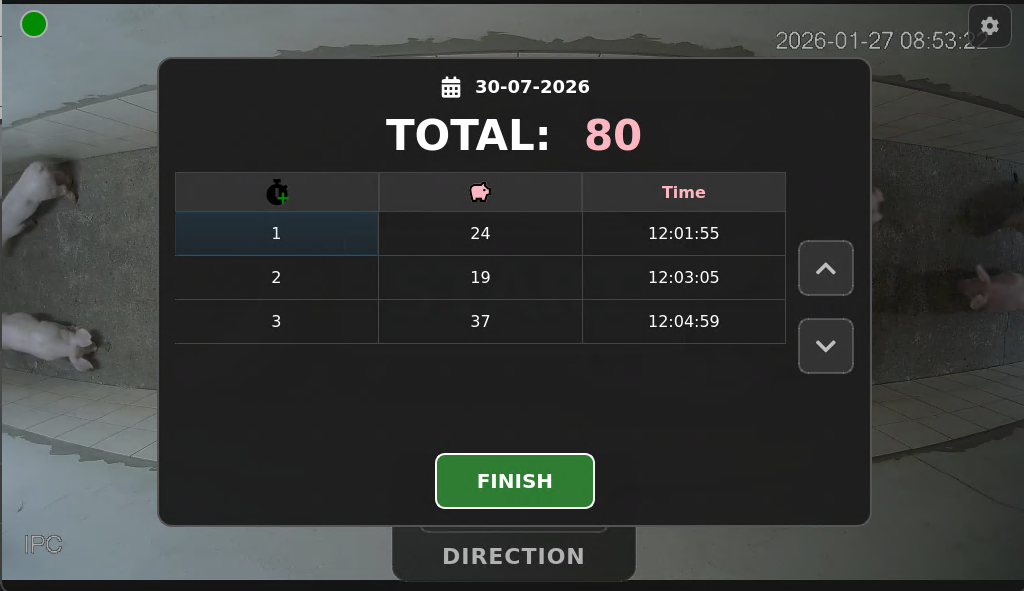
- Press the red STOP button to stop and close the counting session.
- A window summarizing the count will appear.
Do you want to have a real-time view of your counting results on your phone or computer? Check out our next guide and learn how to add a pig counter to the Fetura Cloud platform.
Want to monitor more than one sector? Find out how to expand the system.
Although the Pig Counter’s base configuration analyzes footage from a single camera at a time, the system is designed with flexibility in mind. You can integrate multiple cameras located in different parts of the farm and then easily switch the view in the settings depending on your current needs.


