
Adding a pig counter to the Fetura Cloud app is a simple process. It gives you access to monitoring your pigs and makes it easier to analyze your herd. The instructions below will show you, step by step, how to set up the device yourself and assign it to your farm.
Step 1: Go to device settings
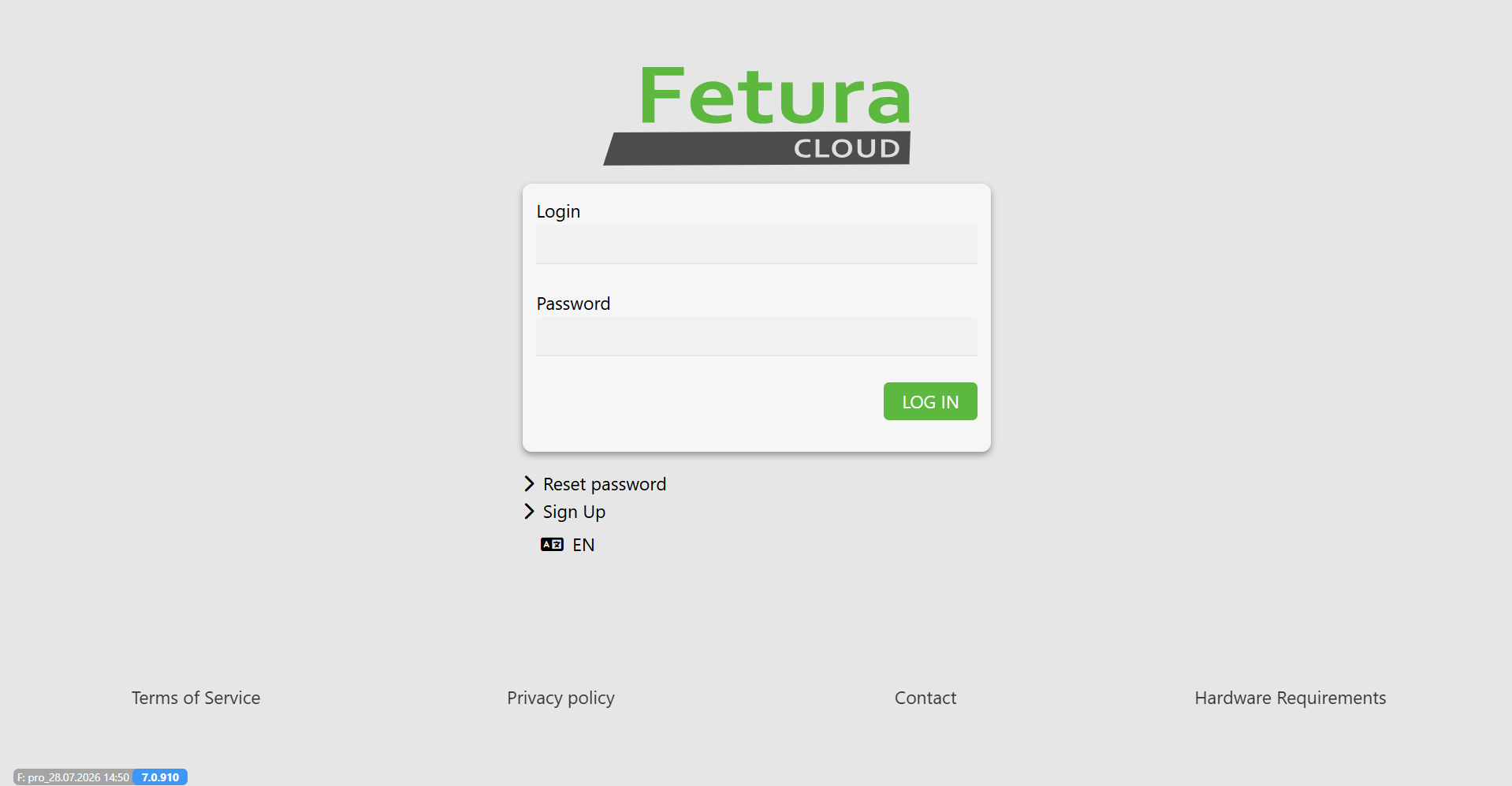
- Log in to your account in the Fetura Cloud app.
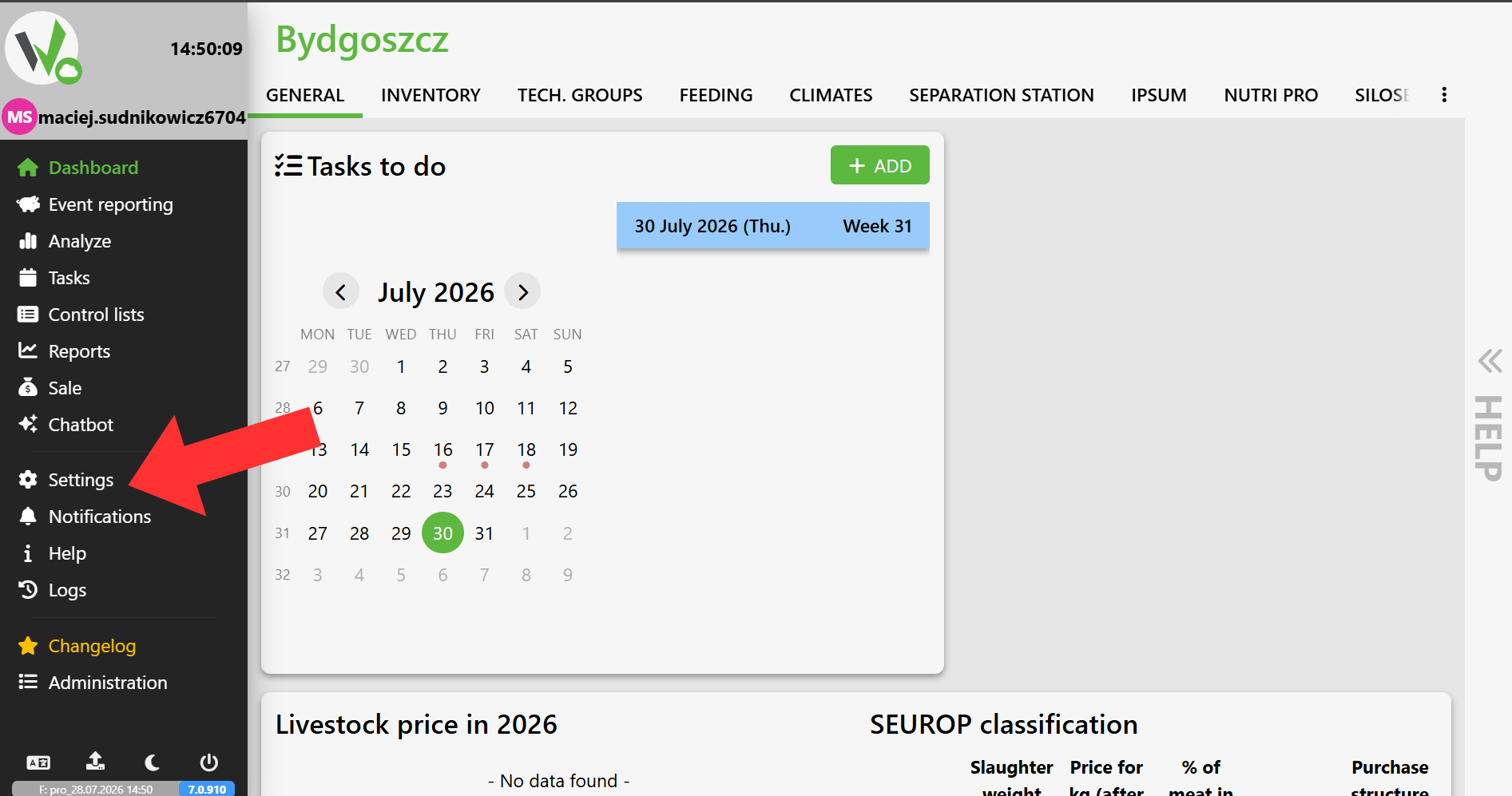
- In the main menu, select the Settings tab.
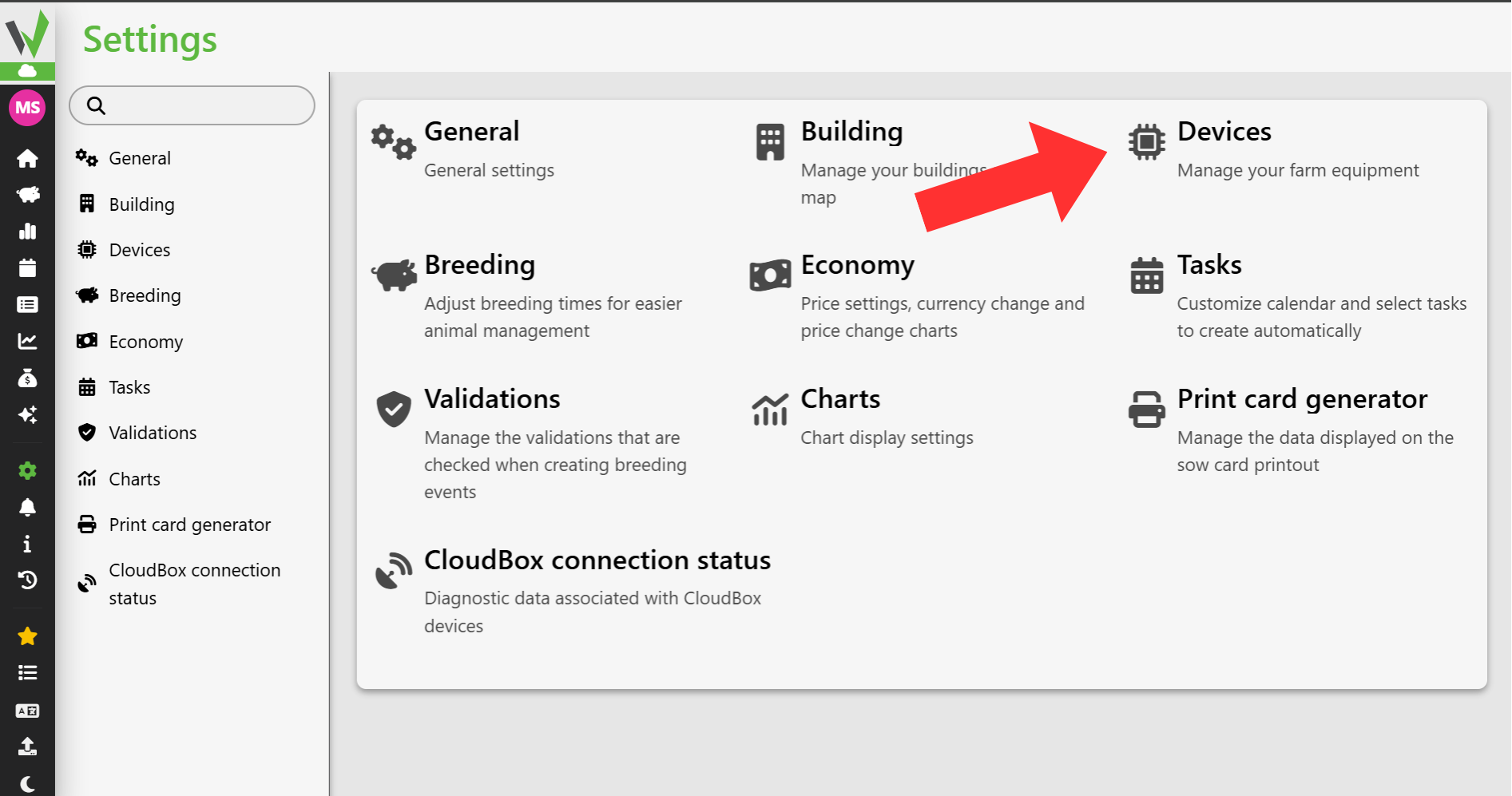
- Go to the Devices section.
Step 2: Adding and Configuring a Counter
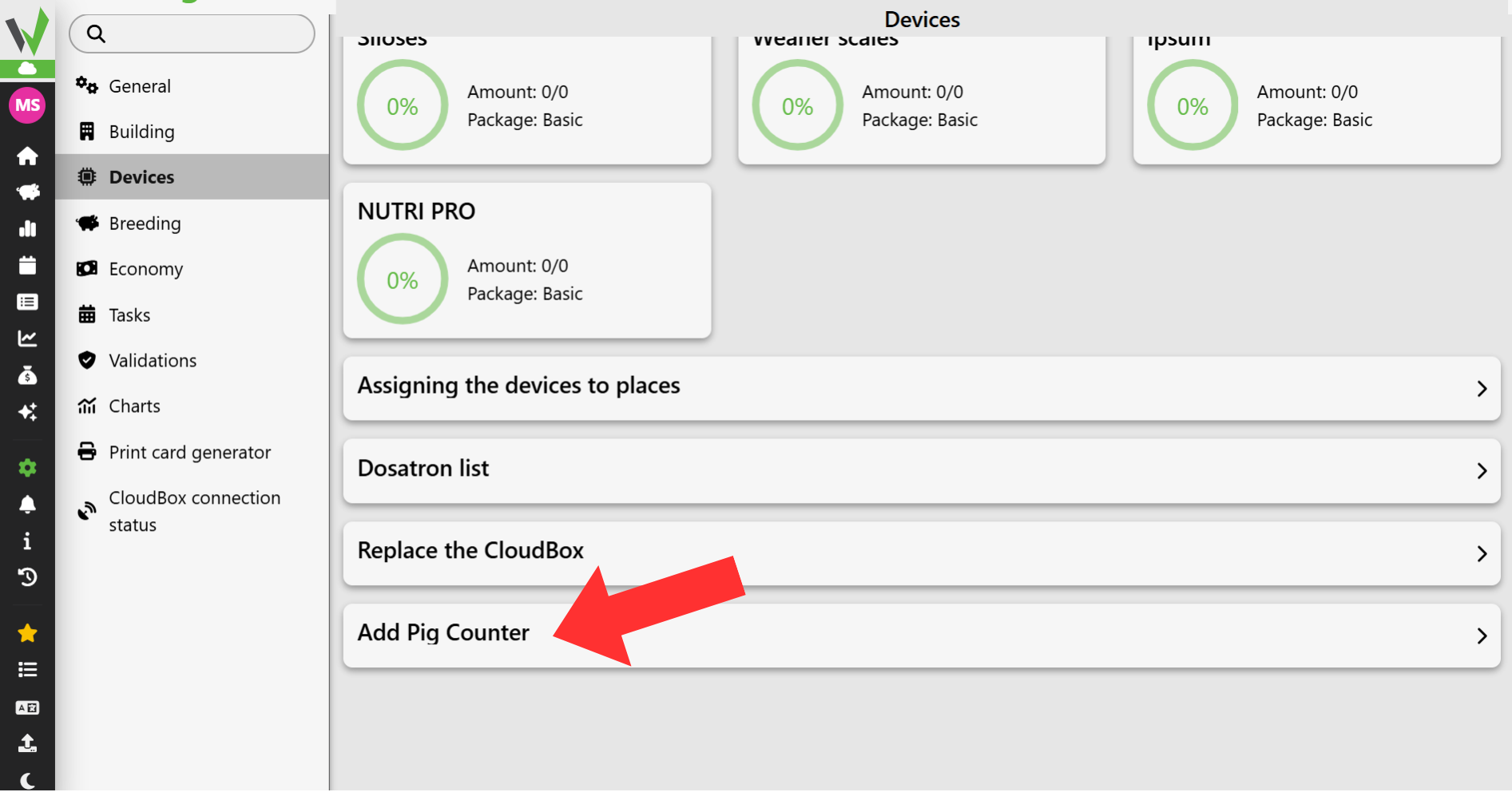
- In the “Devices” section, scroll all the way to the bottom of the page and click the “Add Pig Counter” button.
- In the field that appears, enter the special assignment code or scan it using a camera (e.g., on your phone). You’ll find this code printed directly on the casing of your device.
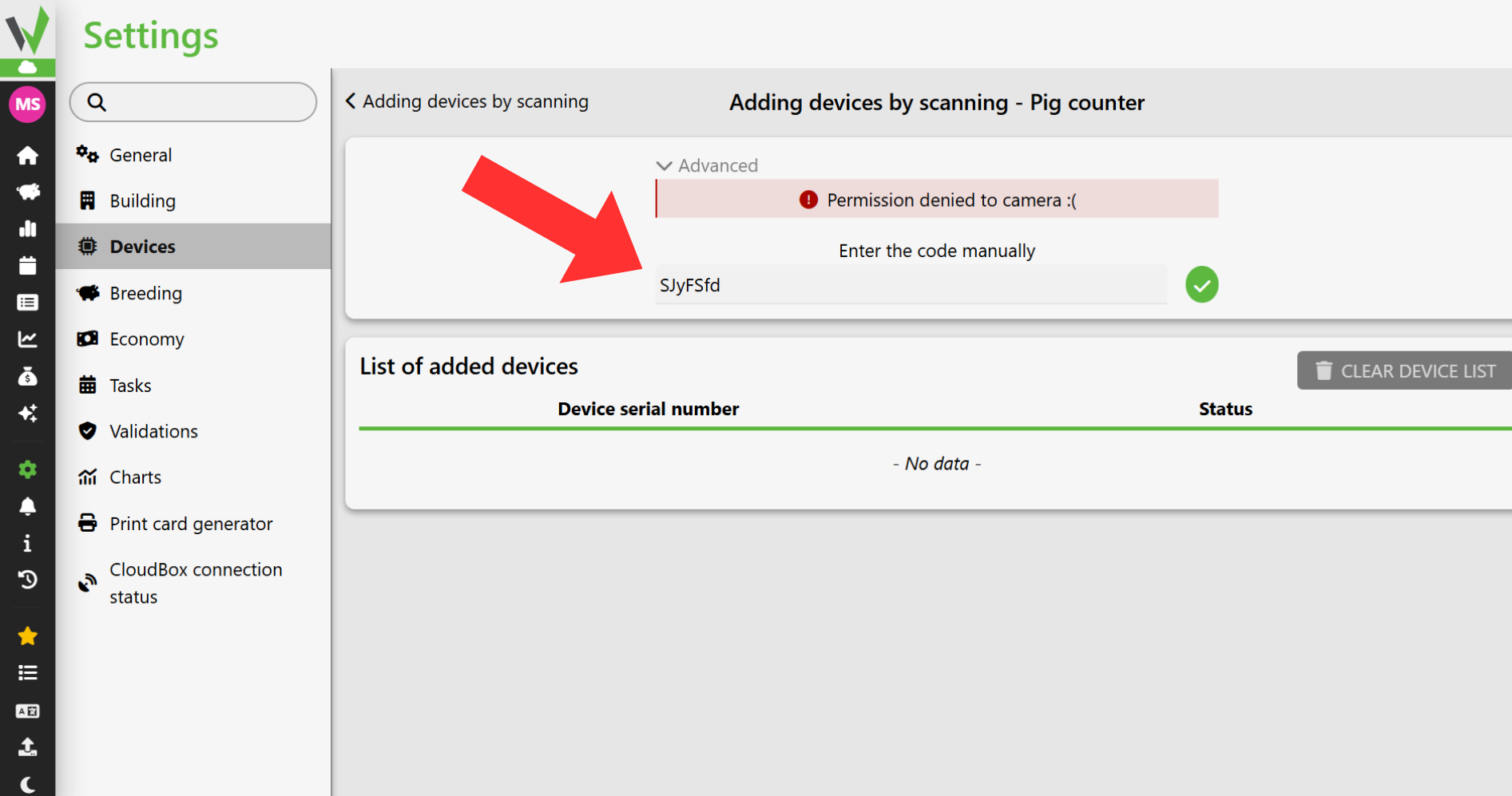
- Complete the setup process by clicking the green “Save” button at the bottom of the form.
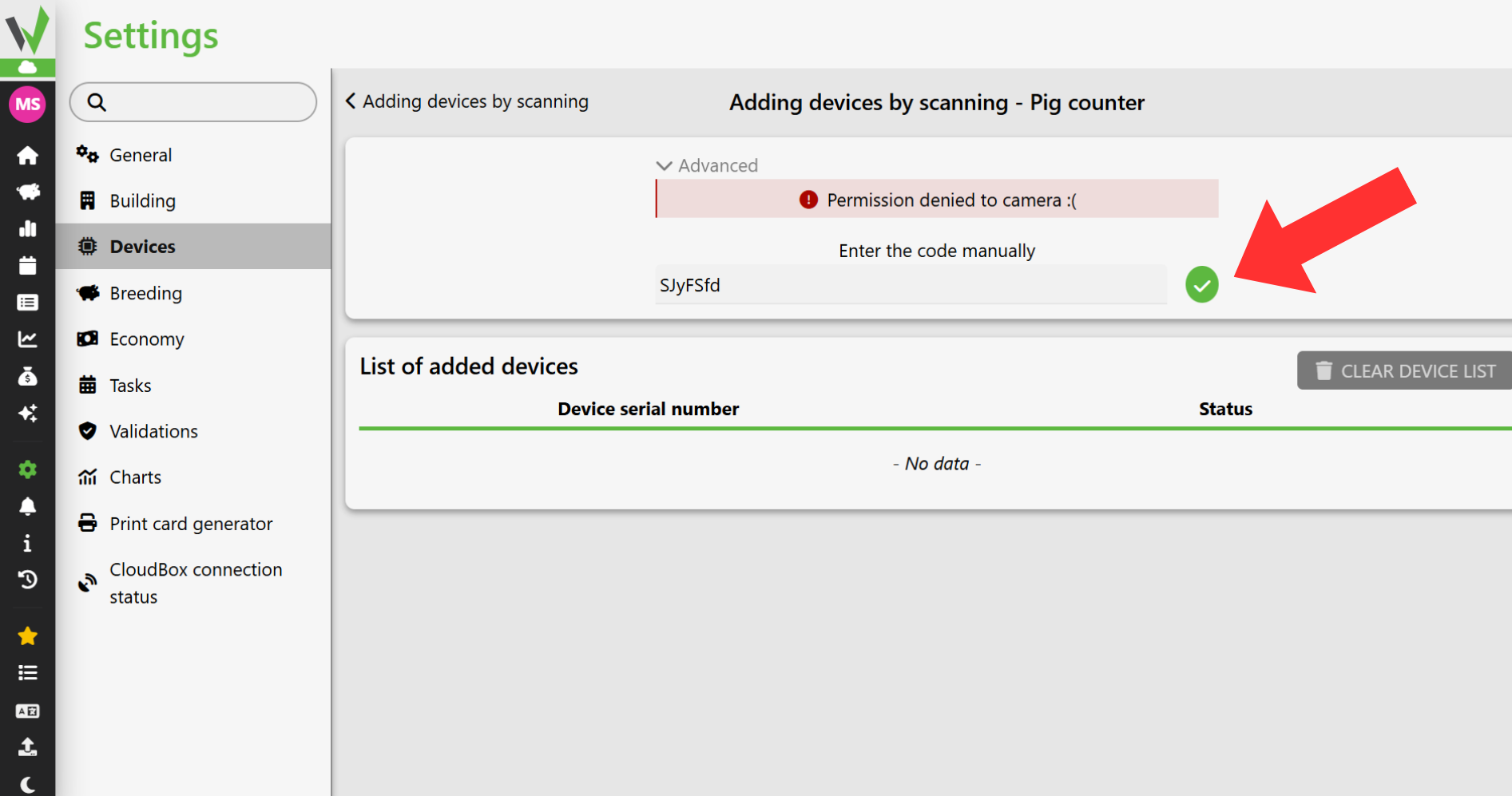
Once you click the button, the device (camera) will be successfully added and assigned to your farm.
Step 3: Accessing Meter Data
You can find the data collected by the new device in the main menu, under the ” Pig Counter” tab.
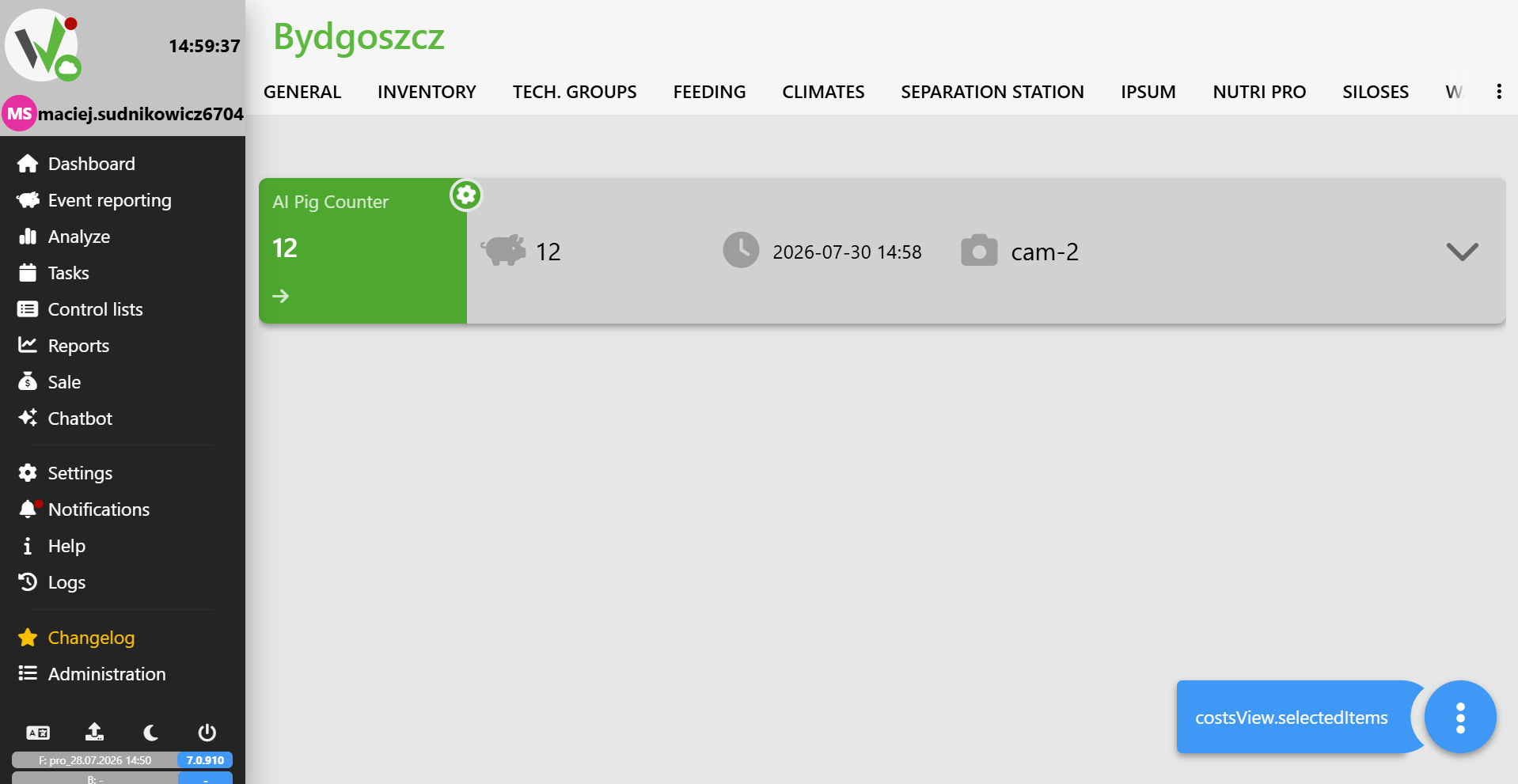
Summary: All done! After completing the steps above, your pig counter is fully configured and connected to the app. You now have access to a dedicated tab in Fetura Cloud where you can monitor the device’s operation in real time and analyze data from the farm.


