
Reporting a treatment procedure
The “Report treatment” option allows you to register performed treatments, vaccinations or treatments of animals in the Fetura system. To make an application, please fill out the form below, which can be found under Breeding -> Report Treatment
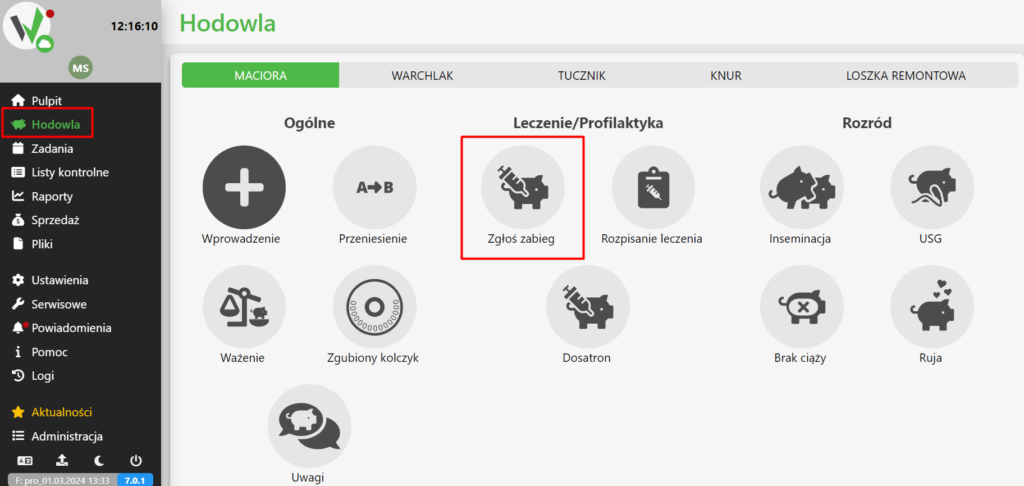
- Animal number: Enter the identification number of the animal on which the treatment was performed.
- Number of animals: If the treatment was carried out on a whole group of animals (e.g., vaccination), enter the number of animals treated.
- Reason: Select the reason for the procedure being performed from the list defined in the dictionary settings.
- Drug: Select the specified drug from the list. After selecting a drug, hovering the cursor over the “i” icon will show the dosage assigned to that drug.
- Dose: Enter the amount of drug administered to one animal.
- Date/From: Indicate the date the drug was administered. In the case of some drugs (e.g., medicated feeds), this will be the date of the start of treatment.
- Date/To: Enter the date the treatment ends if the drug is administered for more than one day.
- Operator: select the person responsible for carrying out the treatment.
- Comment: add an optional comment about the reported treatment.
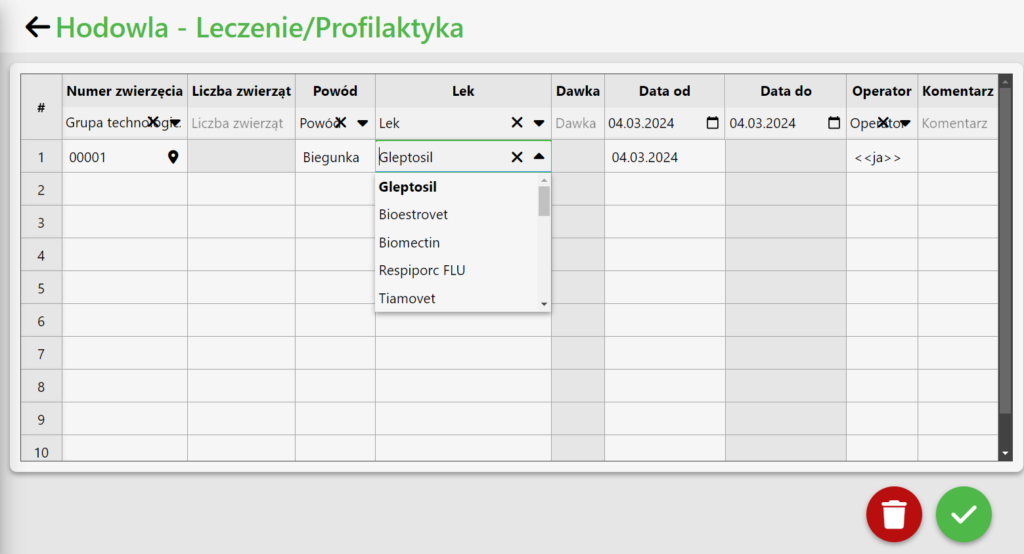
After completing the required data, confirm the application by clicking the “Save” button in the lower right corner of the screen.
- Cleaning the form: Click the “Trash” icon to clear the entire form.
- Saving a working copy: If you need to stop filling out a form, you can save a working copy. When you try to leave the data entry screen, a message about unsaved data will appear. Select “Save” to save a draft version of the form for later completion.


