1. Home
  2. Devices
  3. Ipsum
  4. How to assign IPSUM to a chamber?

How to assign IPSUM to a chamber?

To assign IPSUM to a chamber, go to the Settings tab.
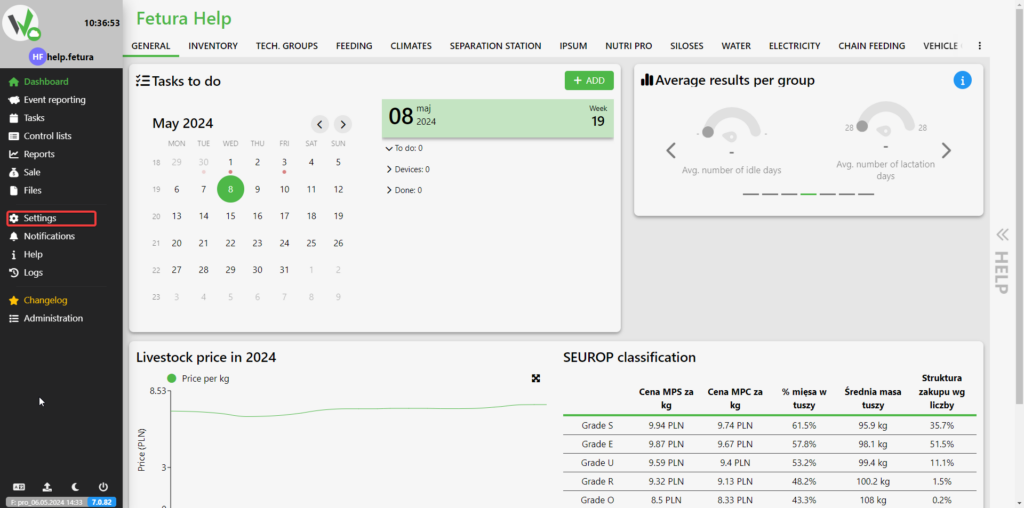
Fetura Help dashboard with the Settings item in the left sidebar highlighted by a red rectangle, the entry point for assigning devices to chambers.

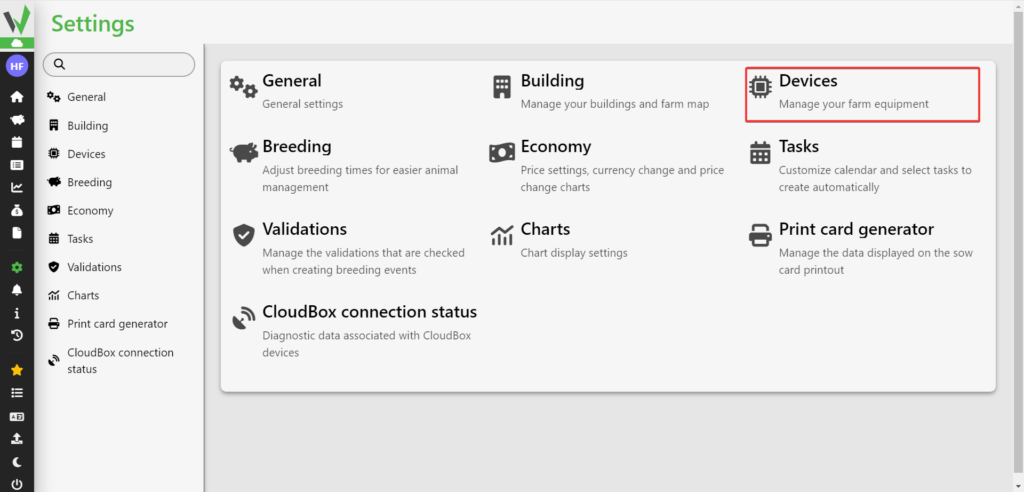
Then go to the Devices tab.

Settings page with the Devices tile highlighted by a red rectangle.

Then go to the Assign devices to places tab.

If you have not yet created chambers use the article below.

From the available chambers, select the one to which you want to assign the IPSUM and click the selected button. Clicking it will automatically assign it to the chamber.
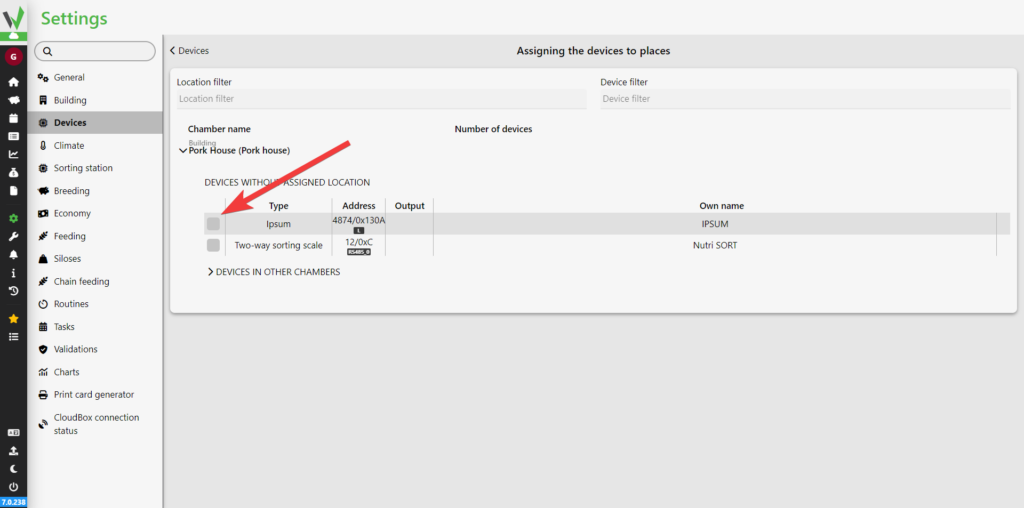
Assigning the devices to places screen with a red arrow pointing to the selection checkbox next to the IPSUM device listed under Devices without assigned location.
Updated on 2026-07-23
Was this article helpful?

Related Articles

Need Support?
Can't find the answer you're looking for?
Contact Support

Leave a Comment