1. Home
  2. Resuts
  3. How to add parameters on the dashboard – results?

How to add parameters on the dashboard – results?

1 To add parameters to the dashboard, go to the “Results” tab from the top navigation menu of the application.
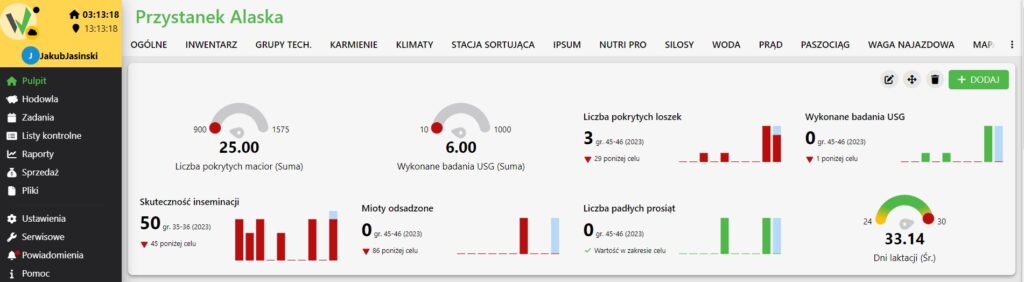
Results dashboard showing several parameter tiles, such as number of covered sows, USG examinations, insemination effectiveness, weaned litters, and dead piglets, with edit, move, delete, and Add icons in the top right corner.

2. in the upper right corner of the screen we have an “Add” button for adding new parameters.

3. select the item you want to add to the dashboard. You can choose between an element of type pointer or number.
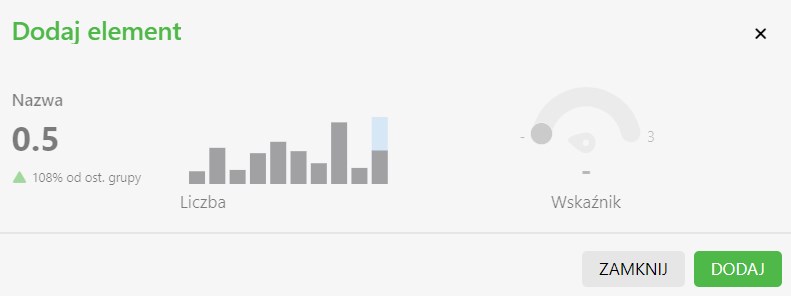
Add element dialog showing a number-type tile preview with a bar chart next to a pointer-type gauge preview to choose from.

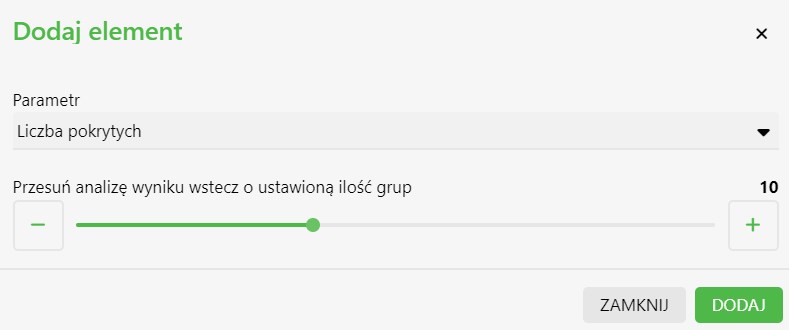
4. from the drop-down list, select the type of parameter for which you want to see the results and specify the time interval of the displayed analysis.
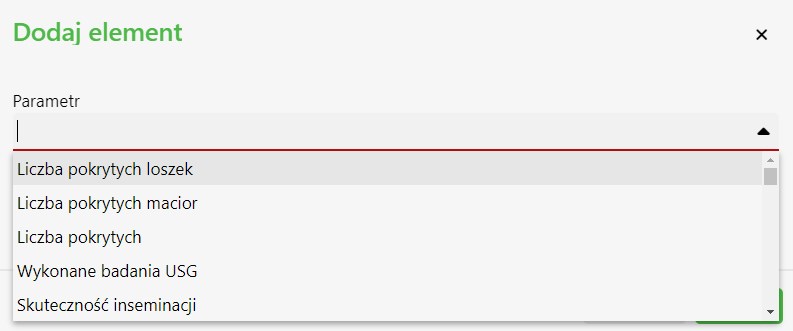
Add element dialog with the Parameter drop-down open, listing options such as number of covered gilts, number of covered sows, number of coverings, USG examinations performed, and insemination effectiveness.
Add element dialog with the parameter set to Number of coverings and a slider to shift the result analysis back by a set number of groups.

5 The added parameter appears dashboard.
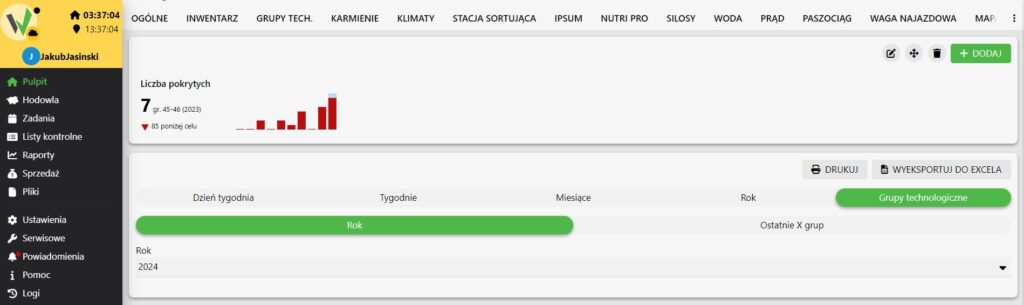
Newly added Number of coverings tile on the dashboard, expanded with a chart and time-range filters (day of week, weeks, months, year, technology groups) plus print and Excel export buttons.

6 The added parameters can be edited using the “Edit” function or deleted using the “Delete” function. You can also rearrange the parameters on the dashboard by using the arrow and dragging the selected item to another location.

Updated on 2026-07-23
Was this article helpful?

Related Articles

Need Support?
Can't find the answer you're looking for?
Contact Support

Leave a Comment