1. Home
  2. Resuts
  3. How to hide unnecessary parameters?

How to hide unnecessary parameters?

1 To hide the parameters on the results, select the “Results” tab from the top navigation menu.
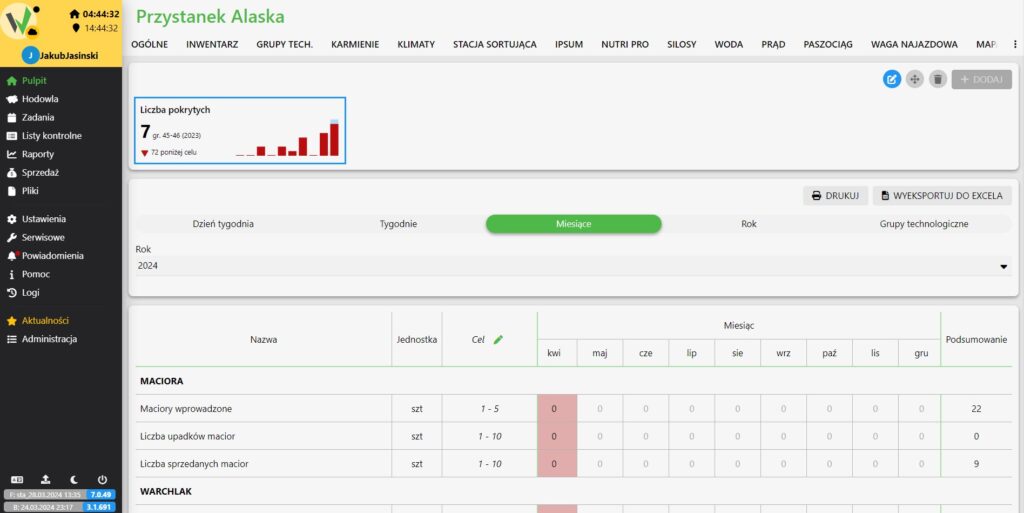
Results screen showing the parameter table with the Target (Cel) column, including the pencil icon used to open the parameter visibility panel.

2. then click the pencil icon next to the “Target” column.
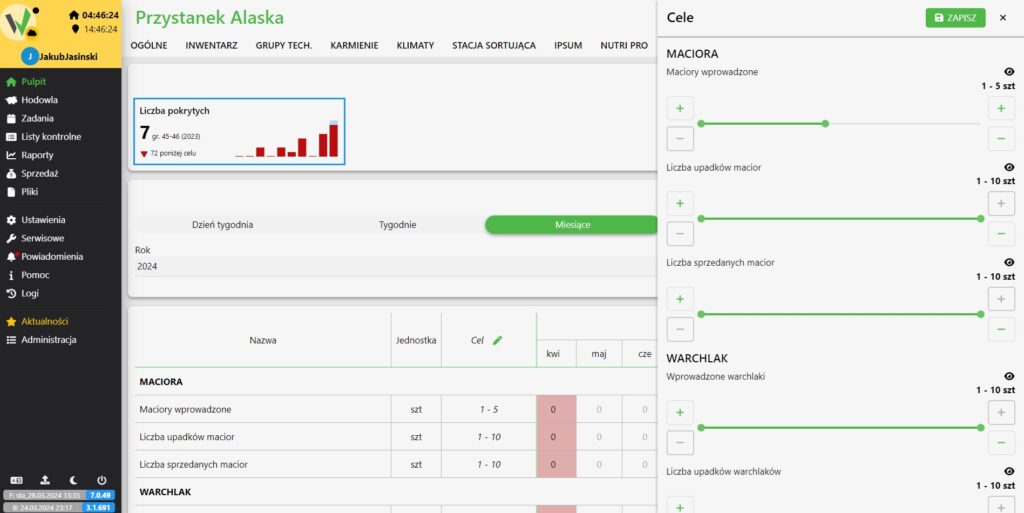
Open Targets (Cele) side panel listing parameters such as Maciory wprowadzone and Liczba upadków macior, each with an eye icon used to show or hide it in the results table.

3. an additional menu appears with all the parameters in the list. After clicking the “eye” icon next to the selected parameter, we can hide the unnecessary parameter or restore the visibility of the previously hidden parameter.
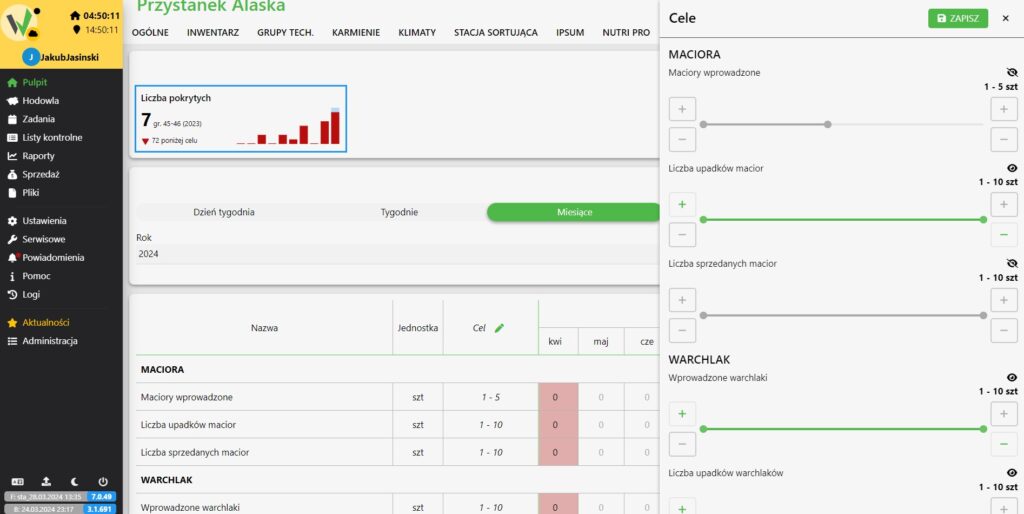
Targets (Cele) side panel with the Maciory wprowadzone parameter shown grayed out after its eye icon was clicked, demonstrating how a hidden parameter appears in the list.
Gray hidden parameters
Updated on 2026-07-23
Was this article helpful?

Related Articles

Need Support?
Can't find the answer you're looking for?
Contact Support

Leave a Comment