1. Home
  2. Task & Calendar
  3. How to add a task category?

How to add a task category?

Browser application

After logging in, go to the “Settings” tab.
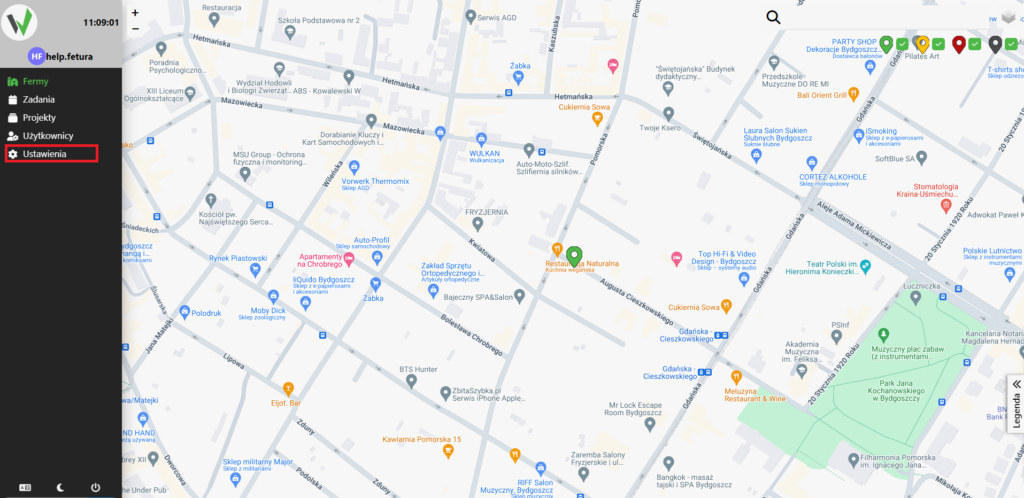
Fetura Help browser view with a farm map and the Settings item in the left sidebar highlighted by a red rectangle.

Adding task categories

Then go to the “General” tab.
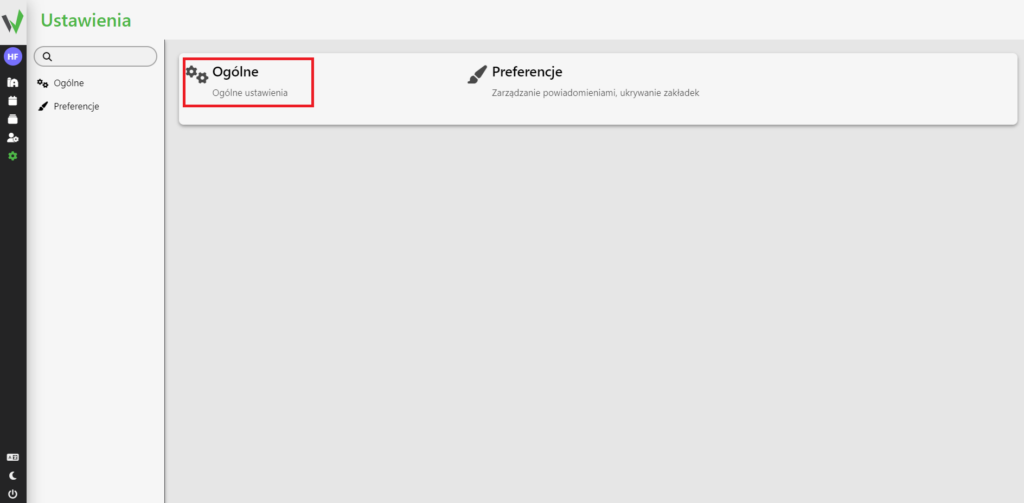
Settings page with the General tile highlighted by a red rectangle, used to open dictionary settings.

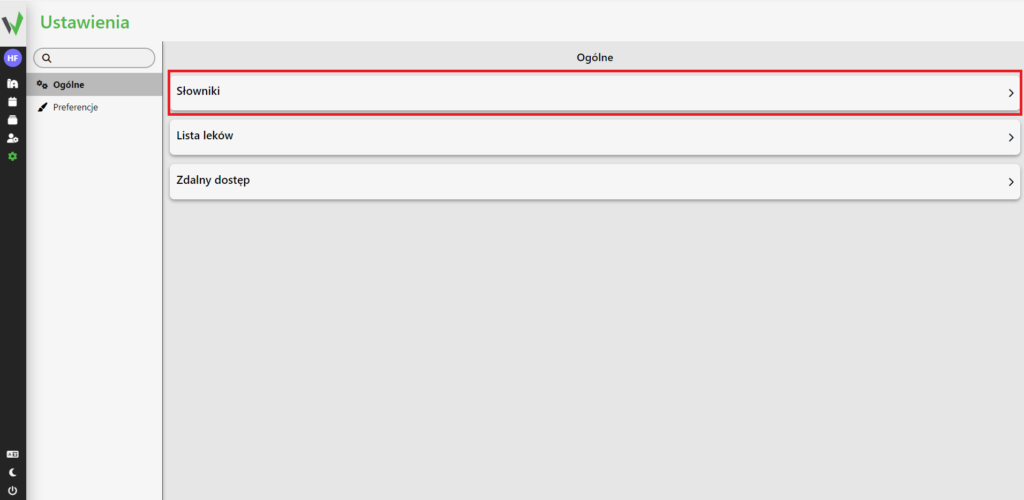
Then go to the dictionaries tab .

General settings page with the Dictionaries entry highlighted by a red rectangle.

Once you’re in, scroll down to the bottom of the page, where you’ll find the task categories. To add a new category, click the marked button.
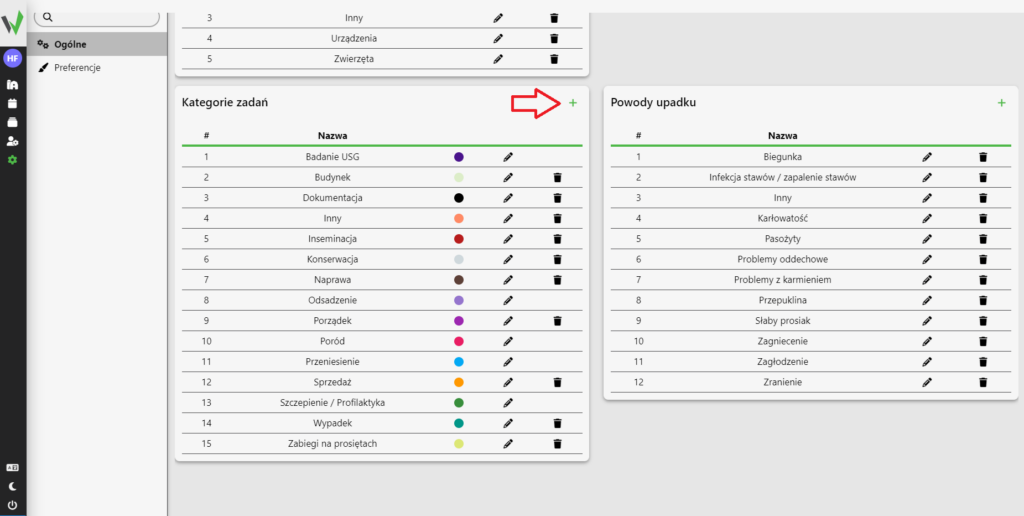
Dictionaries page showing the Task Categories list with the green plus button highlighted by a red arrow, used to add a new category.

After clicking the button, a form will appear. In it, specify the name of the category and choose its color. Then click the “ADD” button to add a category.
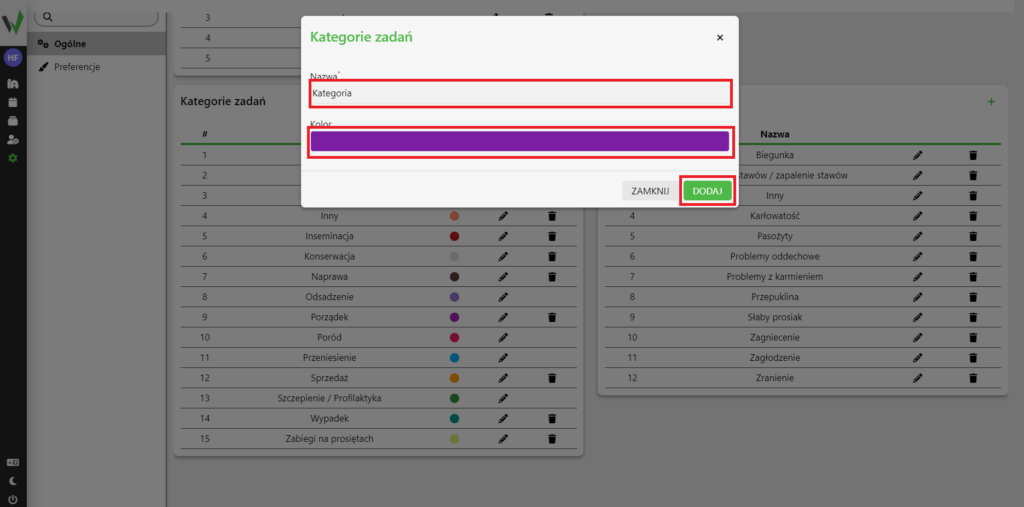
Task Categories form with red rectangles around the category name field, the color picker, and the ADD button used to save the new category.

Mobile application

After logging in, go to the settings tab
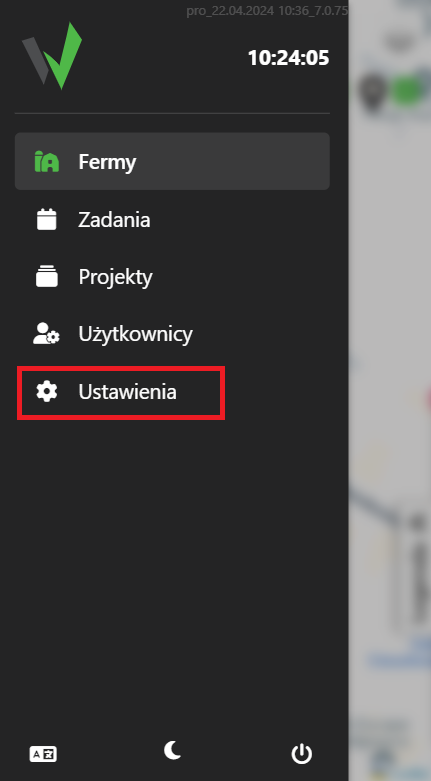
Mobile app side menu with the Settings item highlighted by a red rectangle, used to reach task category settings on mobile.

Once in the tab, follow the steps from Adding task categories

Updated on 2026-07-23
Was this article helpful?

Related Articles

Need Support?
Can't find the answer you're looking for?
Contact Support

Leave a Comment