1. Home
  2. Task & Calendar
  3. How to create a task for the climate controller?

How to create a task for the climate controller?

Creating a task for a climate controller is the ability to schedule a change in its operating parameters for a specific day and time.

Browser application

After logging in, go to the climate tab.
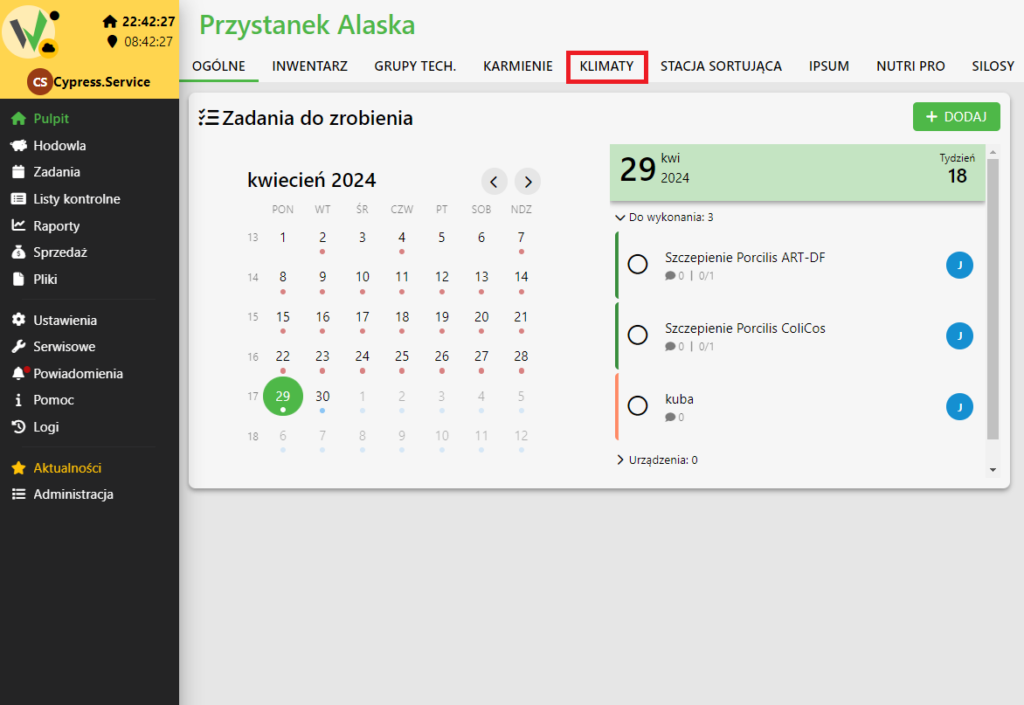
Fetura CLOUD top navigation bar with the KLIMATY (Climate) tab highlighted in red, used to open the climate controllers view.

Adding a task

From the available climate controllers, click on the one for which you want to create a task.
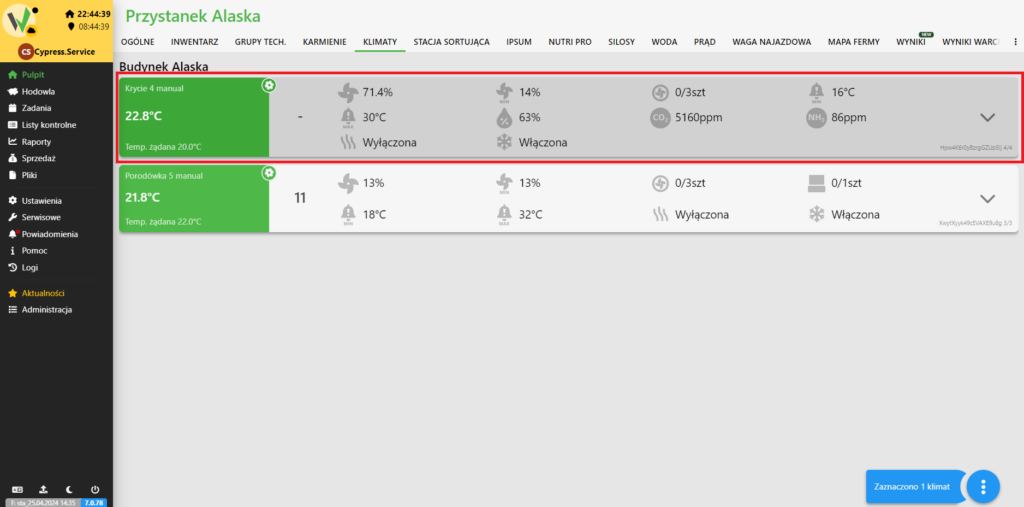
Climate view showing the list of climate controllers for a building; the first controller tile is highlighted in red to select it for creating a task.

After selecting the driver, click the selected button.
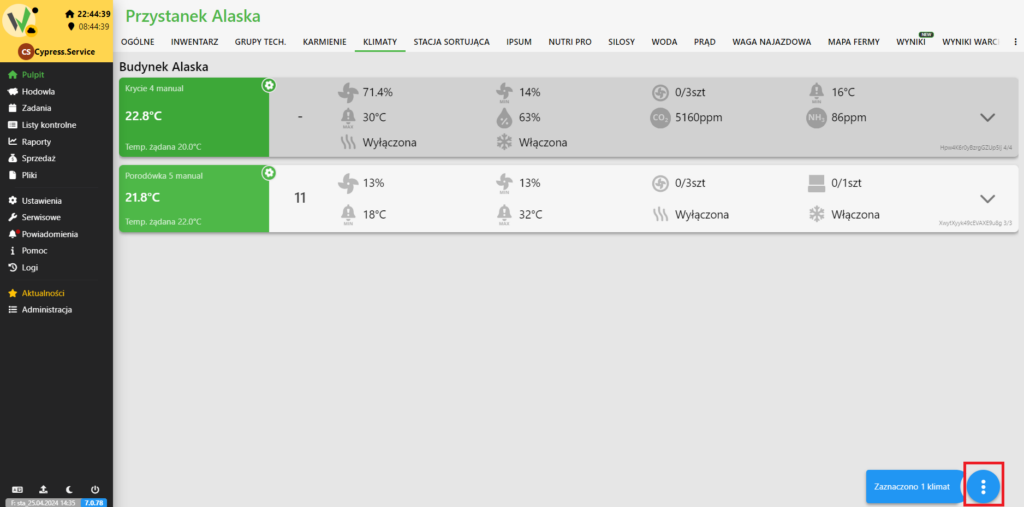
Climate controllers view with the round blue menu button in the bottom-right corner highlighted in red, used to open the controller's action menu.

From the available options, choose the one you want to schedule.
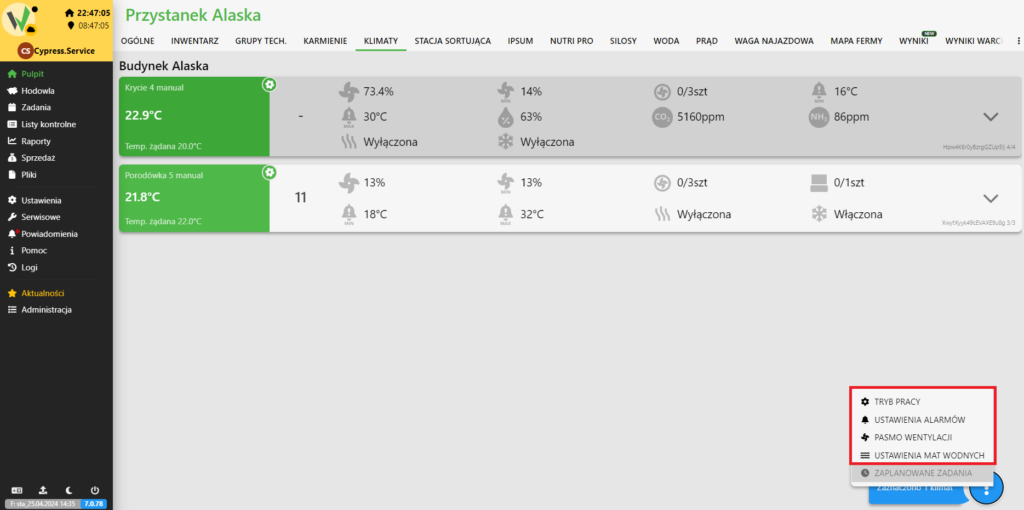
Pop-up menu of climate controller options (work mode, alarm settings, ventilation band, water mat settings, scheduled tasks) highlighted in red, from which the user picks the parameter to schedule.

After selecting the option that interests you, change its parameters as required.
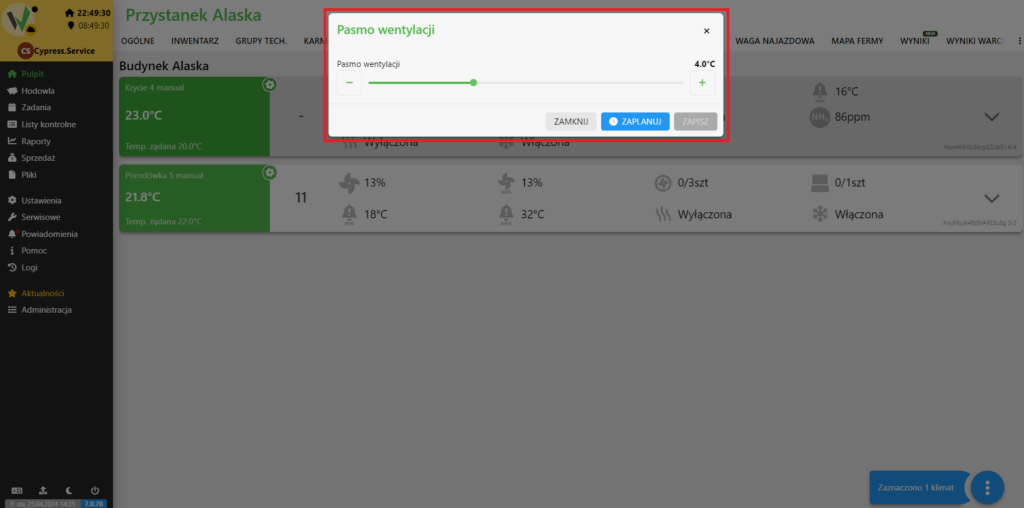
Pasmo wentylacji (ventilation band) dialog with the value slider, highlighted in red, where the user adjusts the parameter before scheduling it.

After adjusting the parameters, click the “SAVE” button.
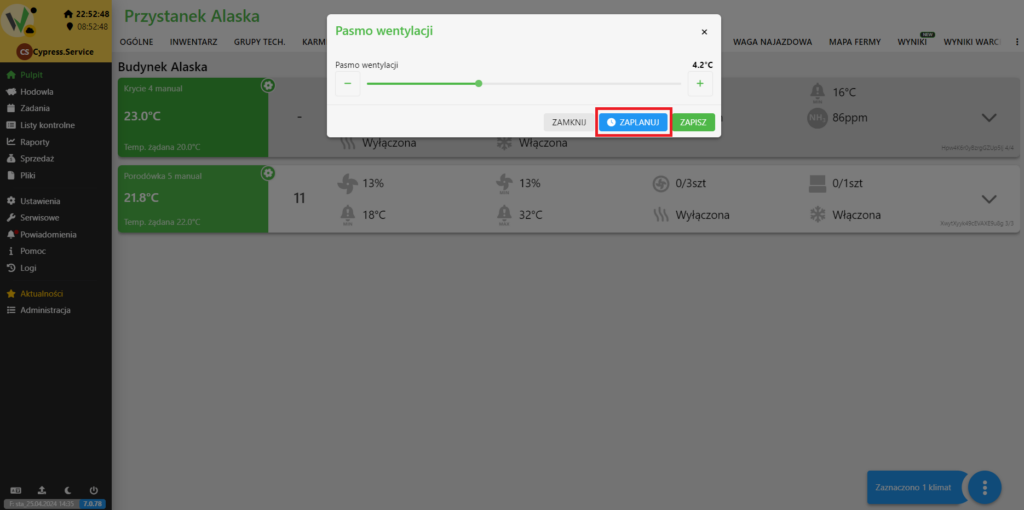
Ventilation band dialog with the blue ZAPLANUJ (Schedule) button highlighted in red, used to switch the dialog into date/time scheduling mode.

In the highlighted box, enter the date and time at which the parameters of the climate controller are to change.
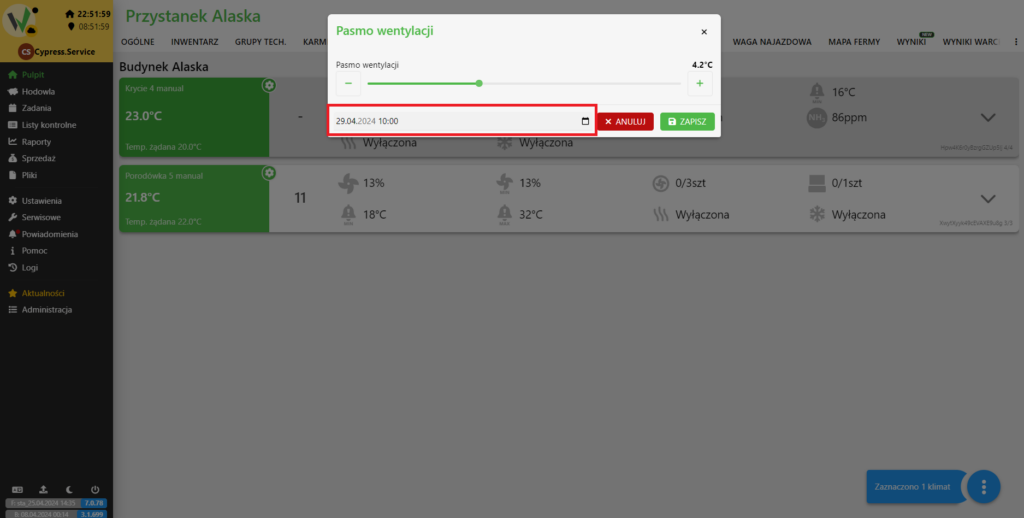
Ventilation band dialog with the date-and-time input field highlighted in red, where the user enters when the parameter change should take effect.

After filling in the data, click “SAVE”.
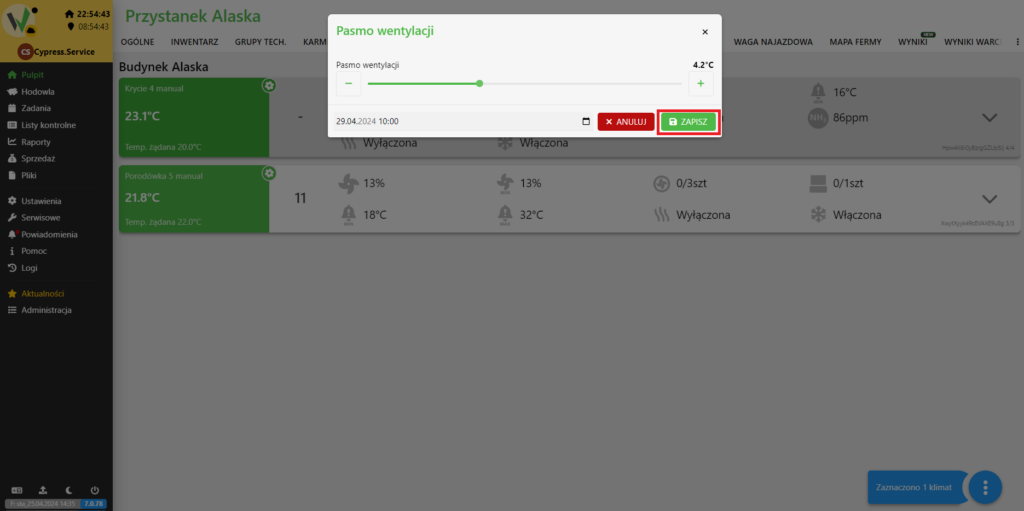
Ventilation band dialog with the green ZAPISZ (Save) button highlighted in red, used to confirm and save the scheduled task.

Mobile application

After logging in, click on the highlighted area.
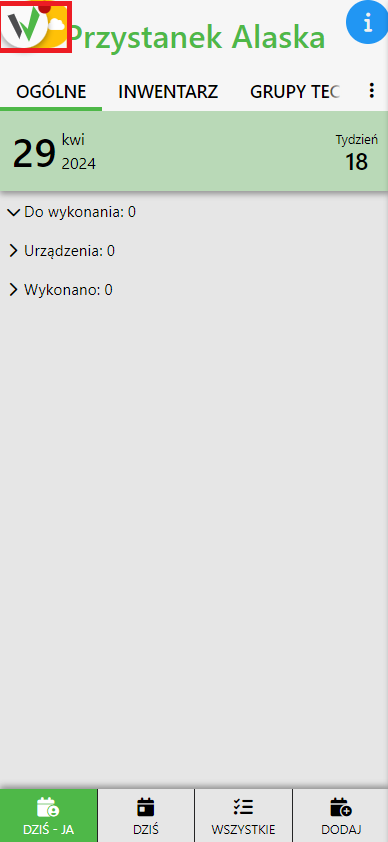
Fetura CLOUD mobile app home screen with the task list; the app logo icon in the top-left corner is highlighted in red, tapped to open the side navigation menu.

Then go to the “Climates” tab and follow the steps from Adding a task.
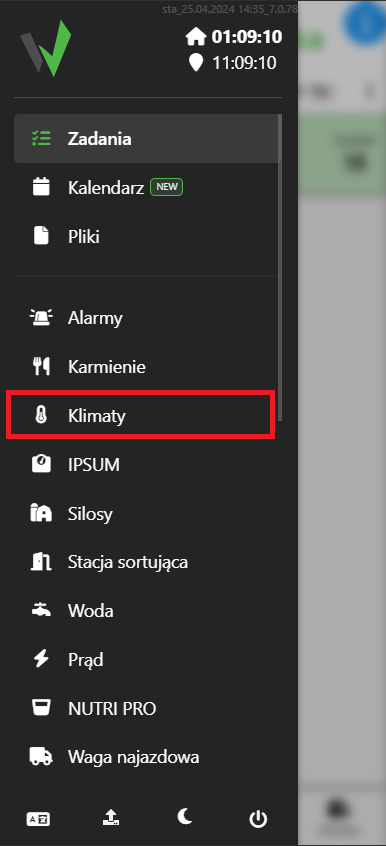
Fetura CLOUD mobile app side menu with the Klimaty (Climates) item highlighted in red, used to open the climate controllers section on mobile.
Updated on 2026-07-28
Was this article helpful?

Related Articles

Need Support?
Can't find the answer you're looking for?
Contact Support

Leave a Comment