1. Home
  2. Task & Calendar
  3. How to add attachments to a task?

How to add attachments to a task?

In order to add attachments to a task, you first need to select an existing task.

Browser application

“GENERAL” tab
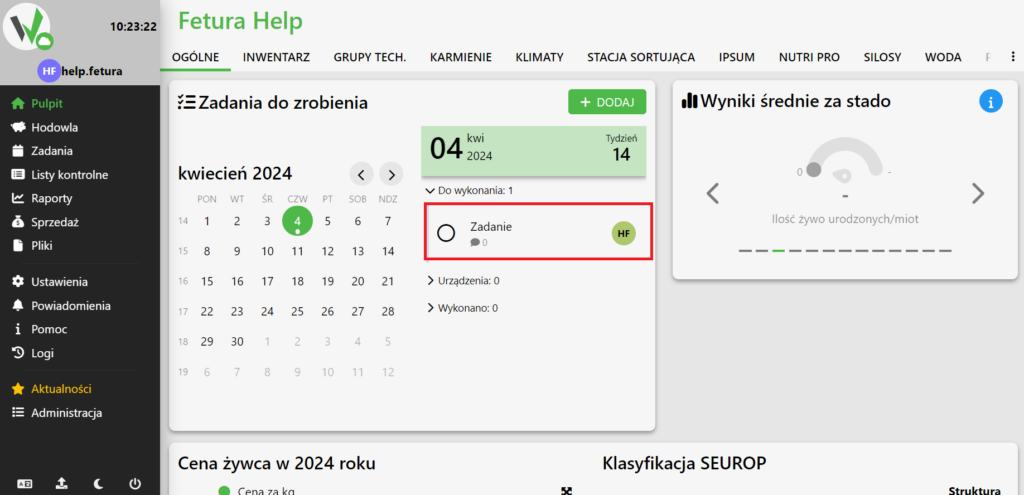
Fetura CLOUD General tab dashboard with a task entry in the Tasks widget highlighted in red, used to select a task.

Adding attachments

After selecting a task, a panel with its data will open.
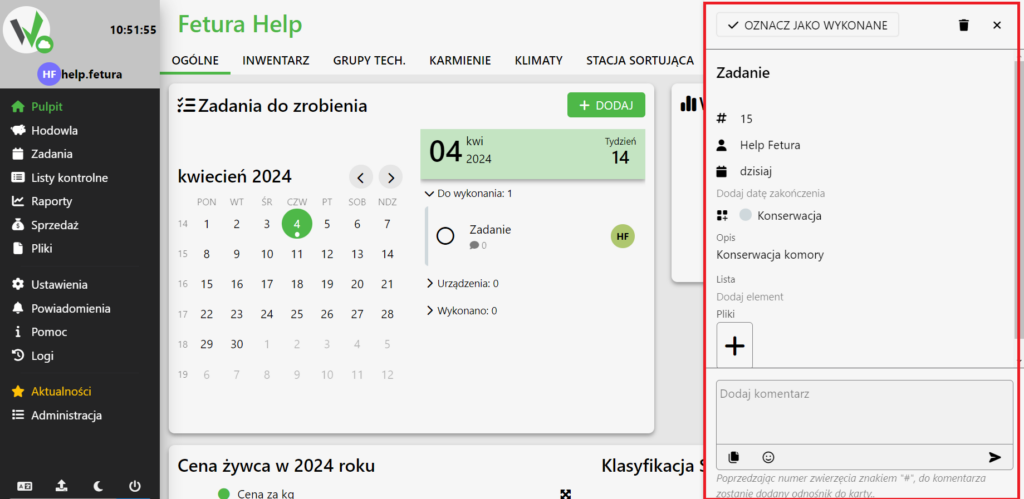
Fetura CLOUD dashboard with the task detail panel open on the right, highlighted in red, showing the task's fields and attachments section.

The open panel shows a button to add attachments. Click it to add attachments.
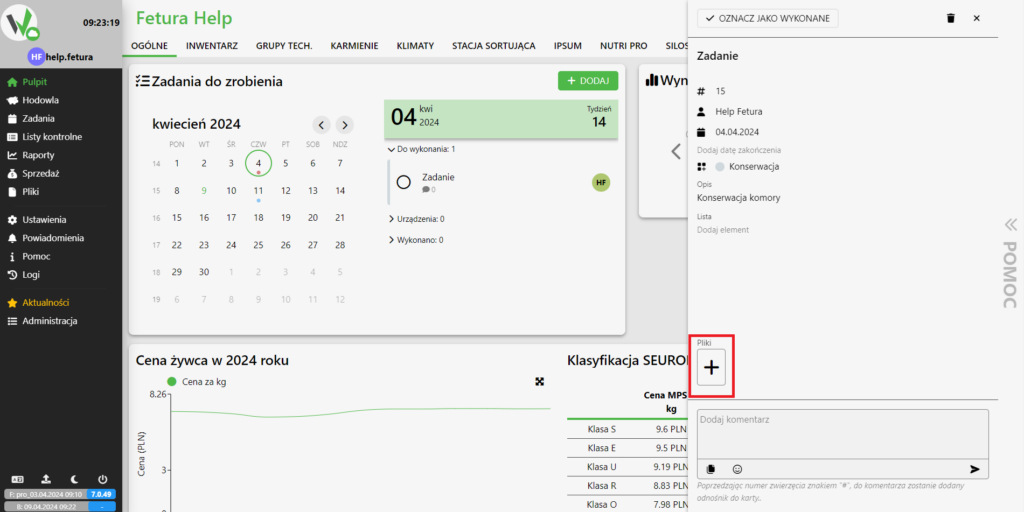
Task detail panel in Fetura CLOUD with the add attachment (+) button highlighted in red.

How to add attachments to a task on other views?

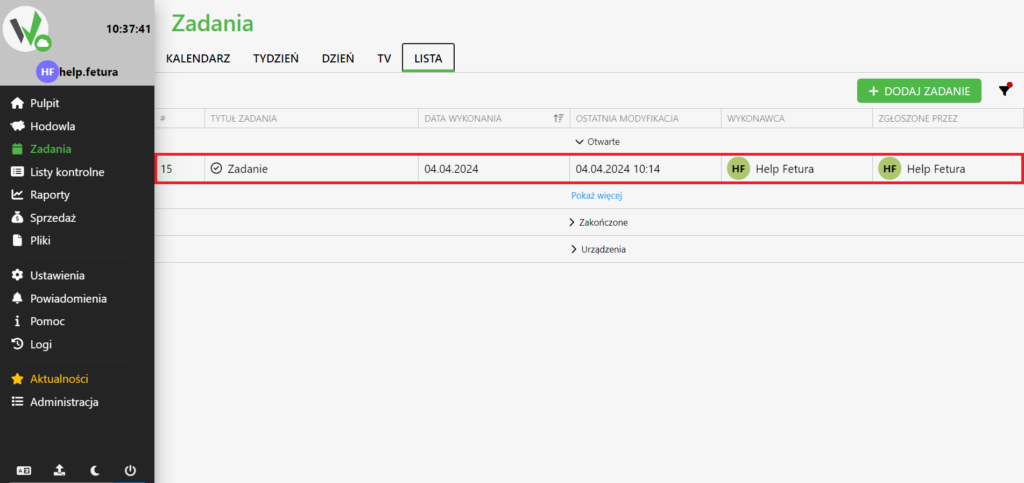
To add attachments on a view other than “General”, go to the “Tasks” tab. On each view, select the task and follow the steps from Adding attachments.
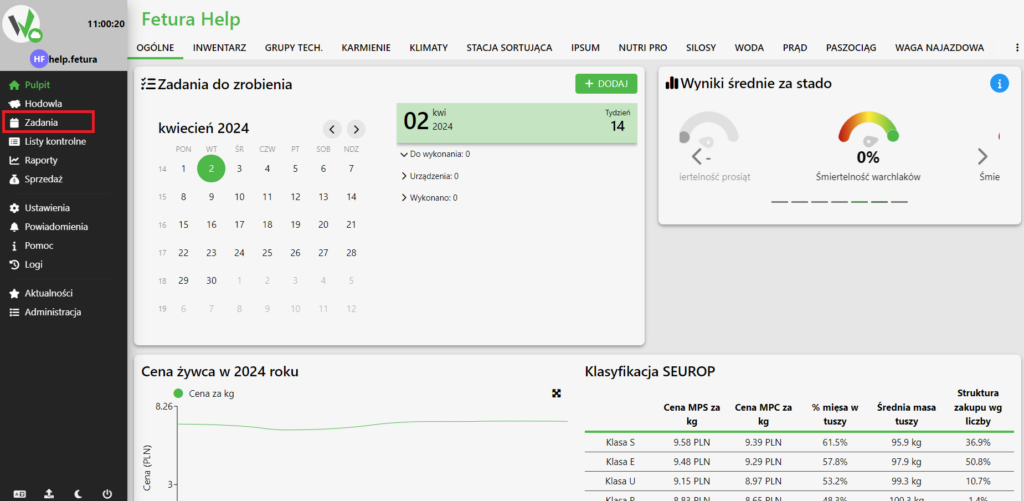
Fetura CLOUD sidebar menu with the Tasks item highlighted in red.

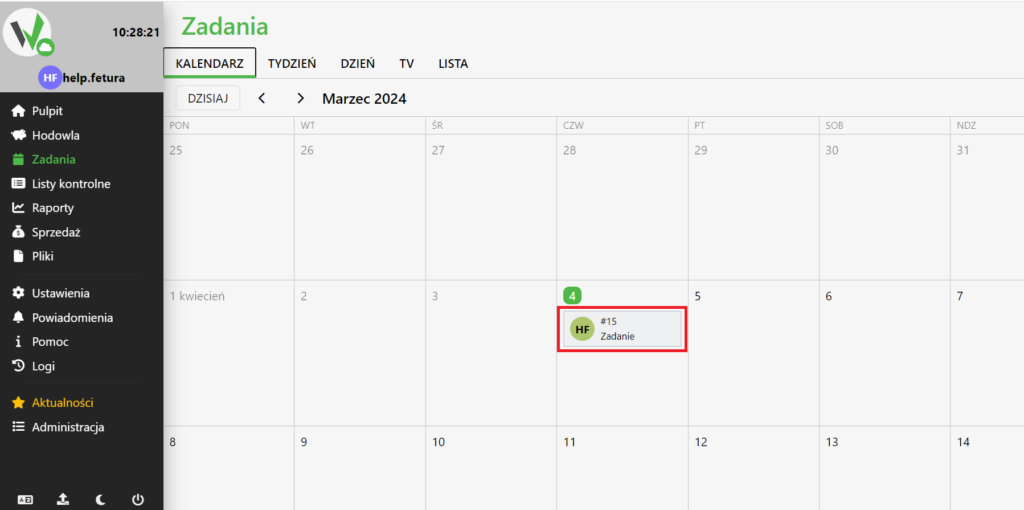
“CALENDAR” tab.

Tasks Calendar tab in Fetura CLOUD with a task entry on a day highlighted in red, used to select the task.

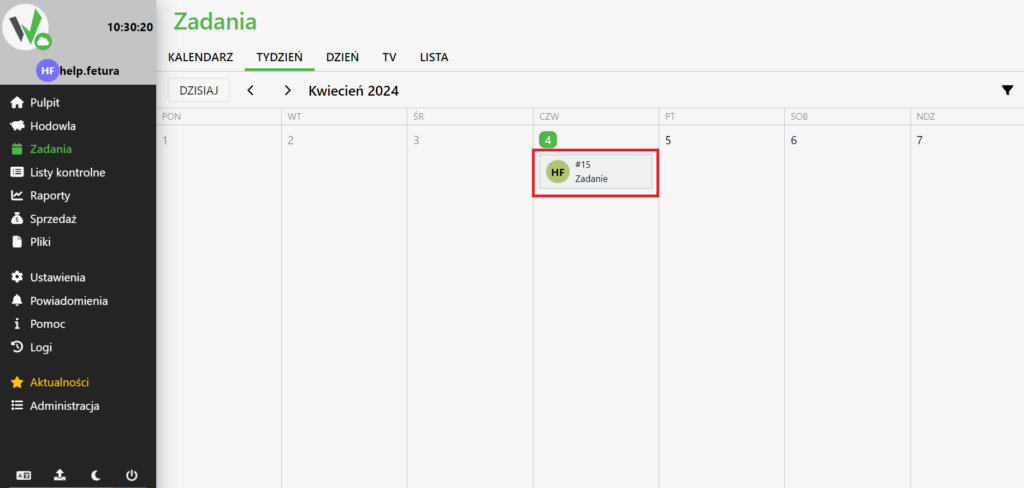
Tab “WEEK”

Tasks Week tab in Fetura CLOUD with a task entry highlighted in red, used to select the task.

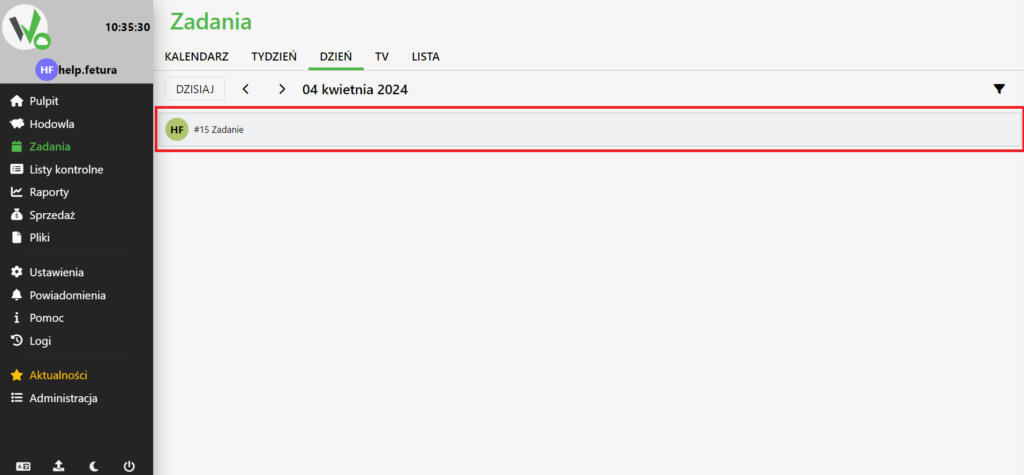
Tab “DAY”

Tasks Day tab in Fetura CLOUD with a task row highlighted in red, used to select the task.

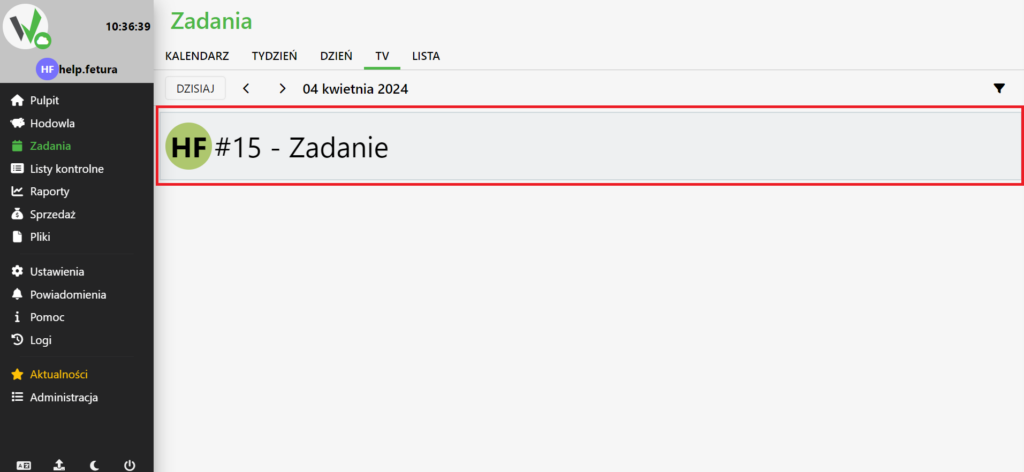
“TV” tab

Tasks TV tab in Fetura CLOUD with a task row highlighted in red, used to select the task.

“LIST” tab

Tasks List tab in Fetura CLOUD with a task row highlighted in red, used to select the task.

Mobile application

Main view

After entering the farm in the mobile app, select a task.
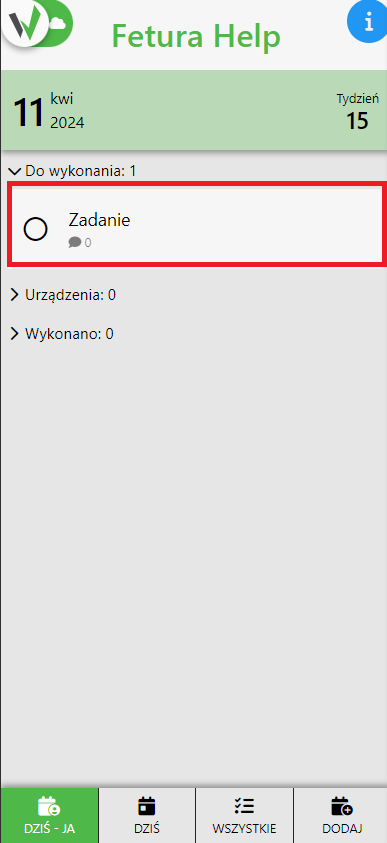
Fetura CLOUD mobile app main screen with a task entry highlighted in red, used to select the task.

Adding attachments

After selecting a task, a panel with its data will appear. Click on the highlighted button to add attachments.
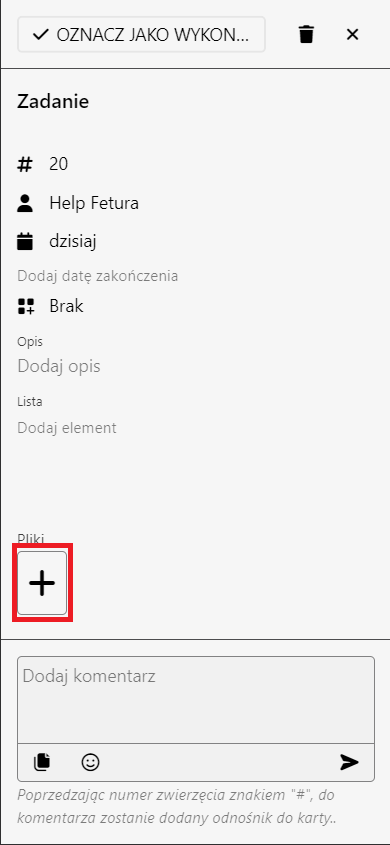
Fetura CLOUD mobile app task detail panel with the add attachment (+) button highlighted in red.

Calendar view

Open the side menu by clicking the highlighted button.
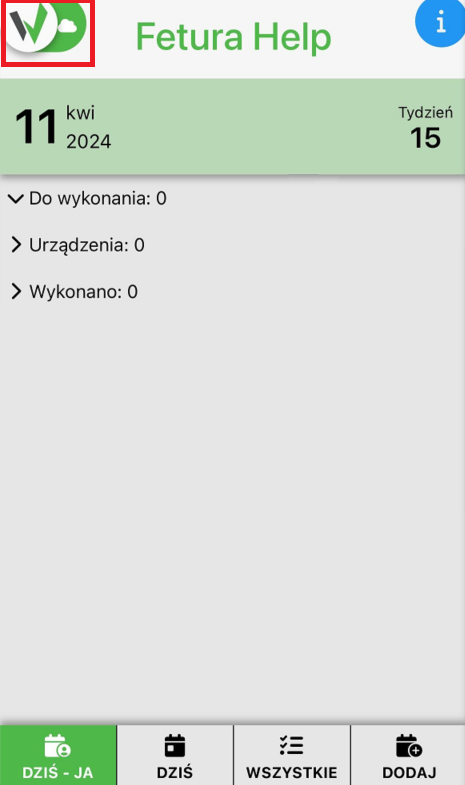
Fetura CLOUD mobile app main screen with the side-menu (logo) button highlighted in red.

Enter the calendar view by selecting it from the menu.
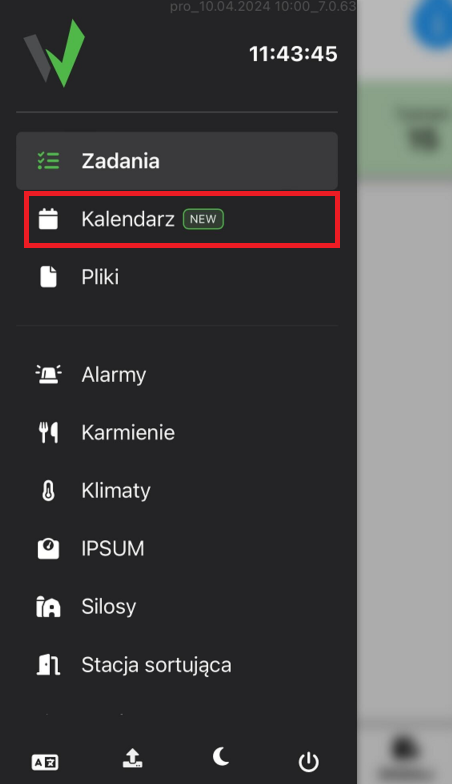
Fetura CLOUD mobile app side menu with the Calendar tab highlighted in red.

Once in the calendar view, select a task by clicking on it.
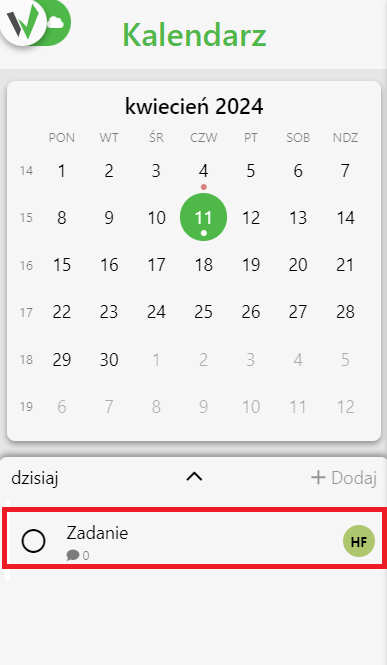
Fetura CLOUD mobile app calendar view with a task entry highlighted in red, used to select the task.

Then follow the steps from Adding attachments.

Updated on 2026-07-22
Was this article helpful?

Related Articles

Need Support?
Can't find the answer you're looking for?
Contact Support

Leave a Comment