
Hi! We’re here to help you get started with the Pig Counter—your indispensable tool for managing your farm. This guide will show you how to quickly and easily connect and set up the device. Let’s get started!
1. Configuration
Once the device is connected and running, follow the steps below in the order listed to synchronize the equipment.
- Finding a camera on the network: The “Camera Settings” screen will display available devices along with their IP addresses. If this does not happen, click the blue “Scan Network” button to have the system automatically detect cameras connected to your local network. If that doesn’t help, check that the connection is correct.
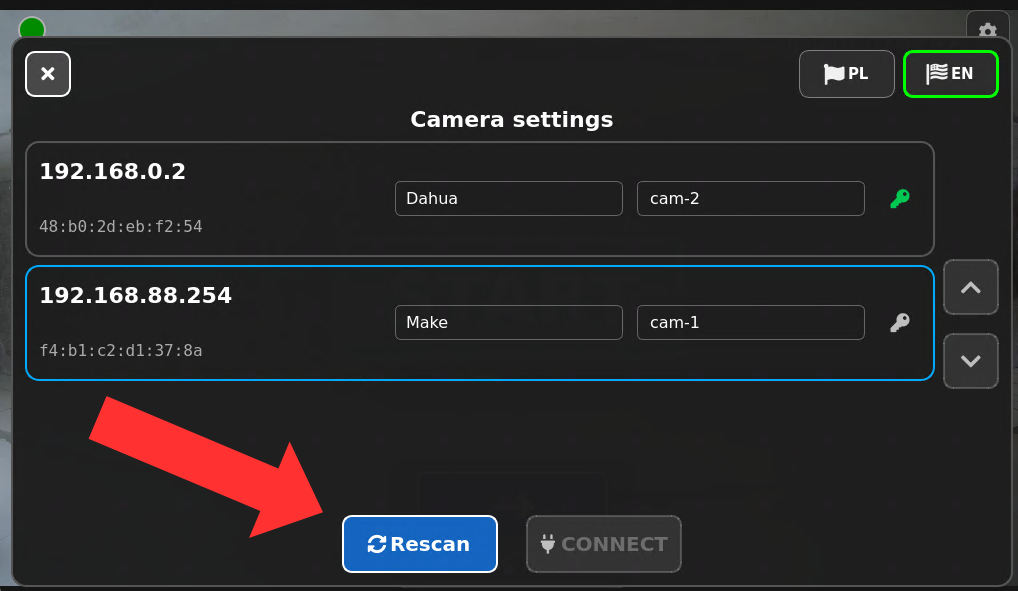
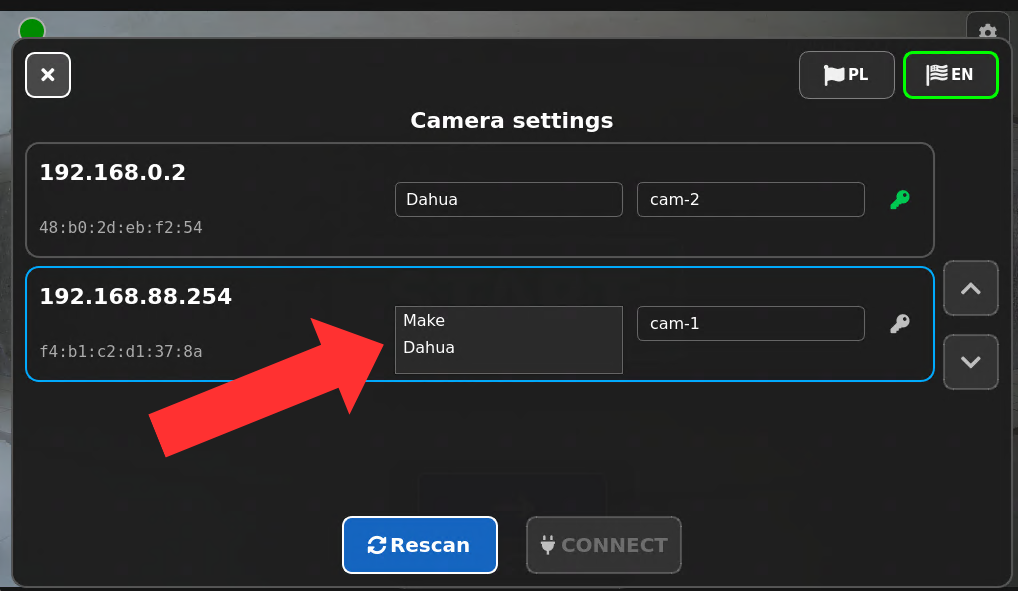
- Selecting the camera manufacturer: In the list next to the detected camera, click the “Manufacturer” field and select the appropriate brand of your equipment (e.g., Dahua).
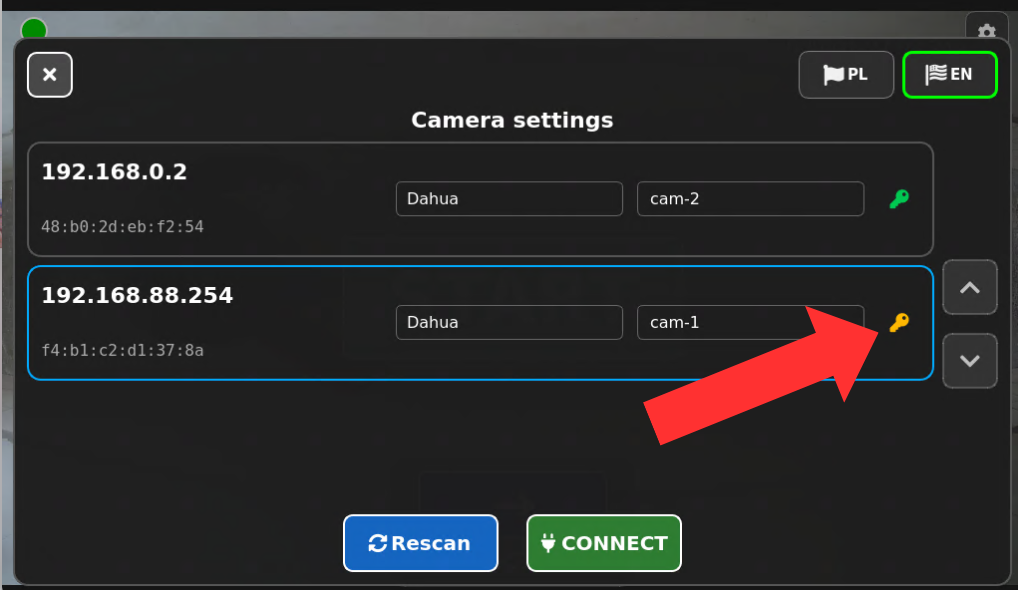
- To access the login options: Click the yellow key icon located to the right of the camera name field.
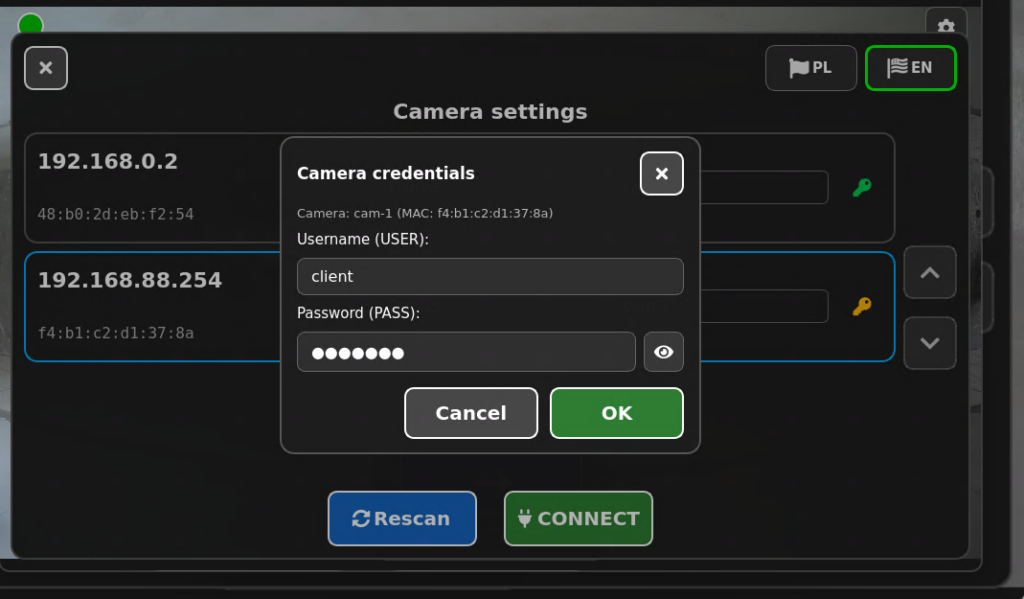
- Entering the camera’s login credentials: A new window will appear on the screen. Enter the username and password assigned to your device, and then confirm the information by clicking the green “OK” button.
- To edit the camera name: Click the text field containing the current camera name (e.g., “cam-1”), which is located right next to the manufacturer you selected earlier. This will help you identify your cameras more easily when you have several of them.
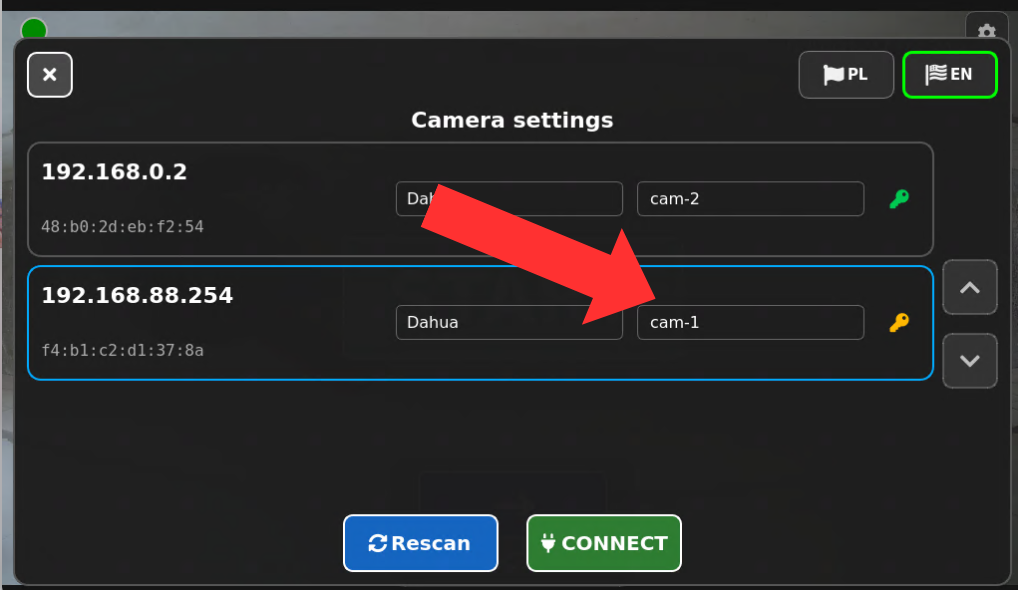
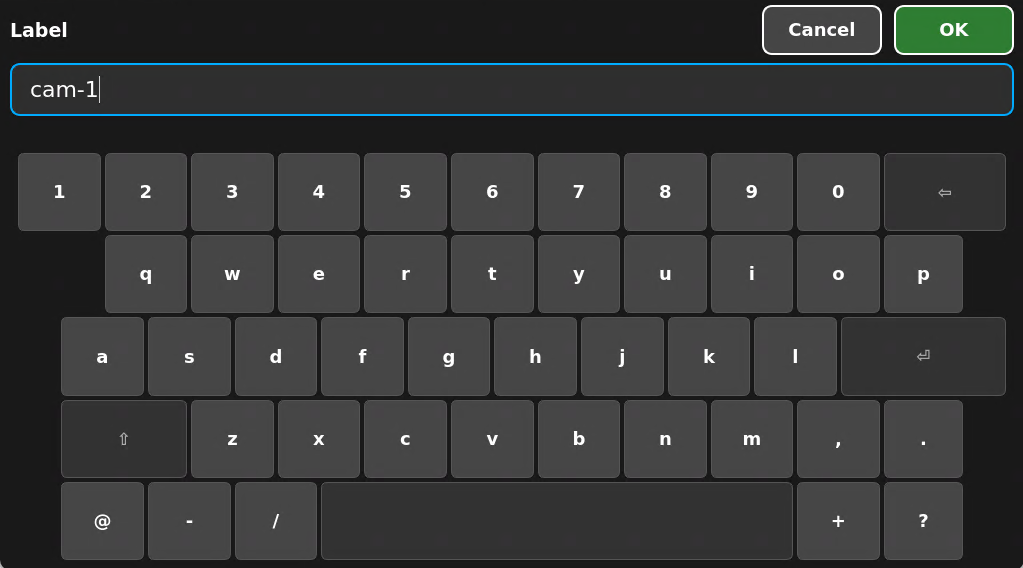
- Entering a new name: A large keyboard will appear on the screen. Use it to enter a clear, descriptive name for the selected camera, which will help you identify locations on the farm later. After entering the appropriate name, confirm the change by clicking the green “OK” button in the upper-right corner.
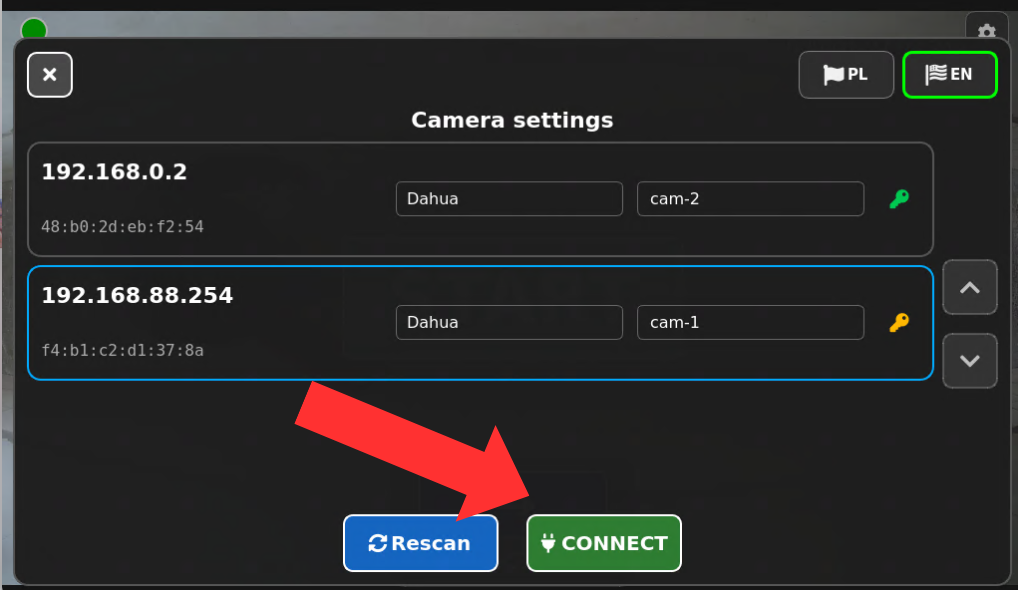
- Connecting to the camera: After entering all the information (manufacturer, name, and login credentials), click the green “CONNECT” button at the bottom of the screen to save the settings and complete the connection process.
Congratulations! You’ve successfully connected and configured the Pig Counter.
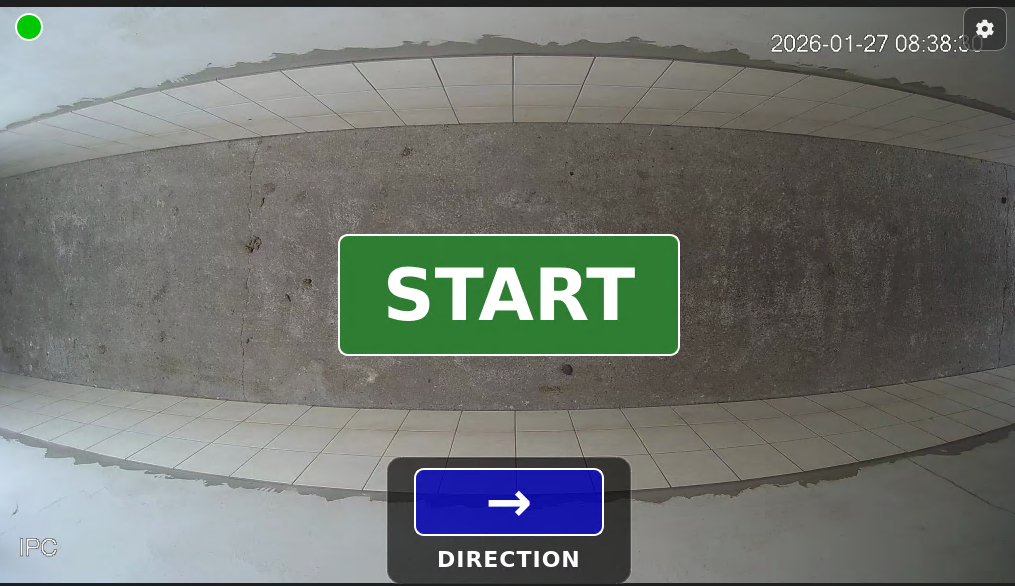
Want to start counting pigs? Check out the features this device has to offer.


