
This tutorial will describe what steps need to be taken, in order to add the SK-3 and SK-4 climate controller to the application.
Devices tab
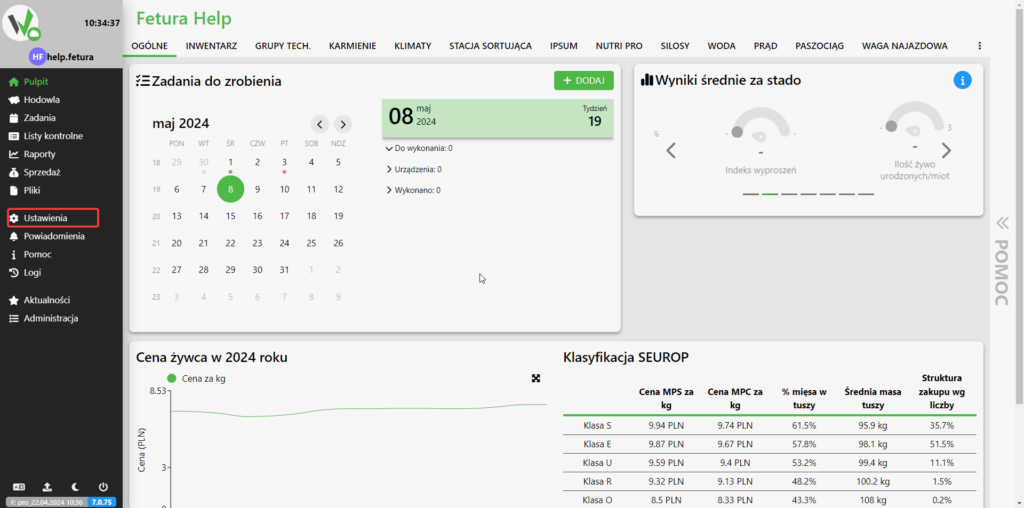
After logging in, go to the “Settings” tab.
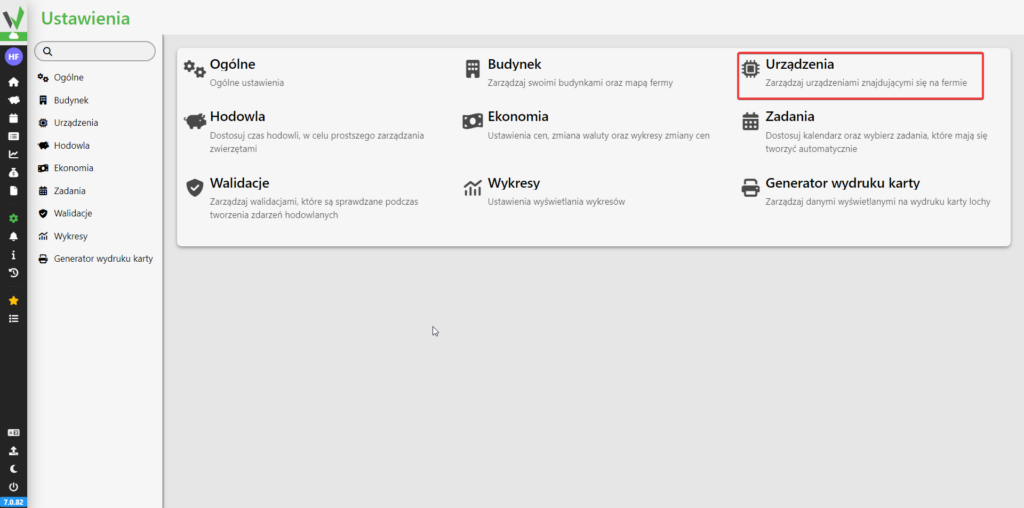
Then go to the “Devices” tab.
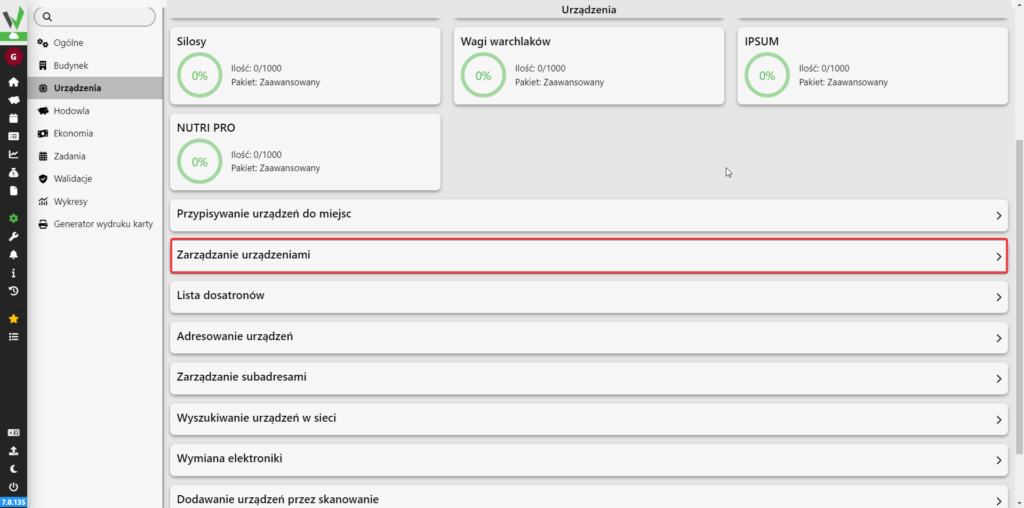
Then go to the “Device Management” tab.
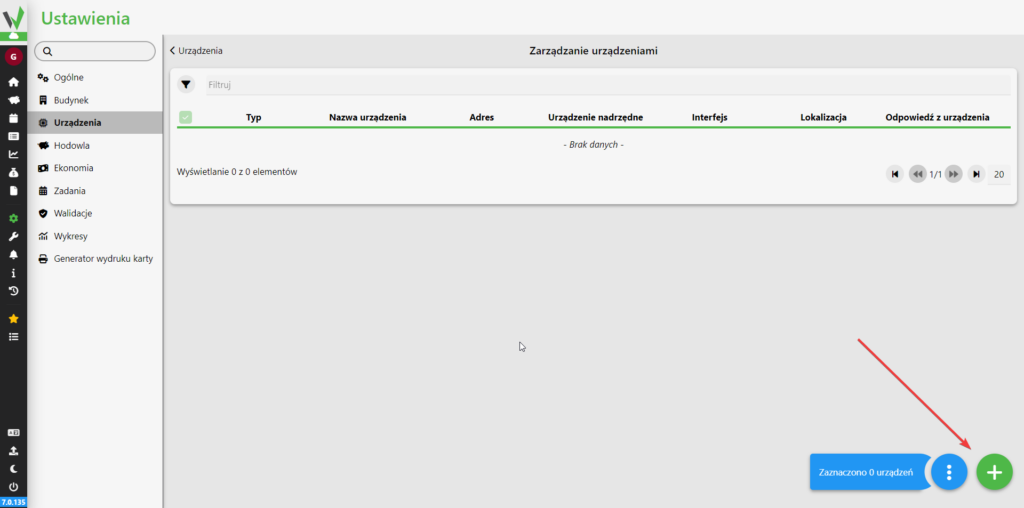
Then click the highlighted button
Adding a climate controller
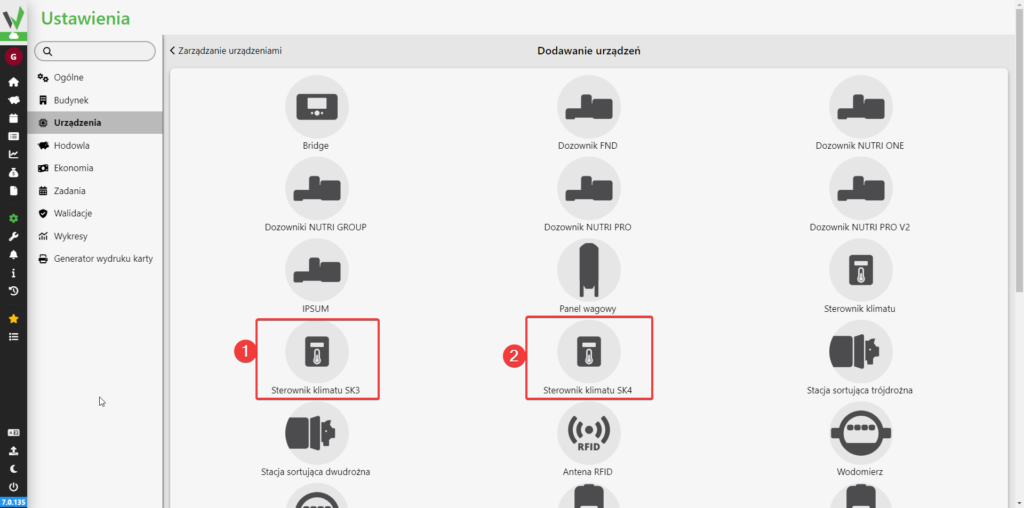
If you want to add SK-3 from the available options, select [1], otherwise select [2].
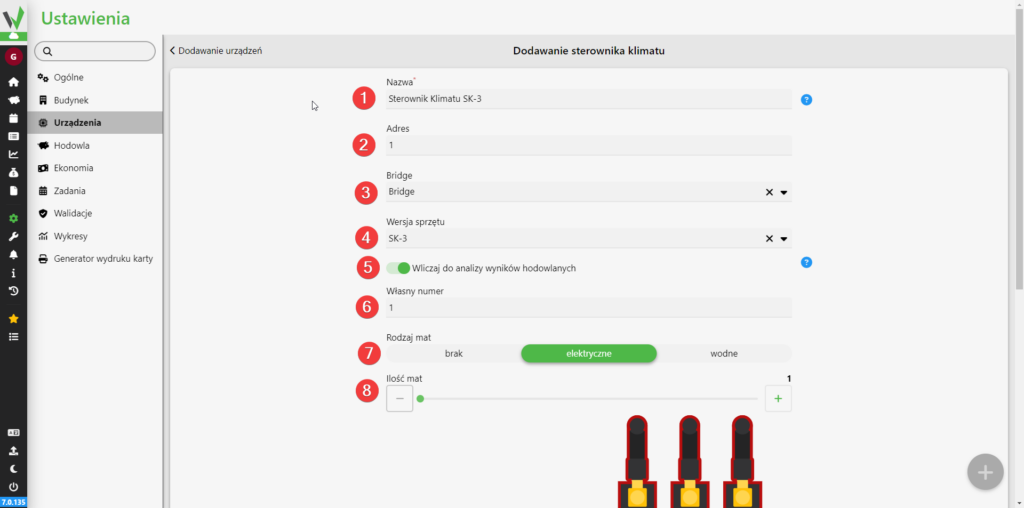
Enter the name you want the climate controller to have [1], enter the address of the controller [2], enter which Bridge it is to be connected to [3], select the hardware version of the controller [4], select whether the controller is to be included in the analysis of breeding results [5], optionally enter a number so that the controllers can be distinguished in the climate tab [6], select what type of mats are connected to the controller [7], in the case of electric mats, enter how many mats are connected to the controller [8].
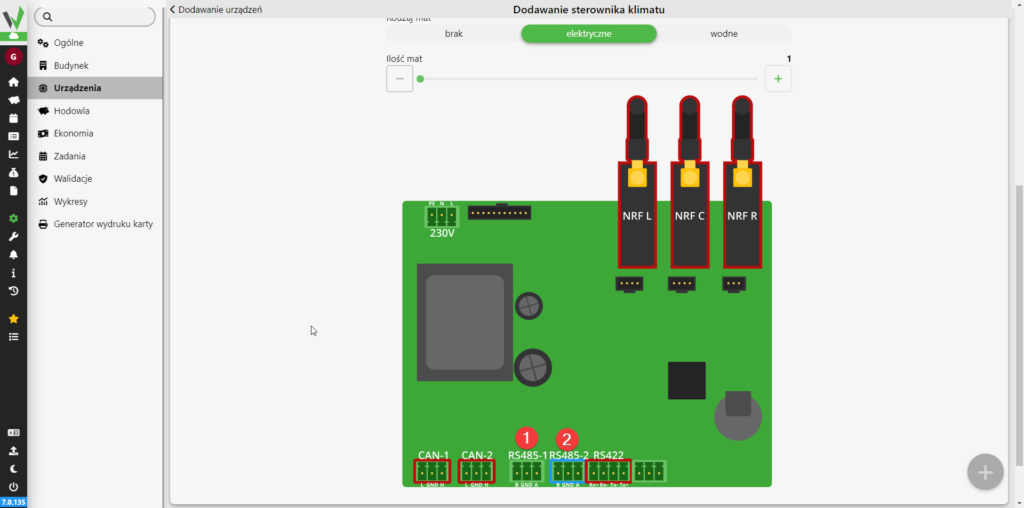
Then select which interface the controller is connected to by clicking on the corresponding connector [1][2].
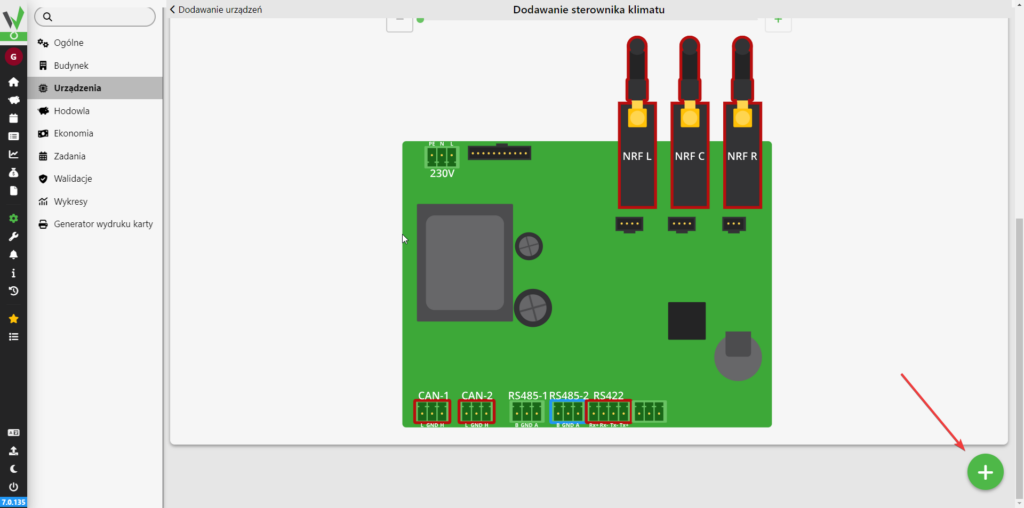
In the last step, click the highlighted button to add the driver to the application.
Next steps
How do I configure a newly added climate controller?


