
To log into the FeturaCloud system, follow these steps:
- Open a web browser and go to fetura.com.pl
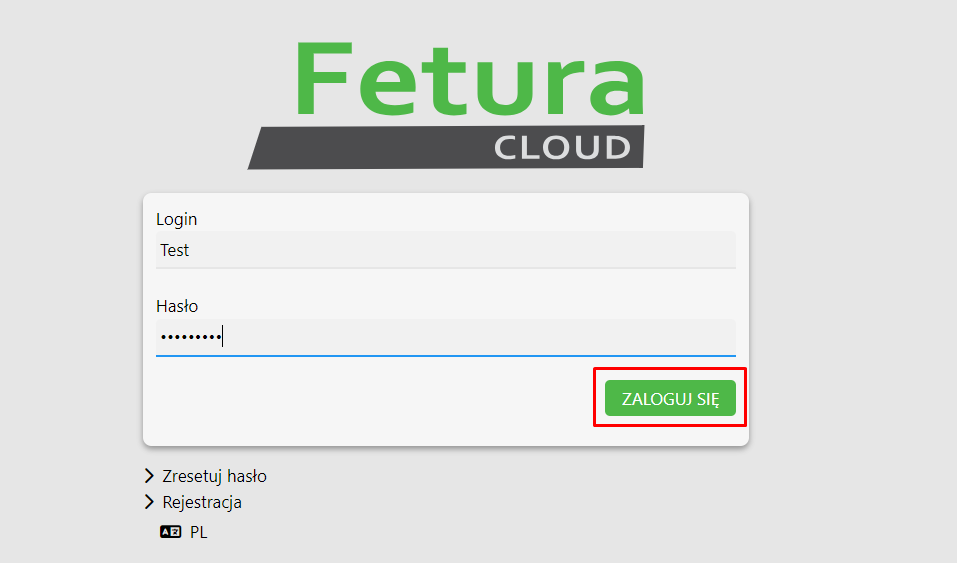
- You will be taken to the login form. Enter your username and password that you provided during registration.
- Locate the “Login” button and click on it.

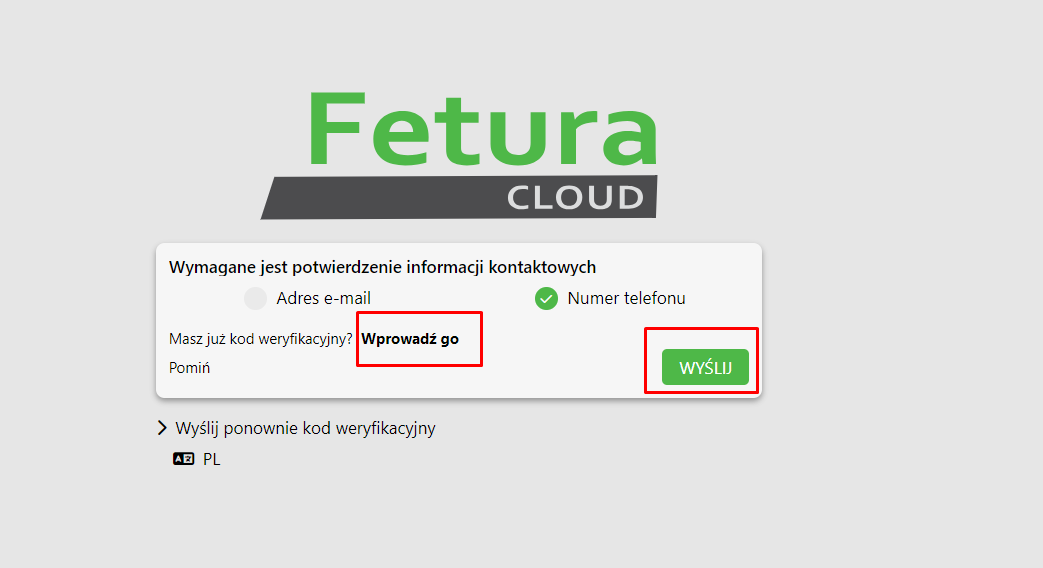
- The system will ask you to verify your email address and phone number. To do so, select a specific option (phone or email) and click “Send.”

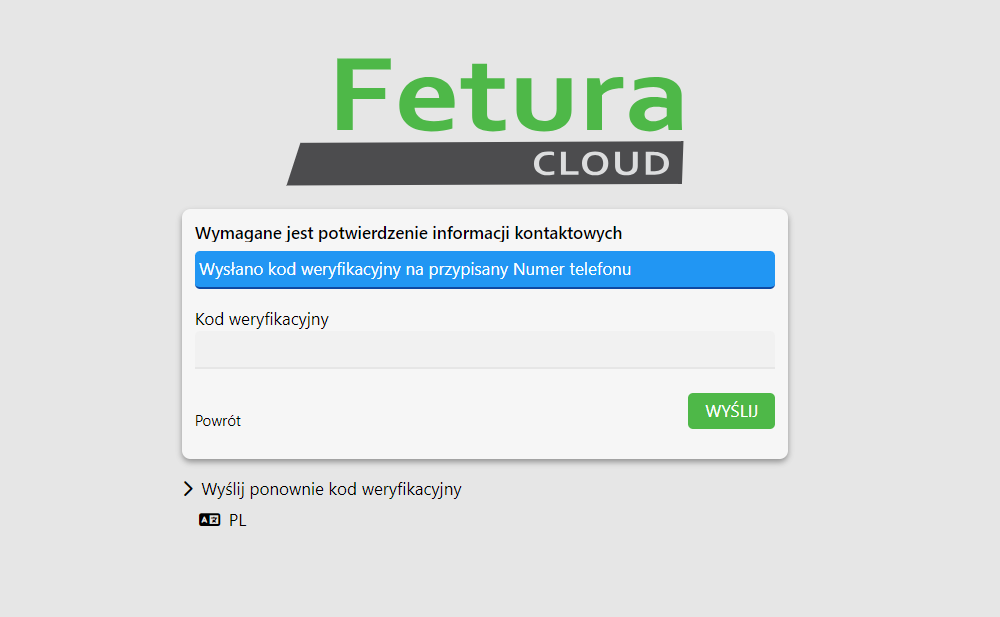
- A verification code will be sent to the phone number or email address provided in advance. Type it in the appropriate window and press the “Send” button.

- After verifying your phone number or email address, you will be logged into the system.
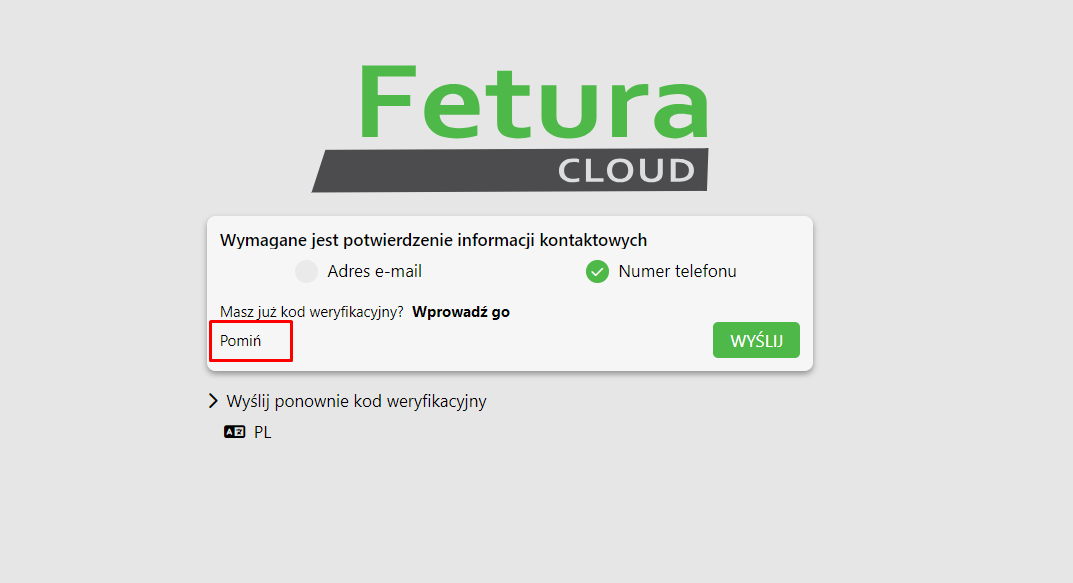
- You can also skip verification to do it at a later time. To do this, click the “Skip” button.

After successfully logging in, you will be redirected to your user panel, where you will be able to use FeturaCloud features and services.


