1. Home
  2. Getting Started
  3. How do I connect an RFID scanner to my phone? – Setting up an RFID scanner

How do I connect an RFID scanner to my phone? – Setting up an RFID scanner

In this article, you’ll learn how to pair a scanner with your phone using Bluetooth.

To begin with

This article discusses the setup of three different scanners. The photo below shows the scanners in question, labeled with numbers.
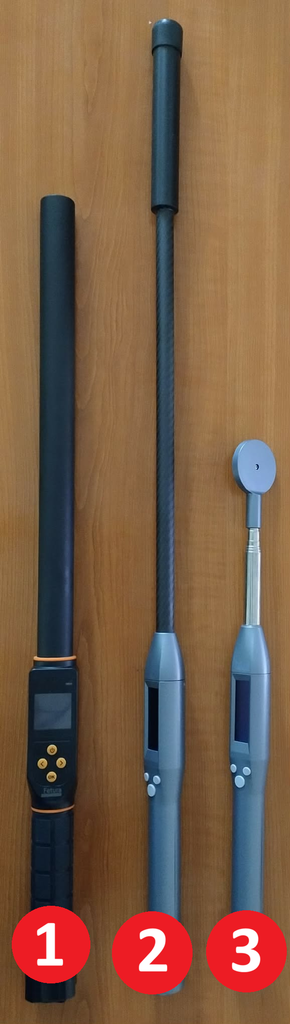
The configuration for the first type of scanner will differ slightly from that of the second and third types, which are configured identically.

Which scanner would you like to set up? Click on the one you have, and you’ll be redirected to the appropriate section of the article.

Type 1 Scanner

First, let’s figure out what each button does.
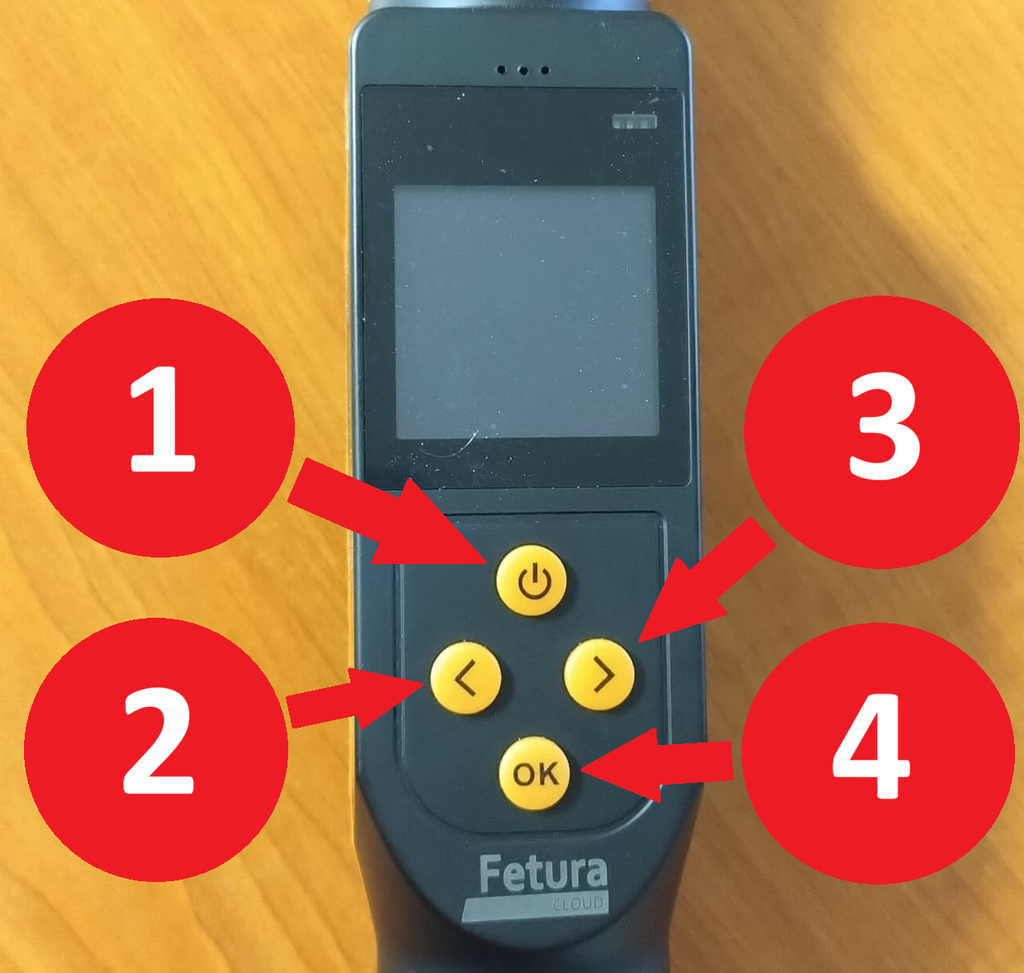
The image shows the screen of Scanner 1, with a close-up of the screen and buttons. The buttons are arranged in a diamond shape; at the top is the power button, which also serves as the back button. In the center are the left and right arrows. At the bottom is the OK button. Each button is additionally labeled with a number from 1 to 4 for reference in the instructions that follow.
The number in the photoButton NameButton Function
1Power buttonTurning the Power On and Off / Back
2Left arrowScroll to the left
3Right arrowScroll to the right
4OK buttonConfirm

To begin, press the power button to turn on the device.
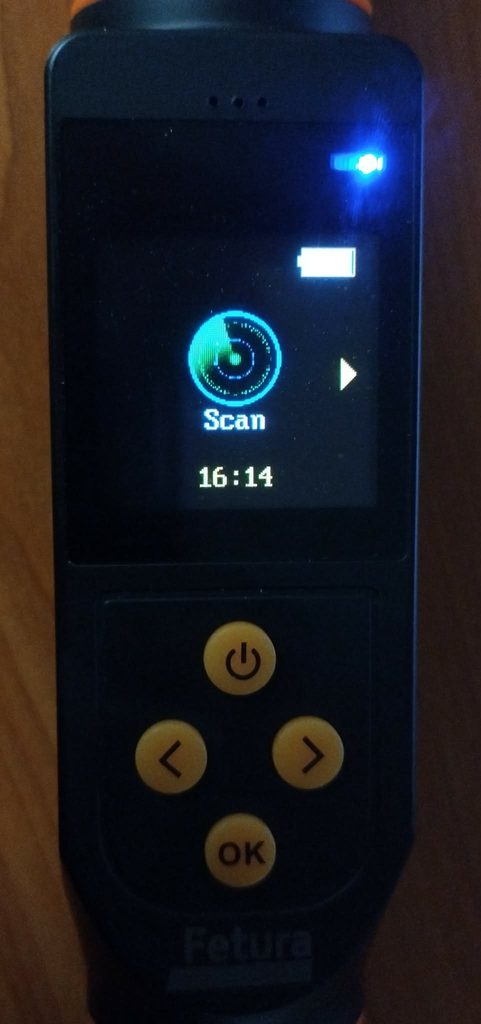
The image shows the screen of Scanner 1, with a close-up of the screen and buttons. The screen is active, and the scan option is displayed.

Double-click the right arrow button to go to the Bluetooth panel, and then click the OK button to open the Bluetooth settings.
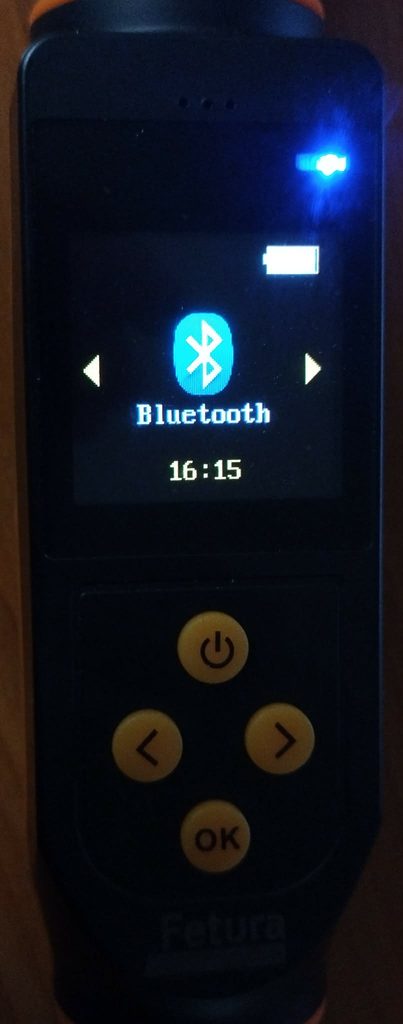
The image shows the screen of Scanner 1, with a close-up of the screen and buttons. The section for accessing Bluetooth settings is visible.

In the Bluetooth settings, use the arrow keys to select the ” HID Keyboard” option, then confirm by clicking the OK button.
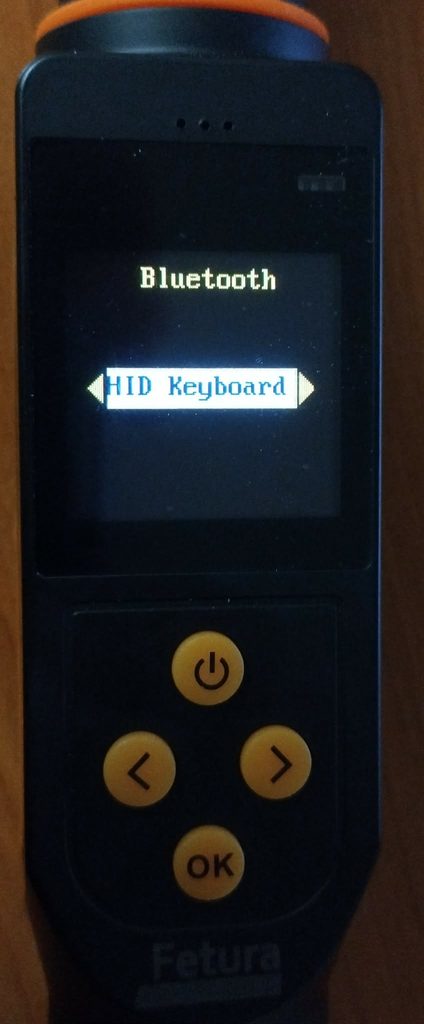
The image shows the screen of Scanner 1, with a close-up of the screen and buttons. A view of the Bluetooth settings, with the "HID Keyboard" option selected.

After configuring the device, click the power button to return to the main menu.

The next step will be to connect the scanner to your phone.

  1. Take out your phone,
  2. Go to Bluetooth settings,
  3. Click ” Pair a new device,”
  4. Search for devices named RFID_Keyboard,
  5. Pair the device with your phone.

All done! Your scanner is ready to use.

Type 2 and 3 scanners

First, let’s figure out what each button does.
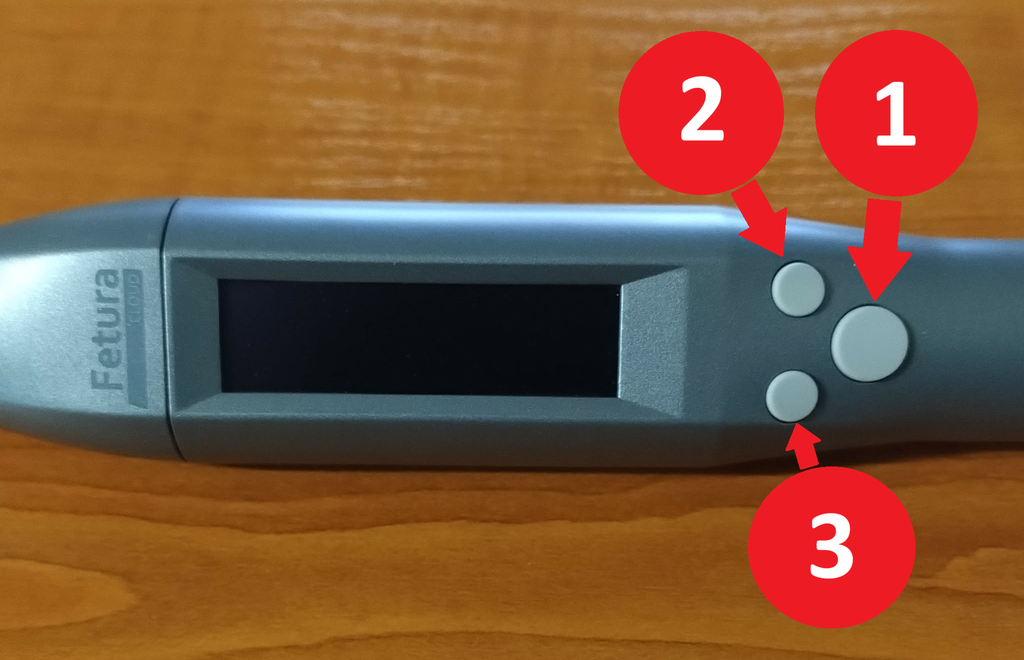
The image shows the screens of scanners 2 and 3, with a close-up of the screen and buttons. The buttons are arranged in a triangle; on the right is the power button, which also serves as a back button. At the top is the OK button. At the bottom is the "Next" button. Each button is additionally labeled with a number (1–3) for reference in later instructions.
The number in the photoButton NameButton Function
1Power buttonTurning the Power On and Off / Back
2OK buttonConfirming the option
3Skip buttonMove to the next menu item

To begin, press the power button to turn on the device.
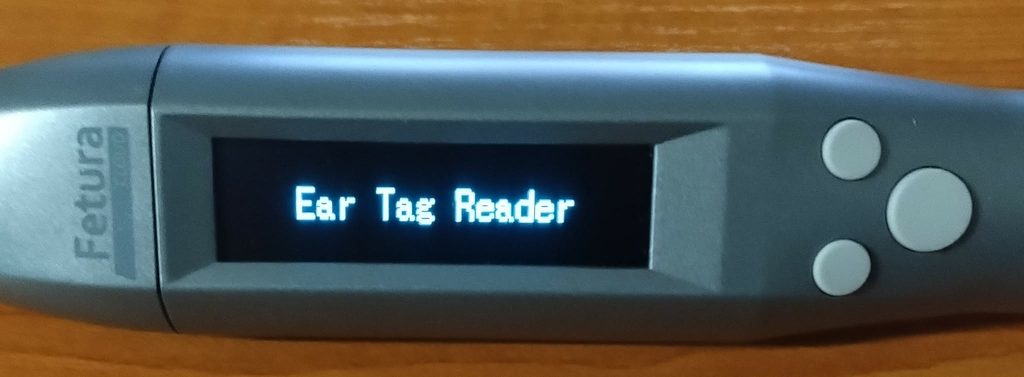
The image shows the screens of scanners 2 and 3, with a close-up of the screen and buttons. When the device is turned on, the screen displays the message "Ear Tag Reader."

Double-click the button to open the Bluetooth panel, and then click the OK button.
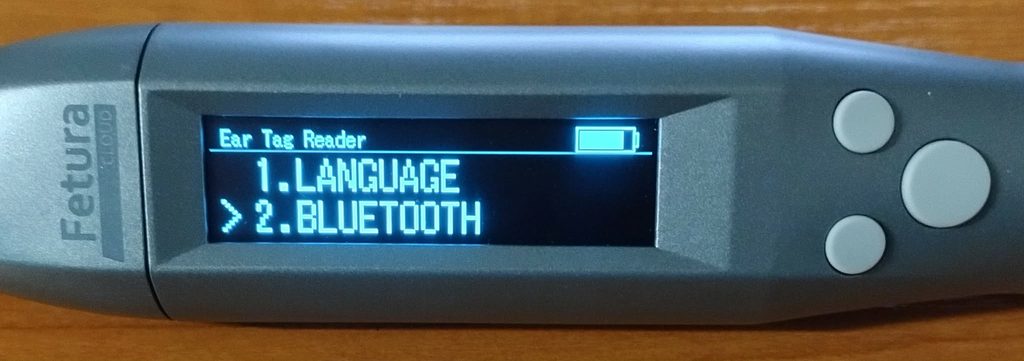
The image shows the screens of scanners 2 and 3, with a close-up of the screen and buttons. The screen displays the settings menu, showing two options: 1. LANGUAGE and 2. BLUETOOTH.

In the Bluetooth settings, use the arrow keys to find the “EMU KBD STD” option, then confirm by clicking the OK button.
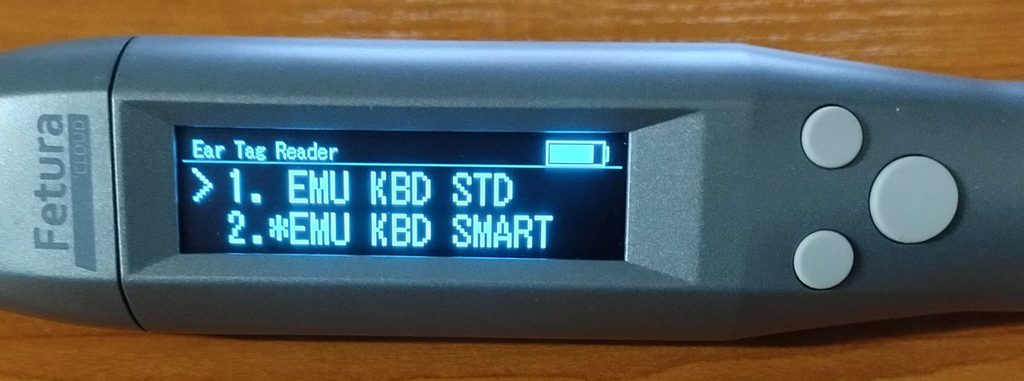
The image shows the screens of scanners 2 and 3, with a close-up of the screen and buttons. The Bluetooth settings screen displays two options: 1. EMU KBD STD 2. *EMU KBD SMART

An asterisk (*) indicates the currently selected option.

After changing the setting, the device will reset.
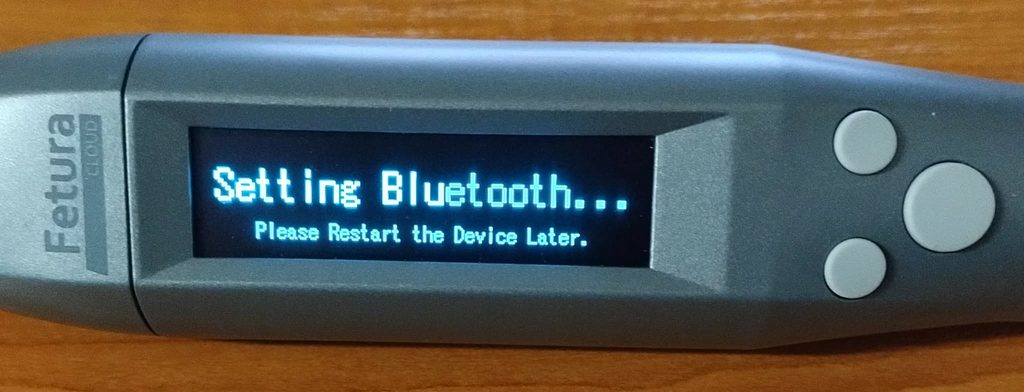
The image shows the screens of scanners 2 and 3, with a close-up of the screen and buttons. The screen displays information about configuring Bluetooth.
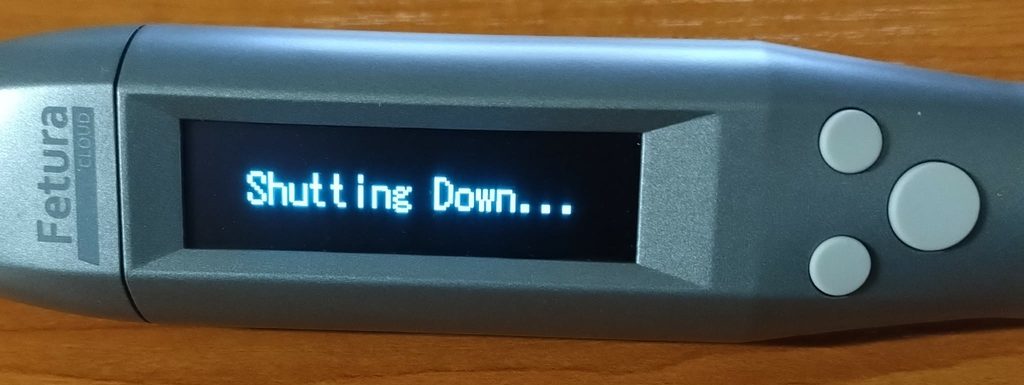
The image shows the screens of scanners 2 and 3, with a close-up of the screen and buttons. The screen indicates that the device is shutting down.

Restarts the device. The next step is to connect the scanner to your phone.

  1. Take out your phone,
  2. Go to Bluetooth settings,
  3. Click ” Pair a new device,”
  4. Search for devices named TagReader,
  5. Pair the device with your phone.

All done! Your scanner is ready to use.

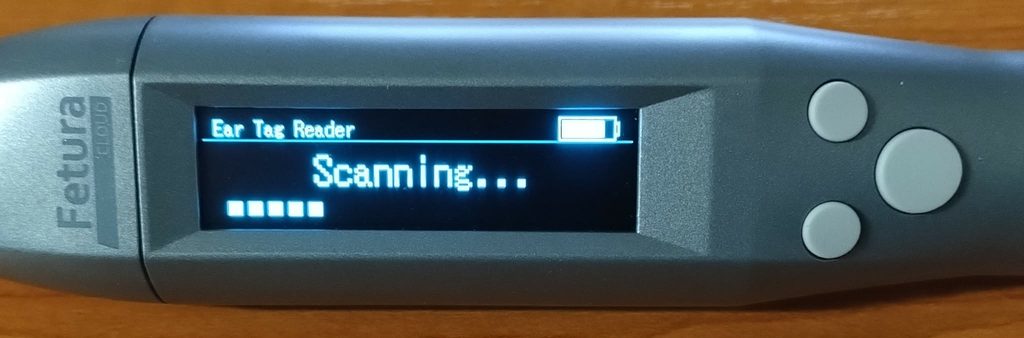
The image shows the screens of scanners 2 and 3, with a close-up of the screen and buttons. The screen displays the scanning process in progress.
Updated on 2026-09-07
Was this article helpful?

Related Articles

Need Support?
Can't find the answer you're looking for?
Contact Support

Leave a Comment