1. Home
  2. Devices
  3. Nutri One
  4. How to assign a dispenser to the placement?
  1. Home
  2. Devices
  3. Nutri Group
  4. How to assign a dispenser to the placement?

How to assign a dispenser to the placement?

To assign a dispenser to the placement, go to the “Settings” tab.
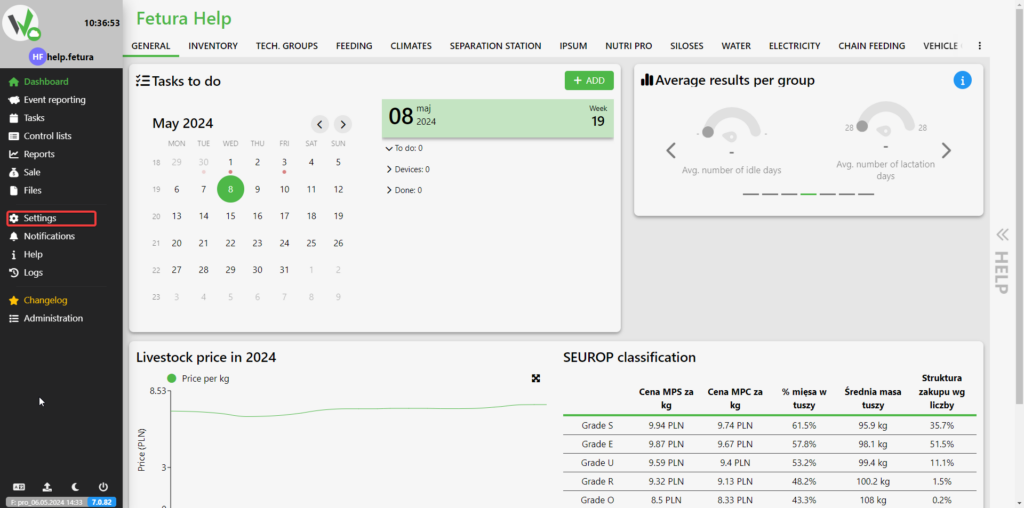
Screenshot of the Fetura CLOUD dashboard with the 'Settings' menu item highlighted in red in the left sidebar.

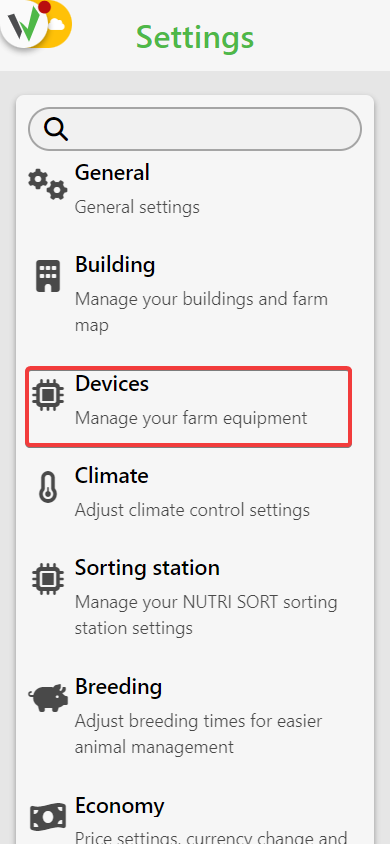
Then go to the “Devices” tab.

Screenshot of the Settings menu with the 'Devices' tile highlighted in red.

Then go to the “Assign devices to places” tab.

If you have not yet created chambers use the article below.

Individual crates

From the available chambers with individual crates, choose the one that interests you.
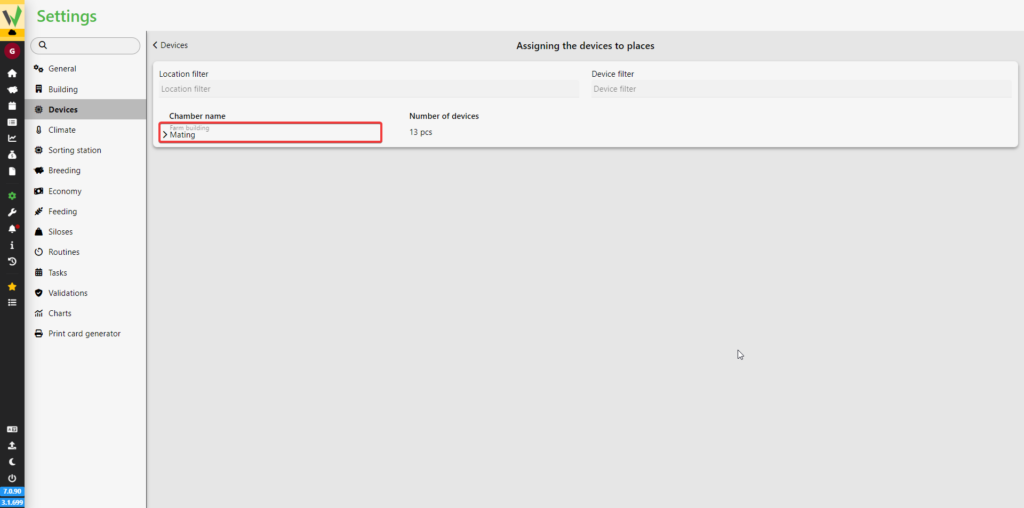
Screenshot of the 'Assigning the devices to places' screen with a chamber named 'Mating' (individual crates) highlighted in red under 'Chamber name'.

Then click on the highlighted button.
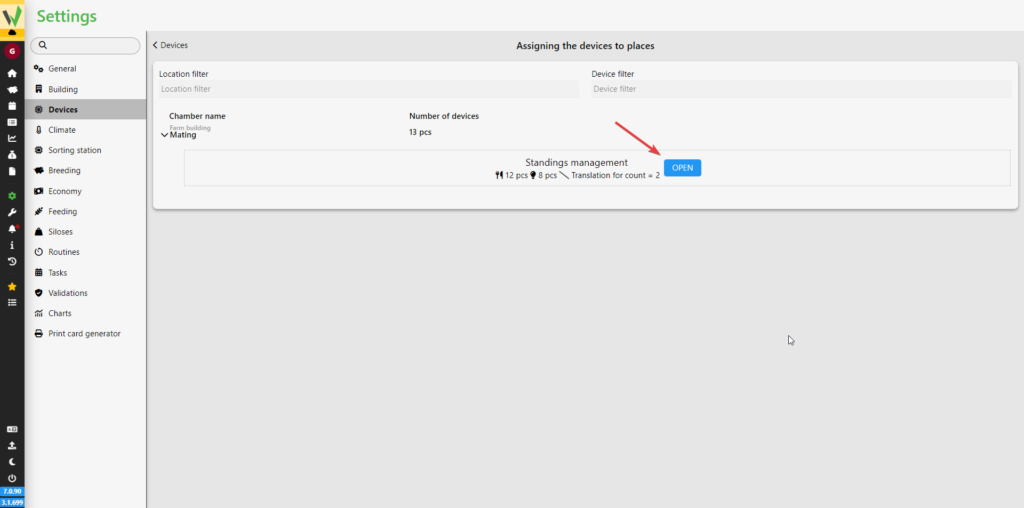
Screenshot of the expanded 'Mating' chamber row showing 'Standings management' with an OPEN button, pointed to by a red arrow.

In the newly opened window, select the “Dispensers” option.

Screenshot of the 'Pairing standings in Mating' dialog with the 'DISPENSERS' option highlighted in red.

If you want to filter devices, select the master device [1] and the interface on which the devices were created [2].

If you want the program to assign dispensers to stands automatically select the first dispenser to be assigned [3], select which stand the dispensers should be assigned from [4] and select which stand should be the last one to which the dispenser will be assigned [5]. Optionally, you can check to assign dispensers only to positions without a dispenser [6].

If you want to manually assign dispensers, add them to the appropriate stands[7].
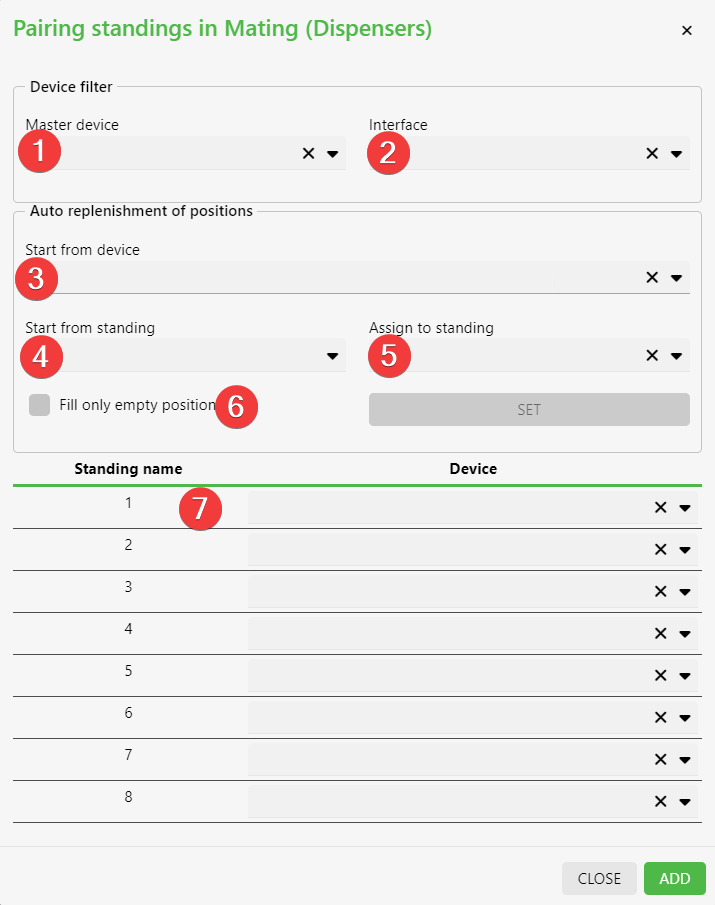
Screenshot of the 'Pairing standings in Mating (Dispensers)' dialog with red numbered markers 1-7 indicating the Master device filter (1), Interface filter (2), Start from device (3), Start from standing (4), Assign to standing (5), 'Fill only empty positions' checkbox (6), and the standing-to-device assignment table used for manual pairing (7).

Group crates

From the available group chambers, choose the one that interests you.
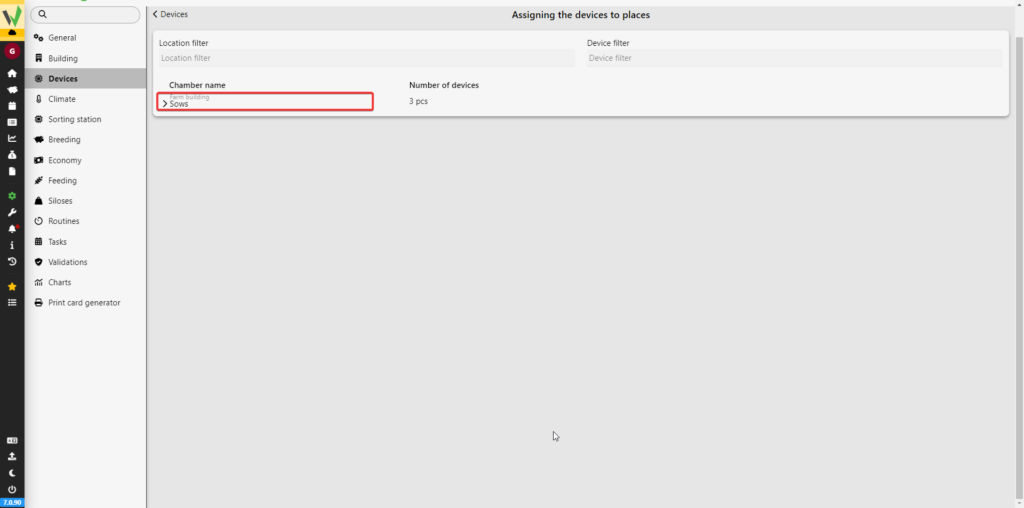
Screenshot of the 'Assigning the devices to places' screen with a group chamber named 'Sows' highlighted in red under 'Chamber name'.

Then, from the unassigned devices, click on the ones you want to assign to the chamber.
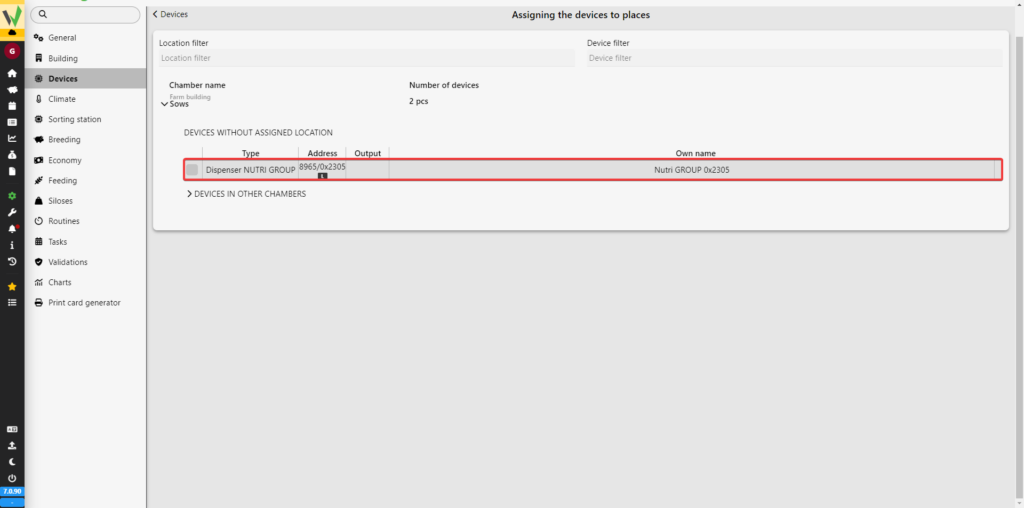
Screenshot of the expanded 'Sows' group chamber showing the 'DEVICES WITHOUT ASSIGNED LOCATION' list, with an unassigned Dispenser NUTRI GROUP device row highlighted in red, ready to be clicked and assigned to the chamber.
Updated on 2026-07-22
Was this article helpful?

Related Articles

Need Support?
Can't find the answer you're looking for?
Contact Support

Leave a Comment