1. Home
  2. Devices
  3. Silomass
  4. How do I add a weight panel to the application?

How do I add a weight panel to the application?

Devices tab

After logging in, go to the “Settings” tab.
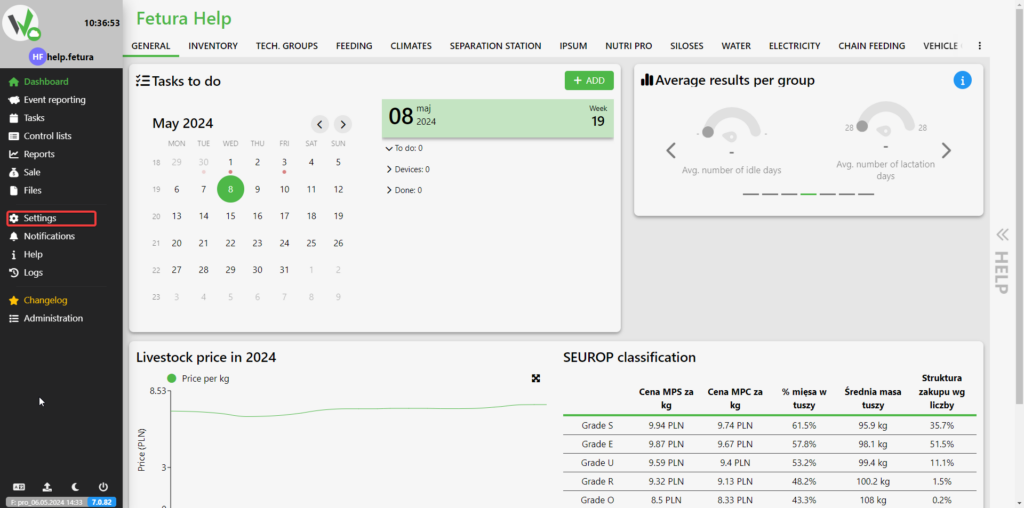
Fetura Help desktop dashboard with the 'Settings' item in the side menu highlighted in a red box.

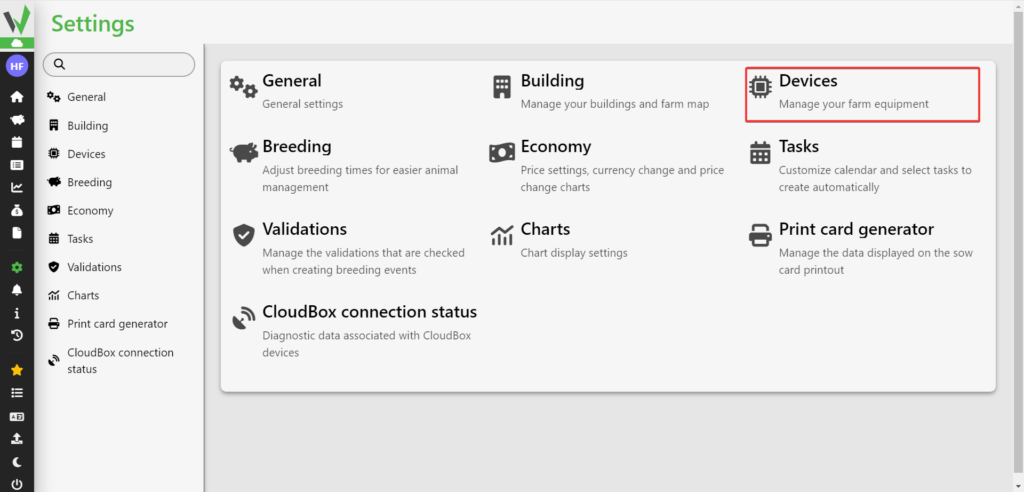
Then go to the “Devices” tab.

Settings panel with a grid of categories; the 'Devices' tile is highlighted in a red box, leading to farm equipment management.

Then go to the “Device Management” tab.
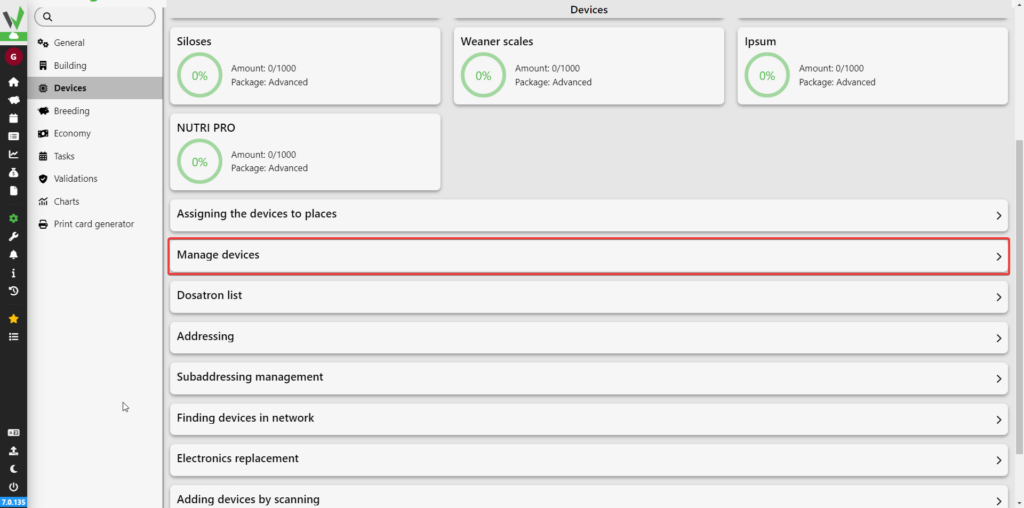
Devices management panel with device category cards and the 'Manage devices' option highlighted in a red box.

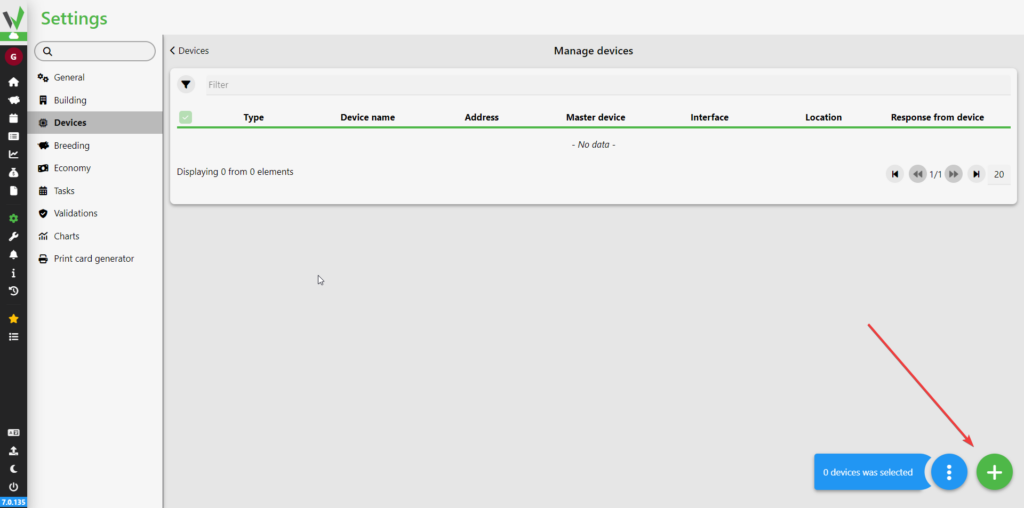
Then click the selected button.

Empty 'Manage devices' table with a red arrow pointing to the green '+' button used to add a new device.

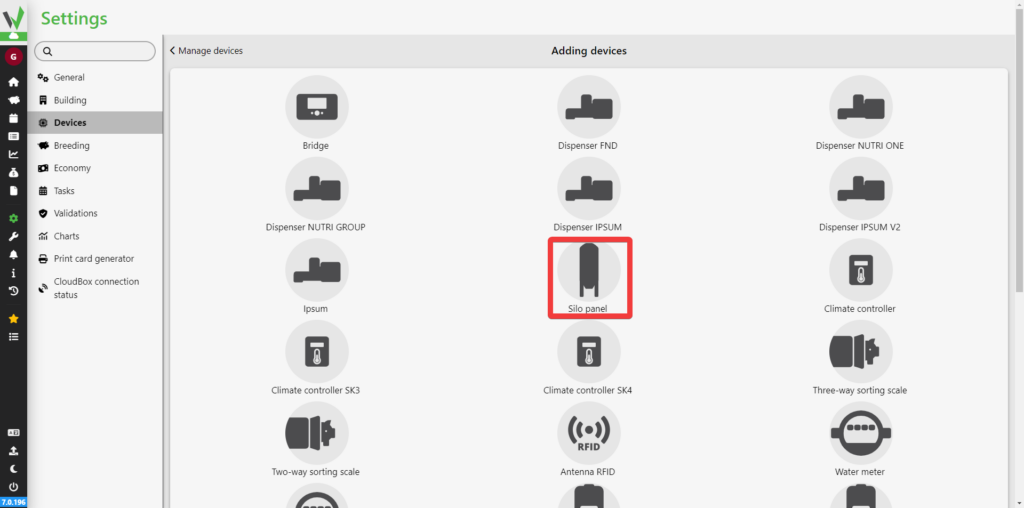
Select Weight Panel.

Grid of device types to add, with the 'Silo panel' icon highlighted in a red box.

Adding a weight panel

Specify what name [1] you want the weighing panel to have, what its address is [2 ], what Bridge [3] it is connected to, what its hardware version is [4 ] and whether data from it is to be counted in the analysis of breeding results [5]. For each output, it is possible to assign a silo and specify the capacity [6], its own number [7] for display, name [8] and whether the output is active [9].
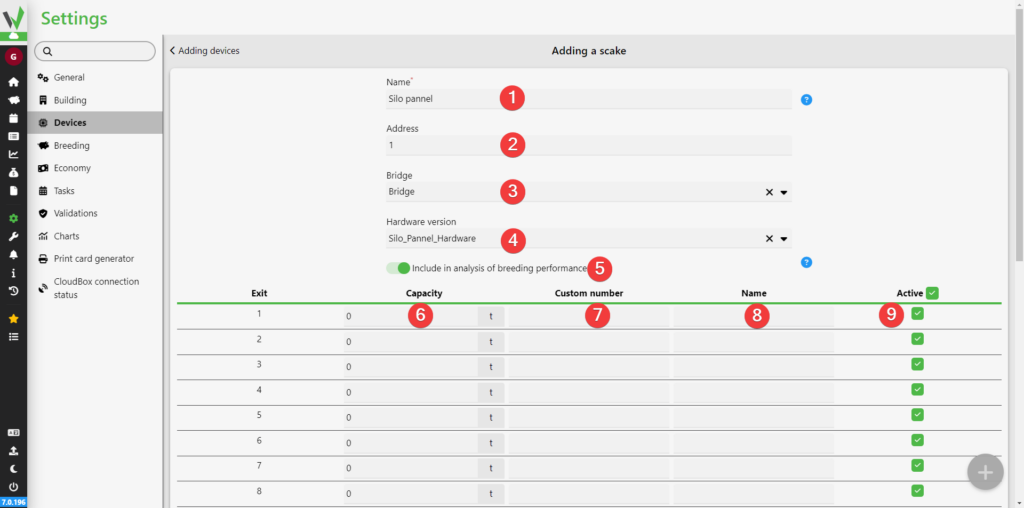
Form for adding a silo weight panel with numbered fields: 1 – name, 2 – address, 3 – Bridge, 4 – hardware version, 5 – include in breeding analysis toggle, 6–9 – per-output capacity, custom number, name and active status.

Then select which interface the silo panel is connected to by clicking on the corresponding connector [1][2].
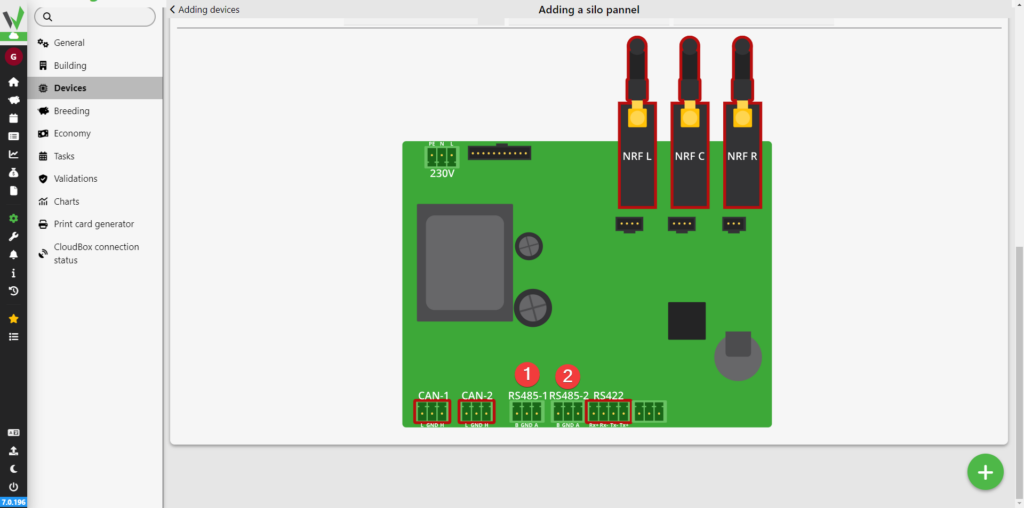
Silo panel circuit board diagram with red boxes highlighting the NRF antenna sockets and the RS485-1 (1) and RS485-2 (2) interface terminals to select.

In the last step, click the highlighted button to add the silo panel to the application.
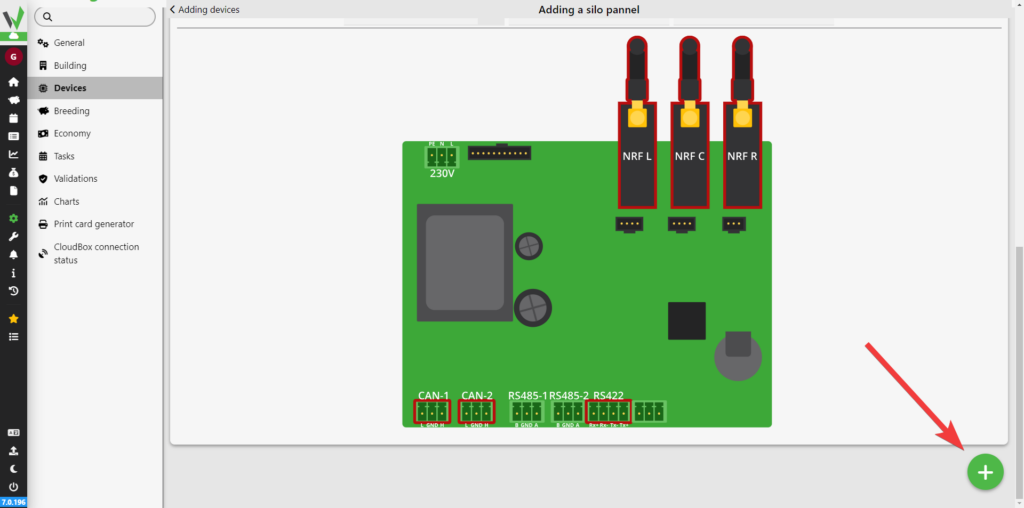
Silo panel circuit board diagram with a red arrow pointing to the green '+' button used to save and add the device.

Updated on 2026-07-22
Was this article helpful?

Related Articles

Need Support?
Can't find the answer you're looking for?
Contact Support

Leave a Comment