
If an alarm is triggered, the FarmWatch Pro system sends an SMS notification or makes a phone call by default, depending on the notification settings. If notifications have been disabled or you want to check the system status yourself, you can view active alarms directly on the FarmWatch Pro control panel or on the Fetura CLOUD platform.
Preliminary Alarm Identification
The FarmWatch Pro control unit is equipped with an indicator LED located in the upper-left corner of the device’s front panel.
If the system is working properly, the LED will flash green.
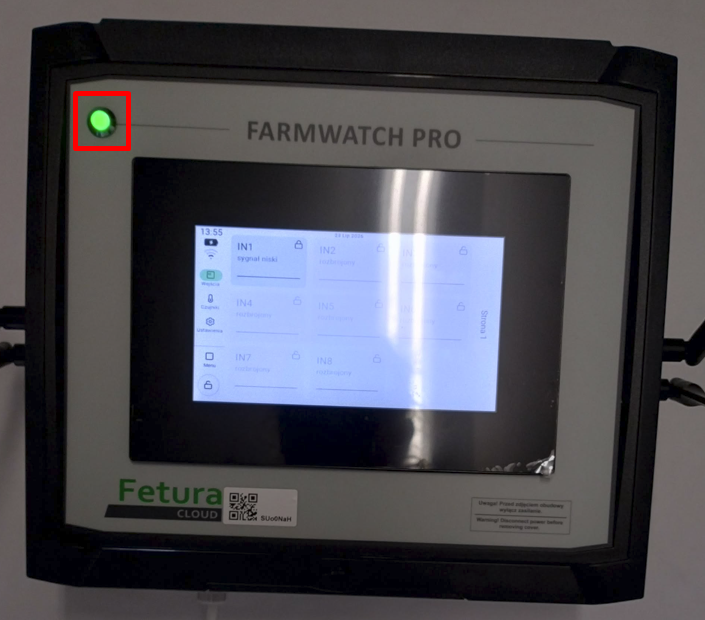
If any sensor or input triggers an alarm, the LED will flash red.
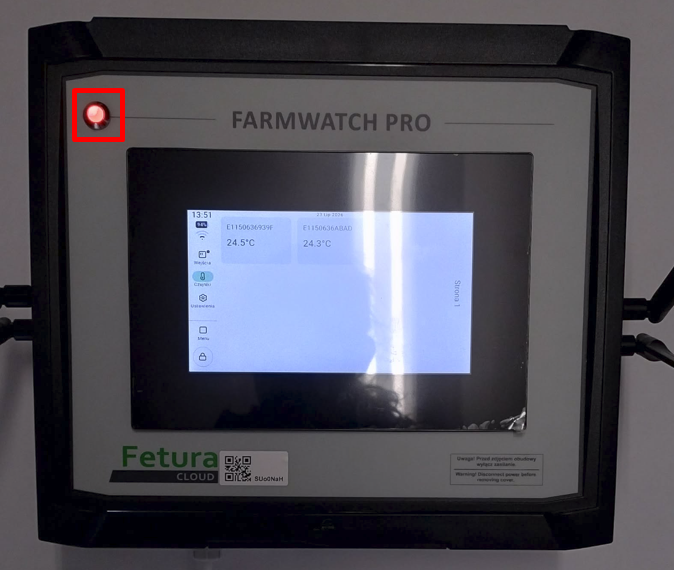
Checking an Alarm on the FarmWatch Pro Control Panel
The following example shows an alarm triggered by the IN1 digital input.
The first indication that an alarm has been triggered is the red LED on the control panel’s front panel.
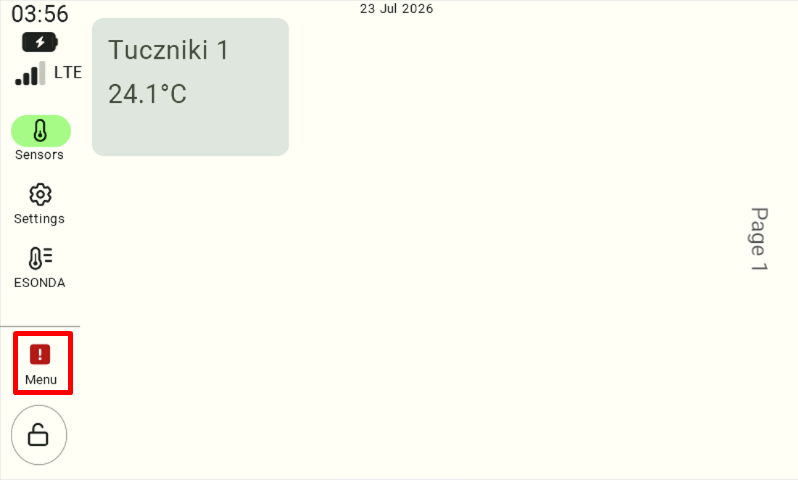
On the home screen, the menu icon will be highlighted in red, and an exclamation mark will appear next to it. Tap the menu icon to see which part of the system triggered the alarm.
Once you’ve entered the menu, check which tile is marked with a red dot.
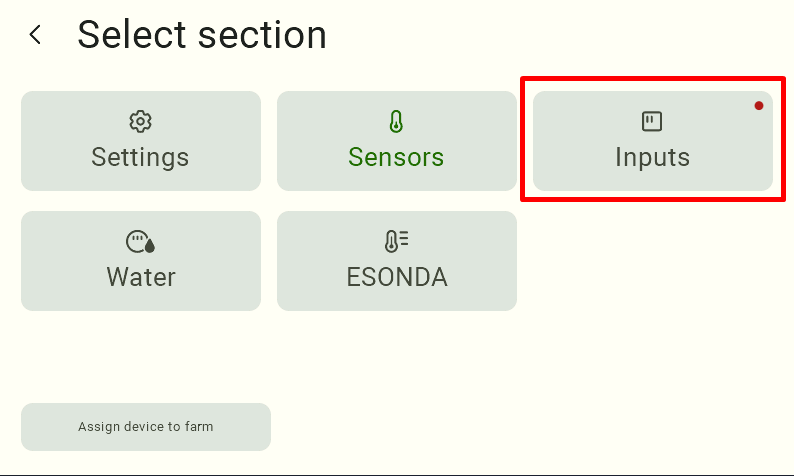
Open the “Inputs” section to check the source of the alarm.
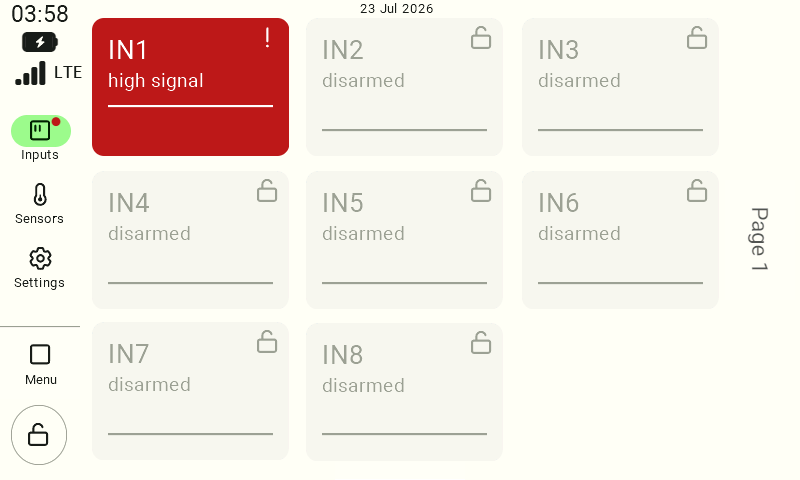
Disabling the alarm on the control panel
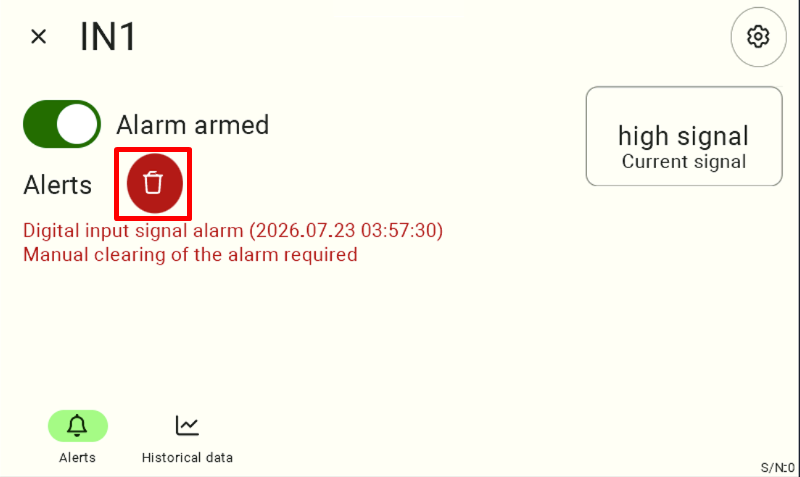
To clear the alarm, click the input that triggered it.
Next, click the trash can icon next to the alert information.
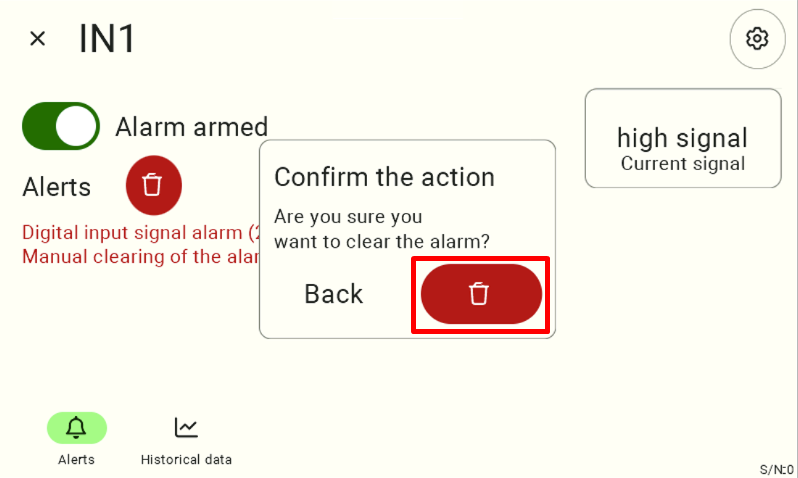
Confirm the alarm reset.
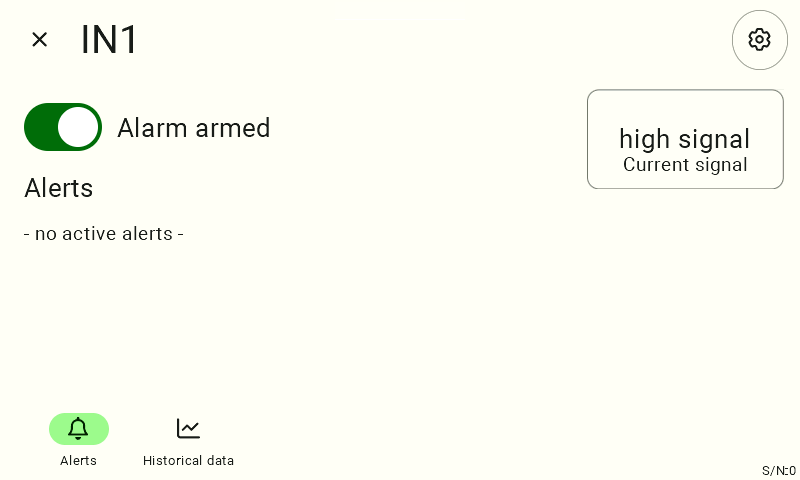
Once confirmed, the alarm will be cleared.
Checking Alarms in Fetura CLOUD
On the Fetura CLOUD platform, there are two ways to check alerts.
Notifications
Go to the “Notifications” tab (red), and then select the “Errors” filter (blue).
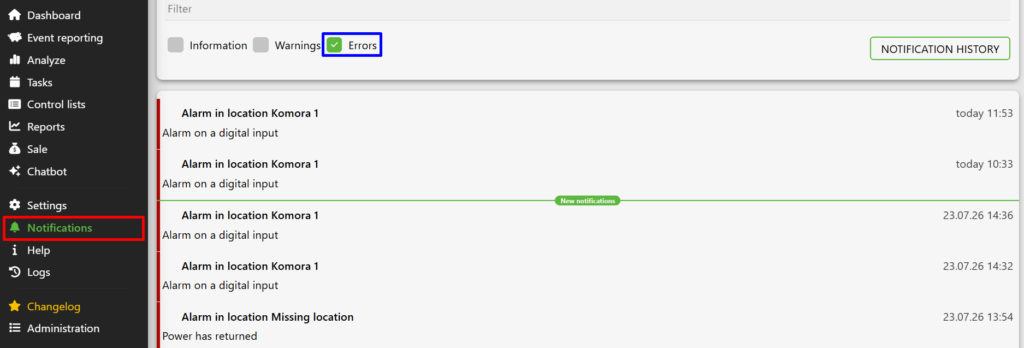
New notifications are indicated by a red dot next to the bell icon.

Equipment Sections
You can also check the alarm status directly in the device sections.
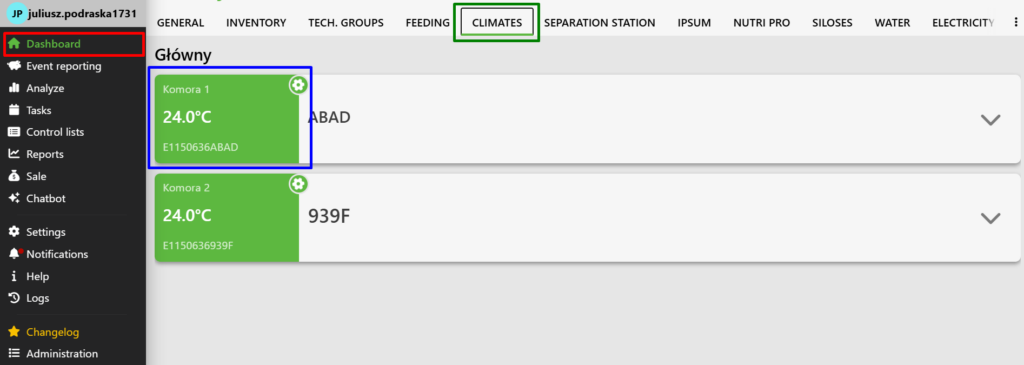
Go to the Dashboard ( red) -> Moods (green).
The sensors responsible for climate control will be displayed. Each sensor panel shows status information (blue).
Similarly, you can check the alarms for the digital inputs.
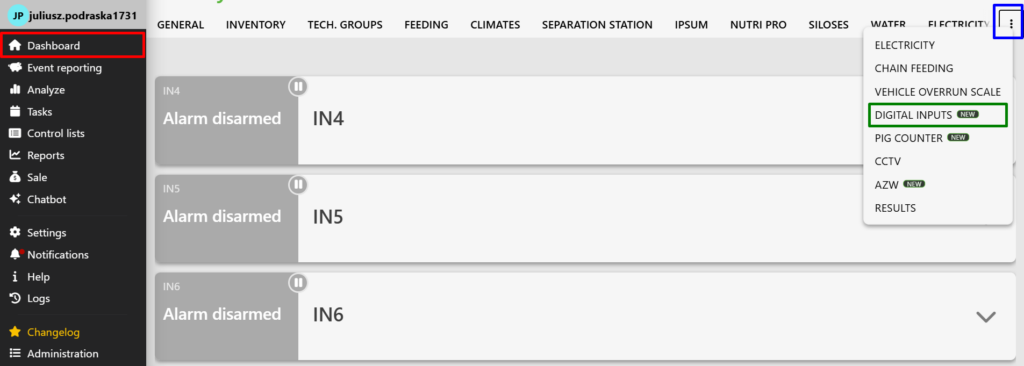
Go to Dashboard → Three dots → Digital Inputs.
Go to Dashboard ( red)→ Three dots (blue)→ Digital Inputs.
In the example below, an alarm is active on input IN1.

Disabling an Alarm in Fetura CLOUD
To clear the alarm:
Select the input panel, click the three-dot icon, and then select “Clear Alarm.”
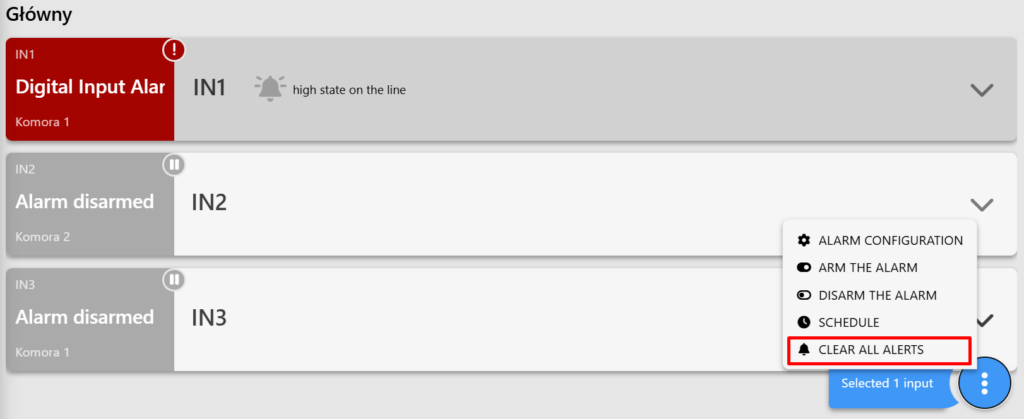
Confirm the operation.
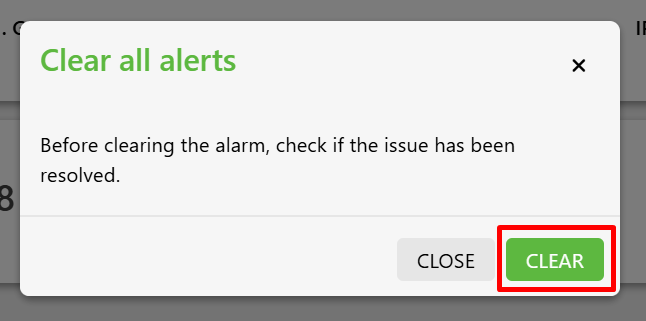
Once the alarm is acknowledged, it will be cleared, and the device will return to its normal status.

We hope this article has helped you check and manage alerts in the FarmWatch Pro system. We hope you enjoy using the system!


