1. Home
  2. FarmWatch Pro
  3. How do I change the units in the FarmWatch Pro control unit?

How do I change the units in the FarmWatch Pro control unit?

Changing the units in the FarmWatch Pro control panel allows you to customize how measurement values are displayed according to your preferences. In the settings, you can change the units for various types of data, such as temperature, volume, weight, and distance.

Changing Units of Measurement

To change the units used by the control panel:

  1. Click the gear icon labeled “Settings.”
  2. Next, select the gear icon labeled “General.”
  3. In the menu that appears , select the “Locale” tile .
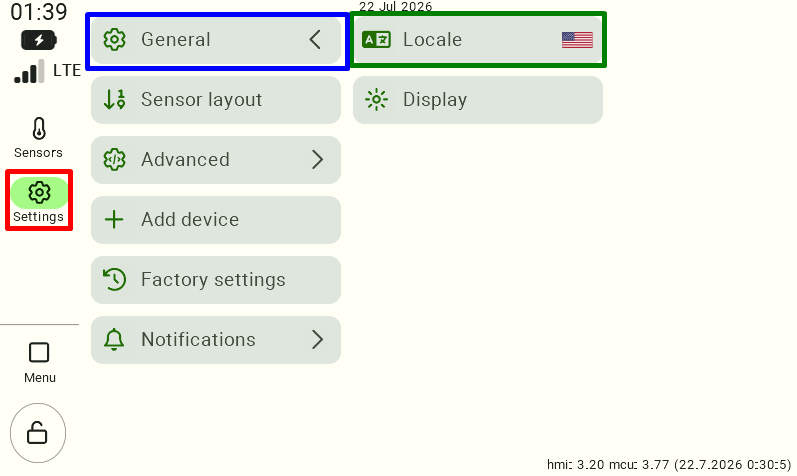
A view of the FarmWatch Pro control panel settings. In the left-hand menu, the “Settings” section has been selected, followed by the “General” category. On the right side, you can see the “Locale” and “Display” options; the “Locale” option is highlighted with a green border and is used to change the language and units.

In the “Units” section, you’ll find settings for each type of measurement:

  • Volume,
  • Temperature,
  • Weight,
  • Distance.
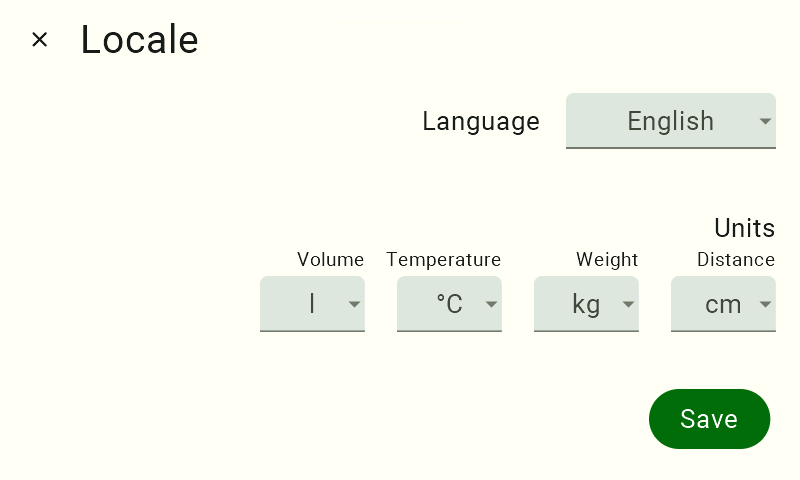
View of language and unit settings. In the upper-left corner is the label "Locale"; to the right of it is the label "Language," and to the right of that is a language-selection tile displaying the currently selected language. Below that is the label “Units,” and beneath it, from left to right, are the labels “Volume,” “Temperature,” “Weight,” and “Distance.” Below each unit label is a panel for changing the unit, and each panel displays the currently selected value.
  1. Click the selected item to expand the list of available options.
  2. Select the unit you want to use.
  3. Once you have finished configuring the settings, click the “Save” button to confirm the changes.

The new units will be implemented throughout the FarmWatch Pro system and will be used when displaying subsequent measurements.

We hope this article has helped you change the units used by the FarmWatch Pro control unit. We hope you enjoy using the system!

Updated on 2026-07-23
Was this article helpful?

Related Articles

Need Support?
Can't find the answer you're looking for?
Contact Support

Leave a Comment