1. Home
  2. FarmWatch Pro
  3. How do I change the screen lock PIN in FarmWatch Pro?

How do I change the screen lock PIN in FarmWatch Pro?

Securing access to the FarmWatch Pro control unit helps protect the device’s settings and system operation data. Changing your PIN regularly is a simple way to enhance security and restrict unauthorized access to the configuration.

Go to Security Settings

To change your PIN, go to the FarmWatch Pro control panel settings.
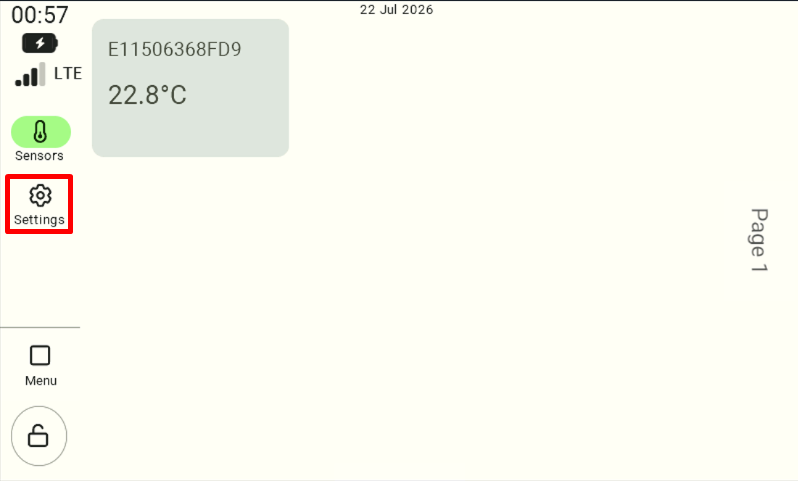
View of the main dashboard. To begin the process of changing the security code, the user must select the "Settings" tab from the side menu on the left, which is highlighted with a red border in the screenshot.

In the settings menu , select ” Security.”
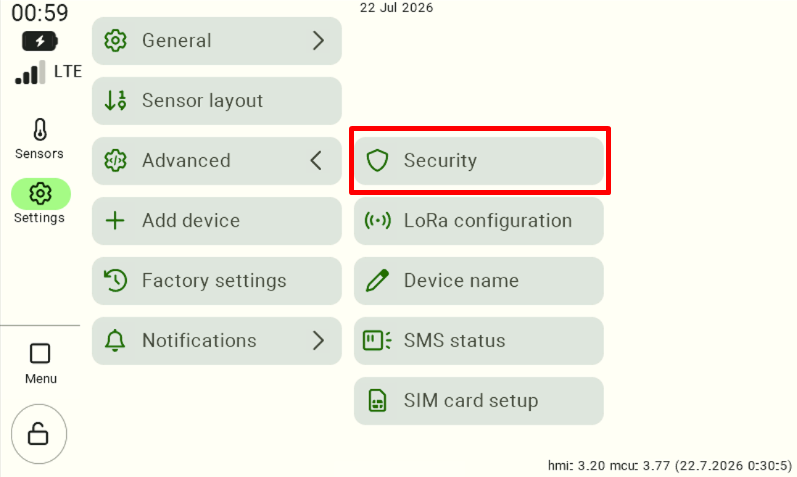
The control panel settings screen with the "Advanced" tab expanded. To edit the accessibility options, the user must locate and click the "Security" button, which is highlighted with a red border on the interface.

Setting a New PIN

When you open the “Security” section, fields will appear that allow you to change your password:

Re-enter PIN – a field used to re-enter the code for confirmation.

New PIN – a field for entering a new security code,
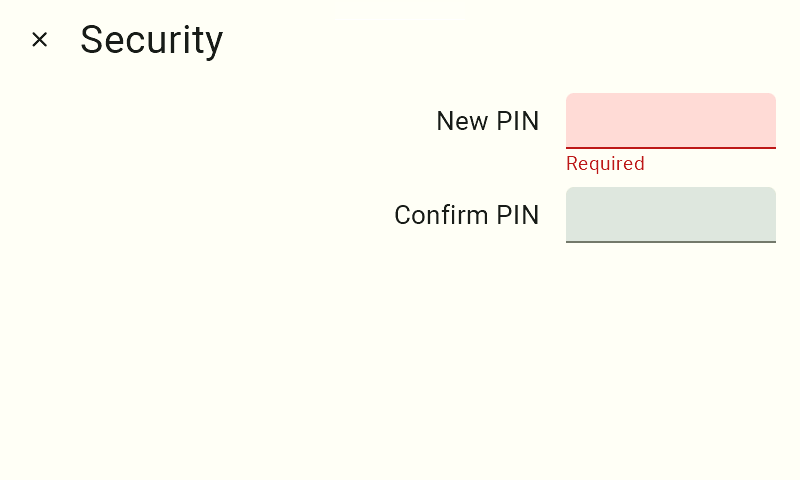
The "Security" configuration screen. There are two input fields here: "New PIN" and "Confirm PIN." The top field is highlighted in bright red with the warning label "Required," which informs the user that they must click there and begin entering a new code using the on-screen keyboard.

Enter a new PIN. We recommend choosing a code that is difficult for unauthorized users to guess, but easy for you to remember.

Next, enter the same PIN again in the “Repeat PIN” field to confirm that the code you entered is correct.

Save Changes

After you have entered and confirmed your new PIN correctly, click the “Save” button to confirm the changes.
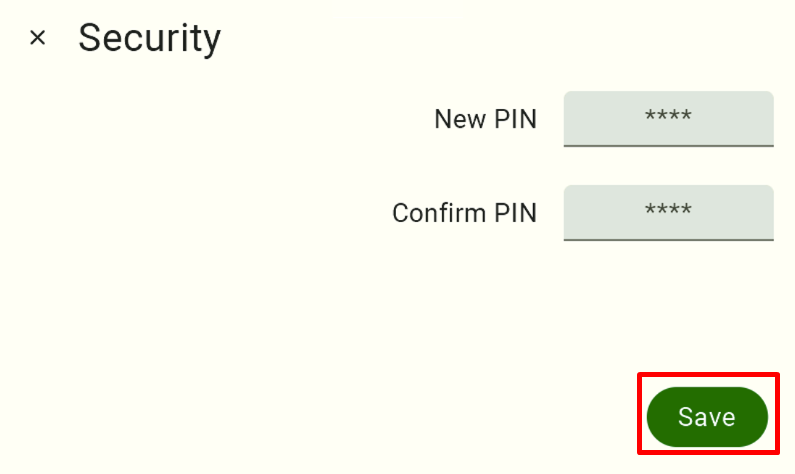
The "Security" screen appears at the final stage of setup after successfully entering the new code in both fields (for security reasons, the entered digits are hidden and displayed as asterisks "****"). To permanently assign the new PIN to the system, the user must confirm the operation by clicking the dark green “Save” button located in the lower-right corner of the screen (marked with a red border).

From this point on, the FarmWatch Pro control unit will require a new PIN code to unlock the screen.

We hope this article has helped you change your screen lock PIN in FarmWatch Pro. We hope you enjoy using the system!

Updated on 2026-07-23
Was this article helpful?

Related Articles

Need Support?
Can't find the answer you're looking for?
Contact Support

Leave a Comment