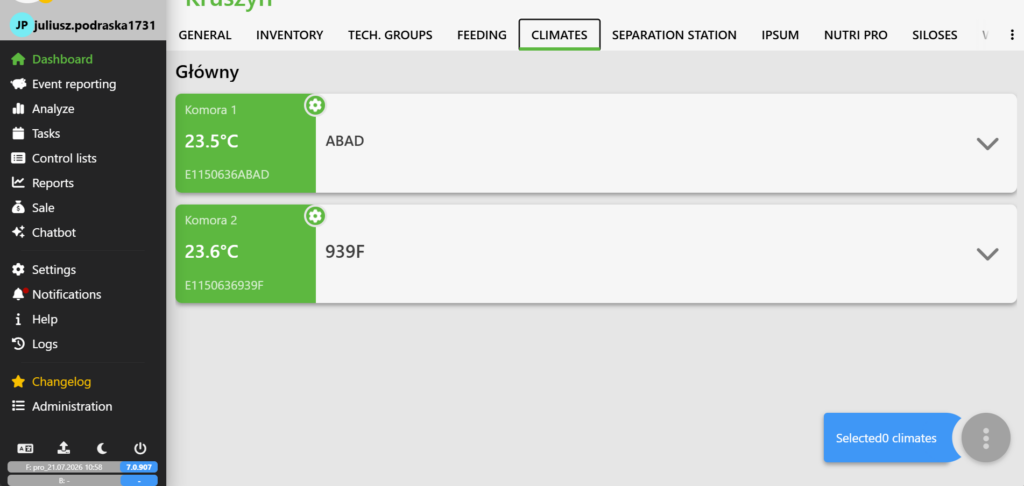
Monitoring facility parameters is a key element of smart management. The Feturacloud system allows you to quickly assign various types of wireless sensors directly to specific rooms in your facility. This gives you access to live data, the ability to generate reports, and the option to set up alarm notifications.
This step-by-step guide will walk you through the process of registering and mapping a new device in the system.
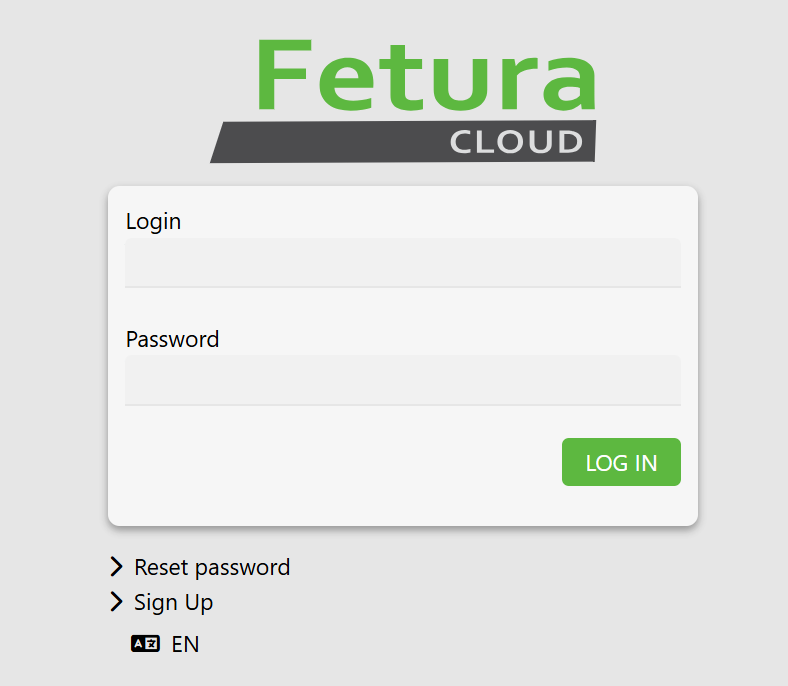
1. Log in to the Feturacloud dashboard:
Open your browser, go to the Feturacloud login page, and enter your login credentials.
2. Go to Settings:
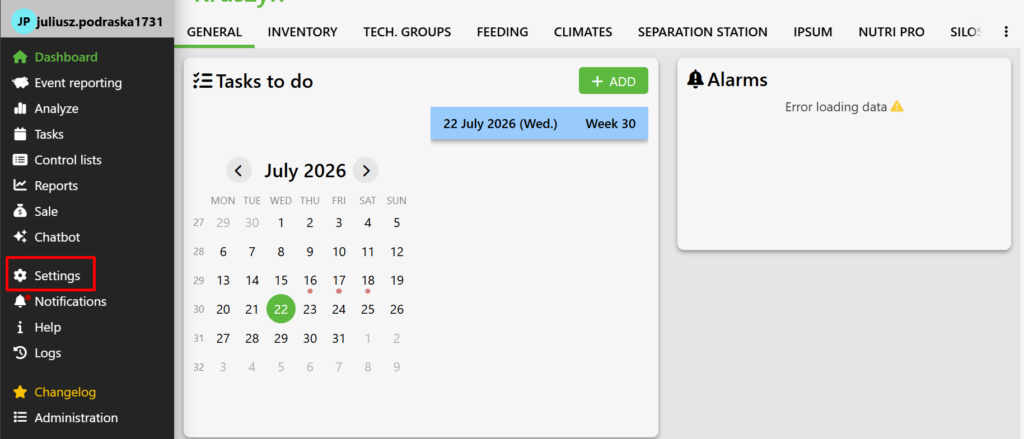
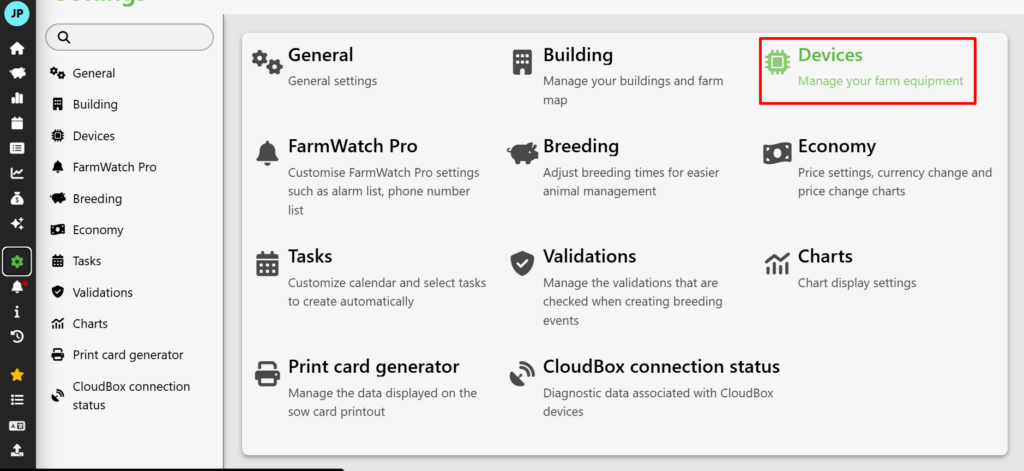
In your farm’s main menu, locate and click the Settings tab, then go to the Devices tab.
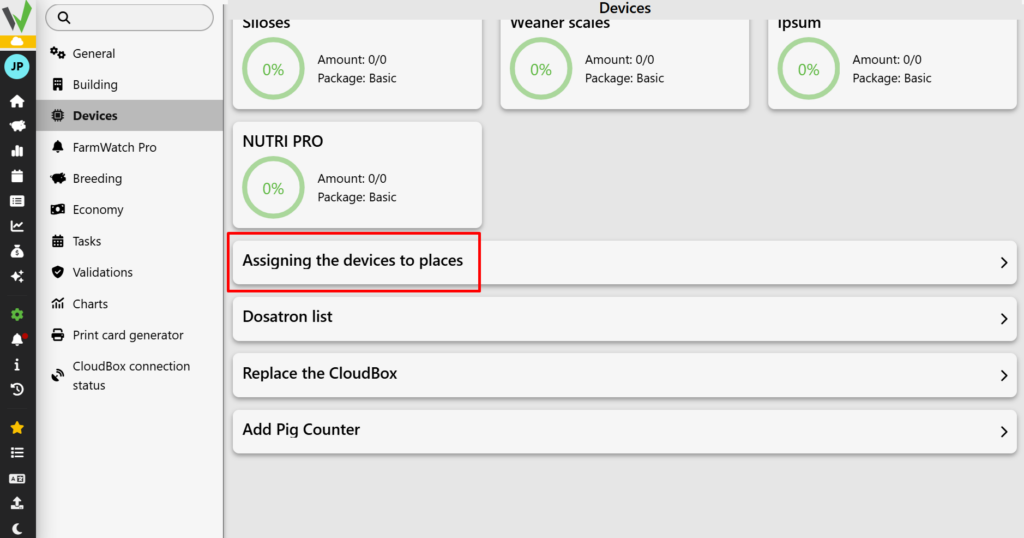
3. At the bottom of the page, find the “Assign devices to locations” options:
Go to the list of locations to assign the device to.
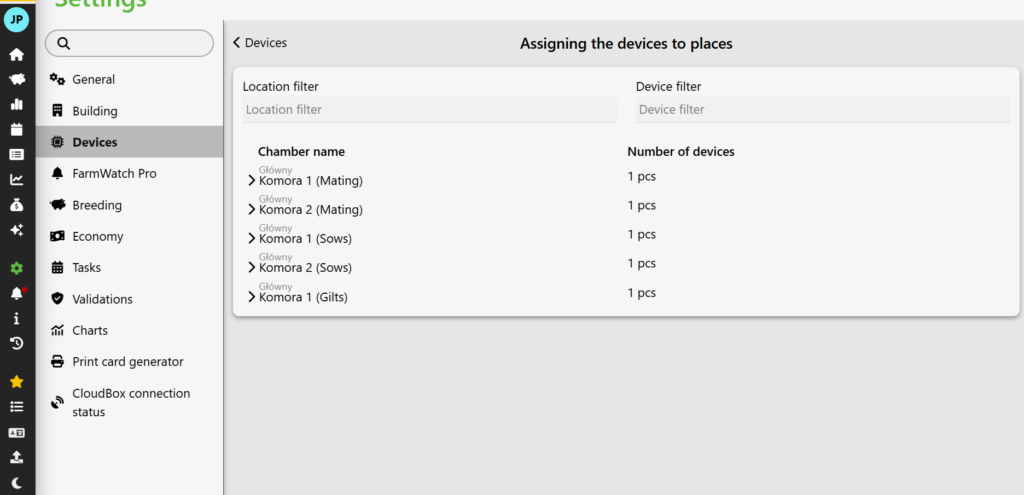
4. Select the location where you want to connect the device:
Expand the list of places you’re interested in.
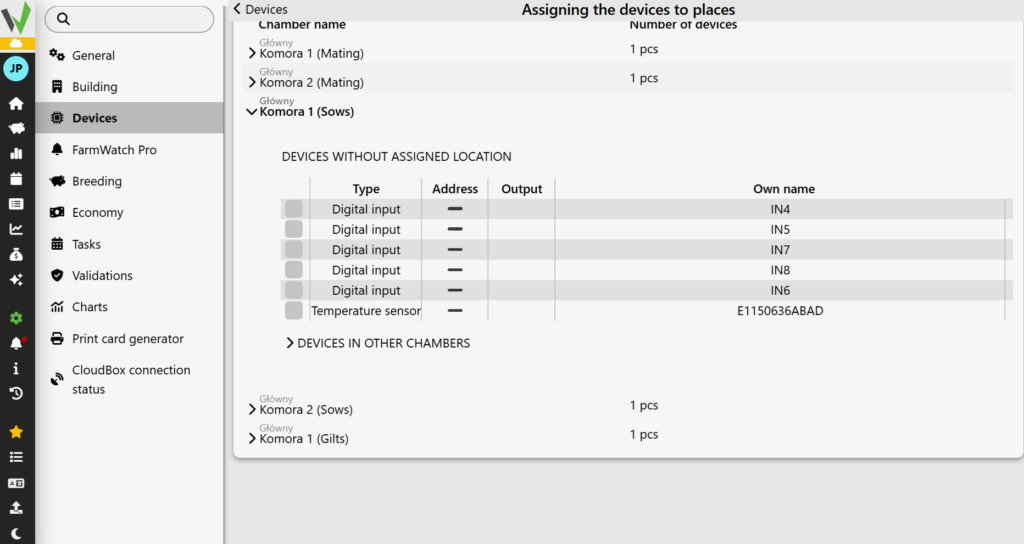
5. Select which sensor you want to add:
Check the box to the left of the sensor in question.
6. Congratulations! You’ve just added a sensor to the building.
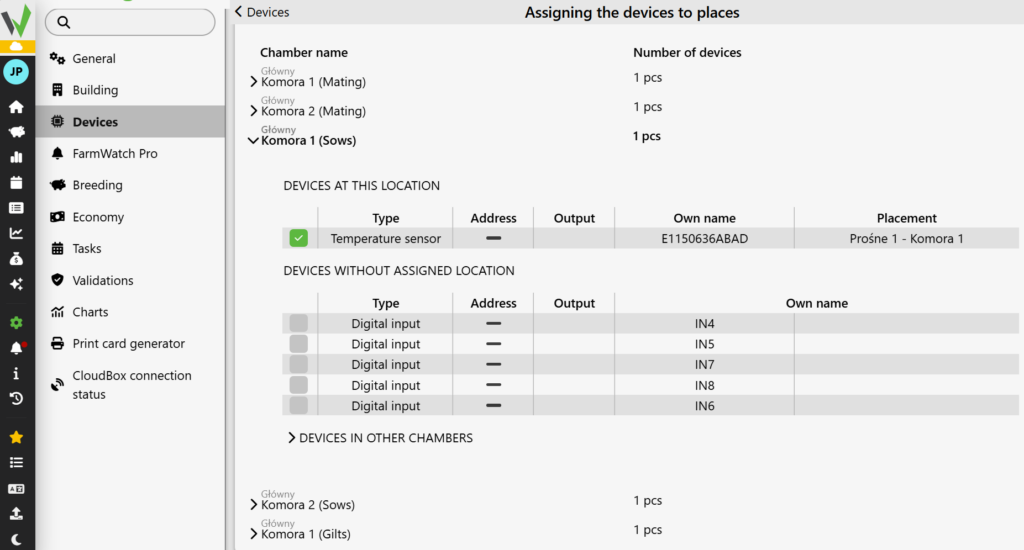
Now in the Atmosphere tab, you can view your sensors.