1. Home
  2. Inventory
  3. How to edit the date of entry?

How to edit the date of entry?

Inventory

After logging in and entering the farm, go to the “Inventory” tab.
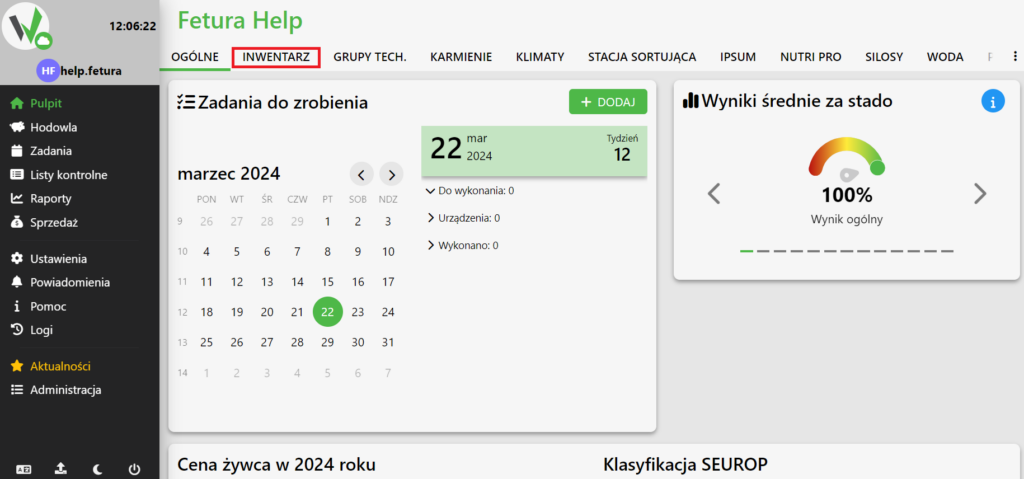
Fetura CLOUD top navigation bar with the INWENTARZ (Inventory) tab highlighted in red, used to open the animal inventory.

Pig out

Enter the pig number, or group number, in the highlighted box to easily find the pig, or group, whose entry date you want to change.
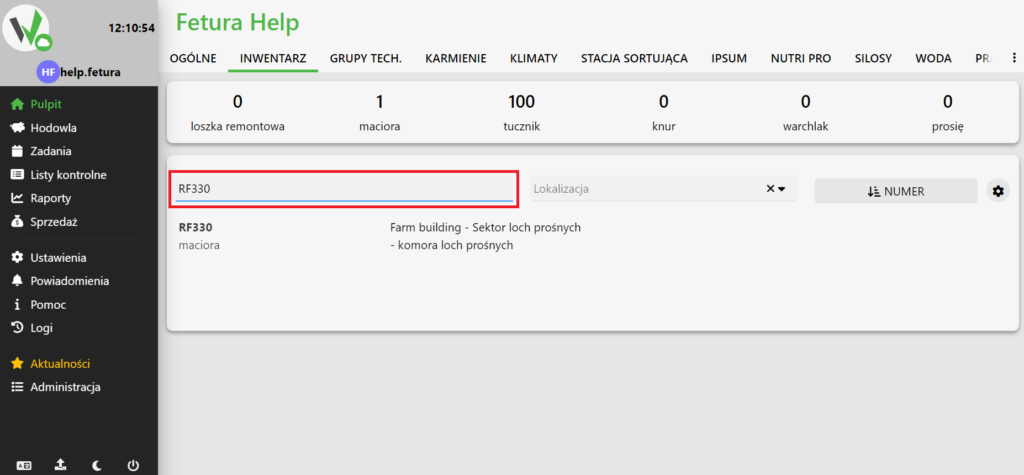
Inventory view with the search text field highlighted in red, where the pig or group number (RF330) is typed to find the animal.

Pig selection

After searching for a pig, select it by clicking on its number.
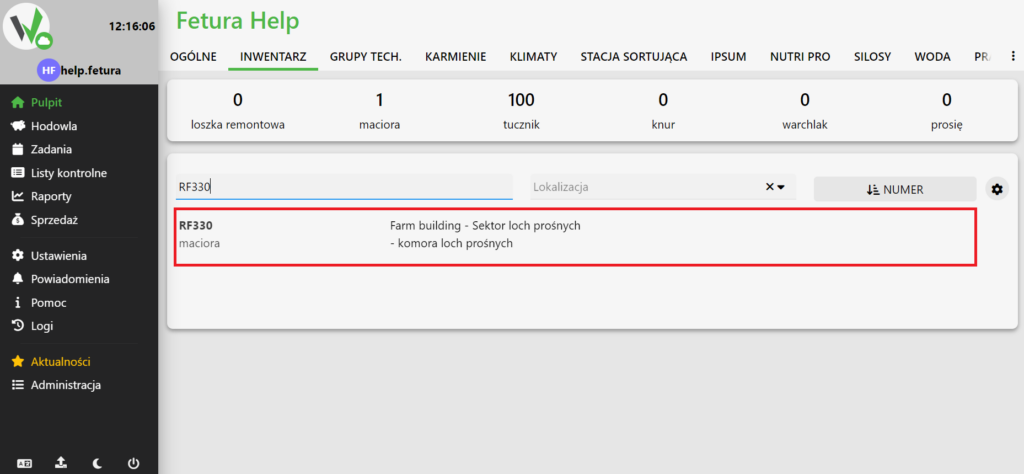
Inventory search result row for sow RF330 highlighted in red, clicked to open the animal's card.

Pig card

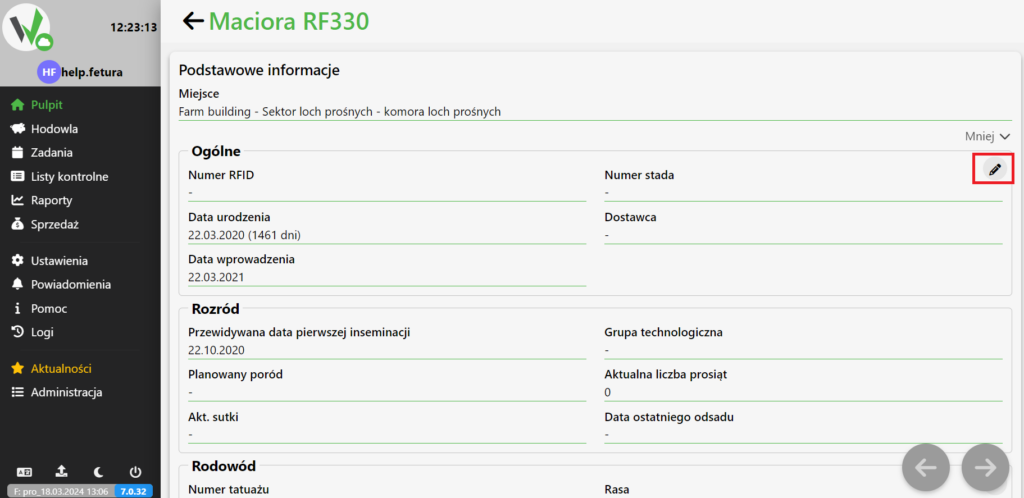
Once on the pig card, click the “More” button and then the pencil button.
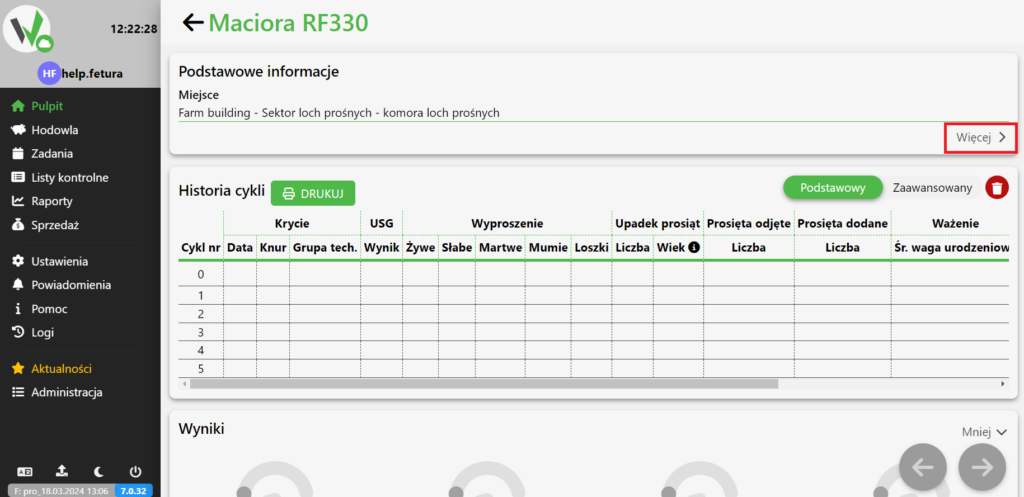
Sow RF330 card with the "Więcej" (More) button highlighted in red, expanding the basic information section.
Expanded "General" section of the sow's card with the pencil (edit) icon highlighted in red, used to open the edit form for the animal's data.

Change of date of birth

Enter the new entry date in the highlighted box.
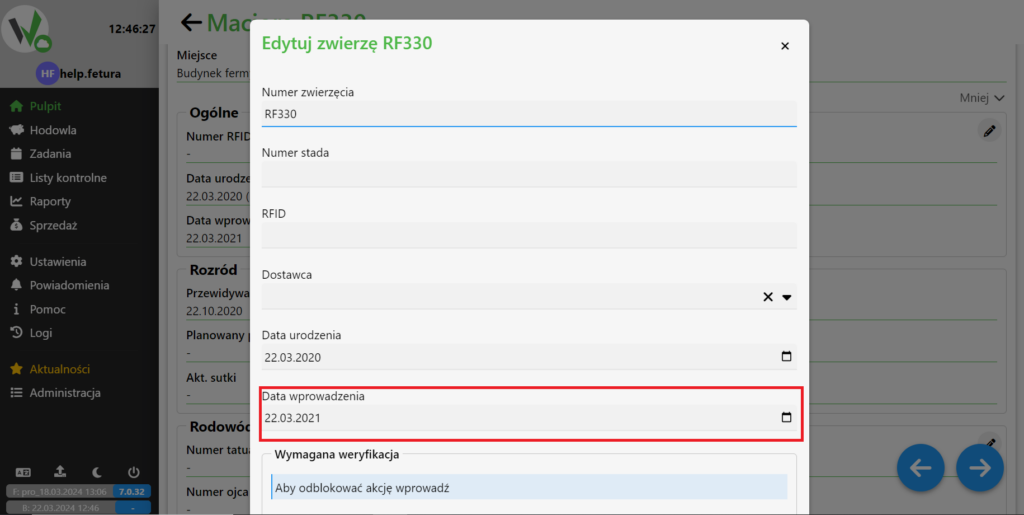
"Edit animal" dialog with the "Data wprowadzenia" (entry date) field highlighted in red, where the new entry date can be typed directly.

Or select a date from the calendar by clicking on the highlighted button.
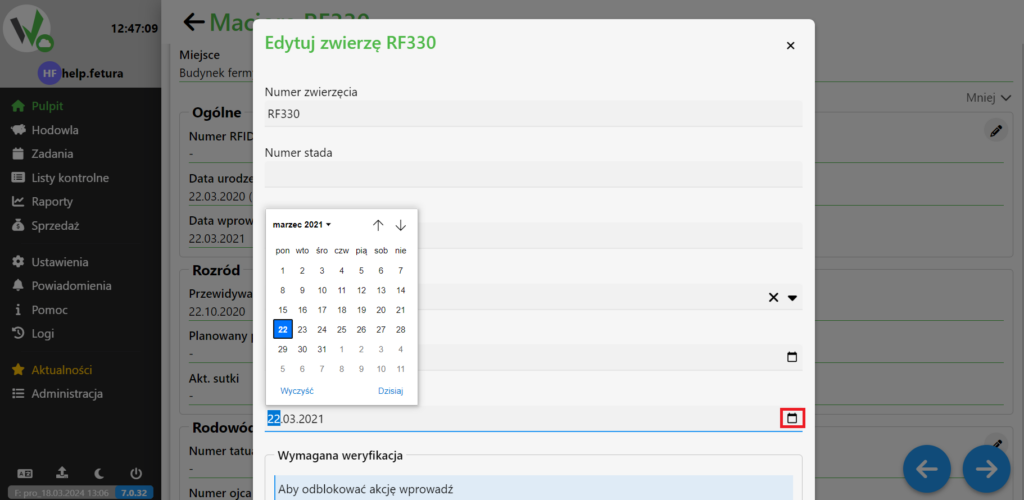
"Edit animal" dialog with an open calendar date picker for the entry date and the calendar icon highlighted in red, used to select a date instead of typing it.

Confirmation of pig editing.

Before saving the data, the name of the pig and the reason for the change must be given. After filling in the required fields, you can click the save button.
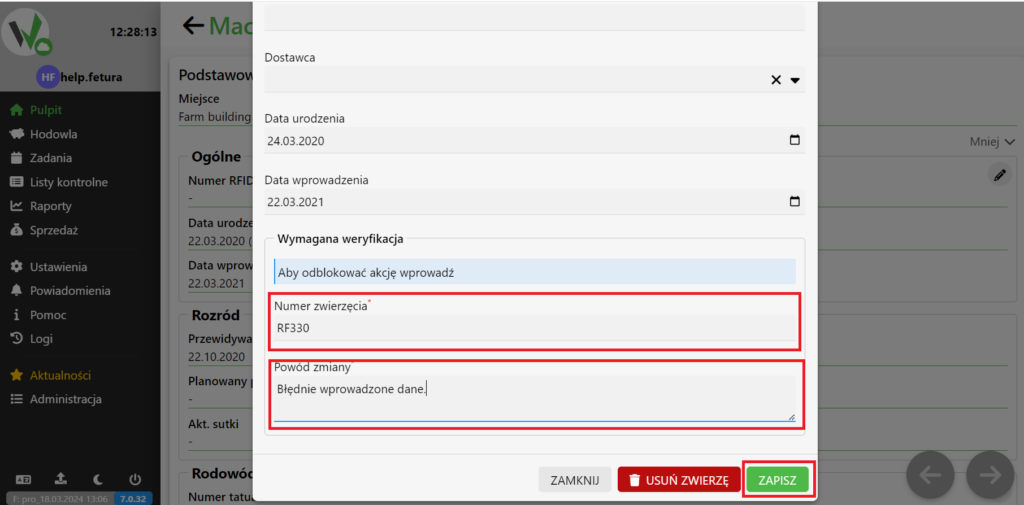
"Edit animal" dialog with the required "Numer zwierzęcia" (animal number) and "Powód zmiany" (reason for change) fields highlighted in red, which must be filled in before clicking the green ZAPISZ (Save) button.
Updated on 2026-07-28
Was this article helpful?

Related Articles

Need Support?
Can't find the answer you're looking for?
Contact Support

Leave a Comment