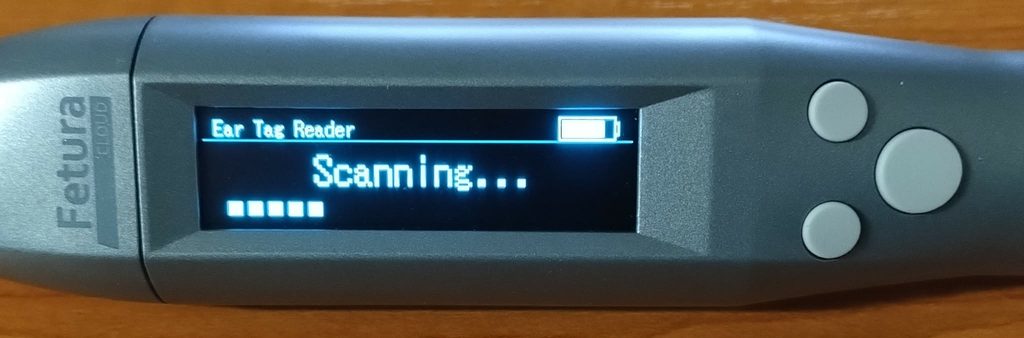
In this article, you’ll learn how to pair a scanner with your phone using Bluetooth.
To begin with
This article discusses the setup of three different scanners. The photo below shows the scanners in question, labeled with numbers.
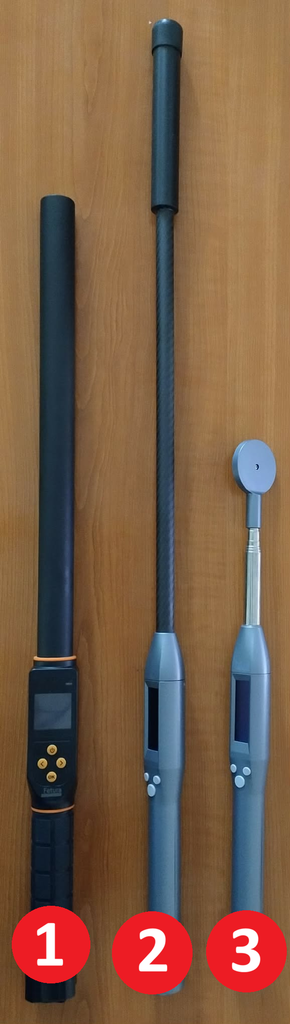
The configuration for the first type of scanner will differ slightly from that of the second and third types, which are configured identically.
Type 1 Scanner
First, let’s figure out what each button does.
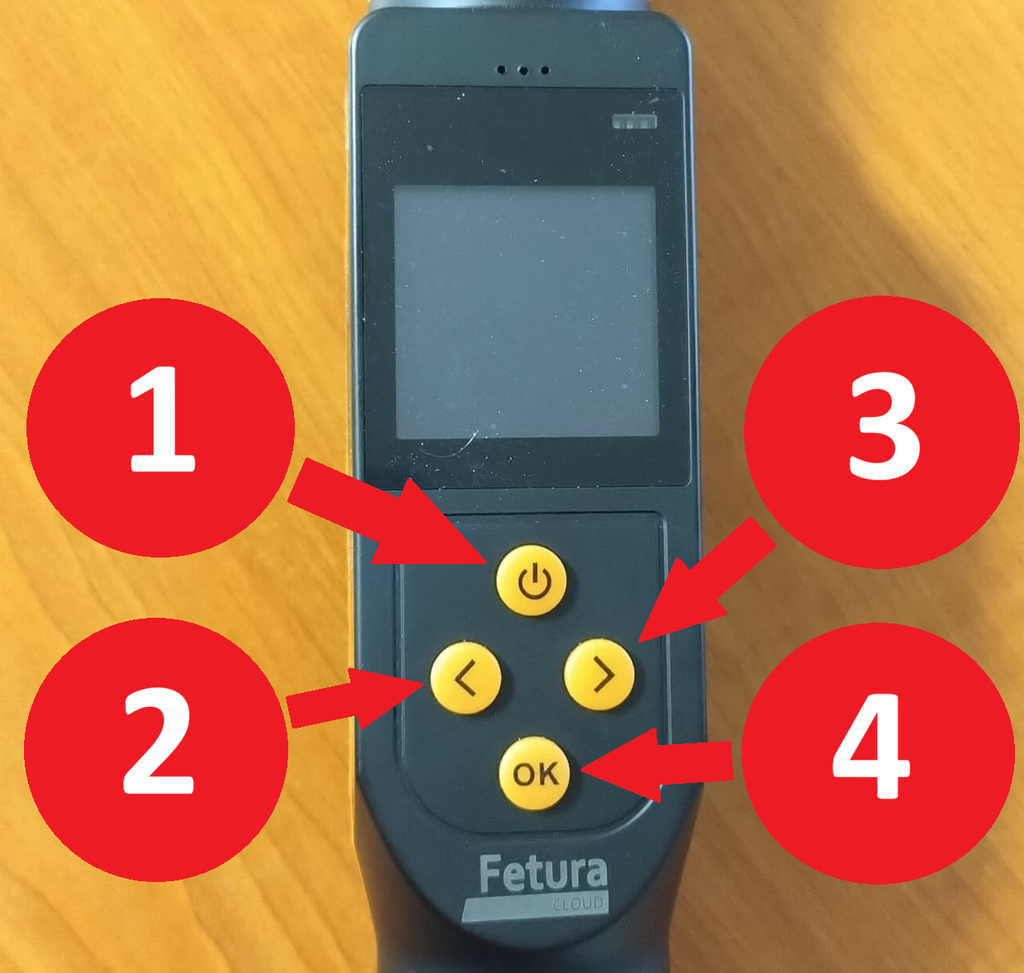
| The number in the photo | Button Name | Button Function |
|---|---|---|
| 1 | Power button | Turning the Power On and Off / Back |
| 2 | Left arrow | Scroll to the left |
| 3 | Right arrow | Scroll to the right |
| 4 | OK button | Confirm |
To begin, press the power button to turn on the device.
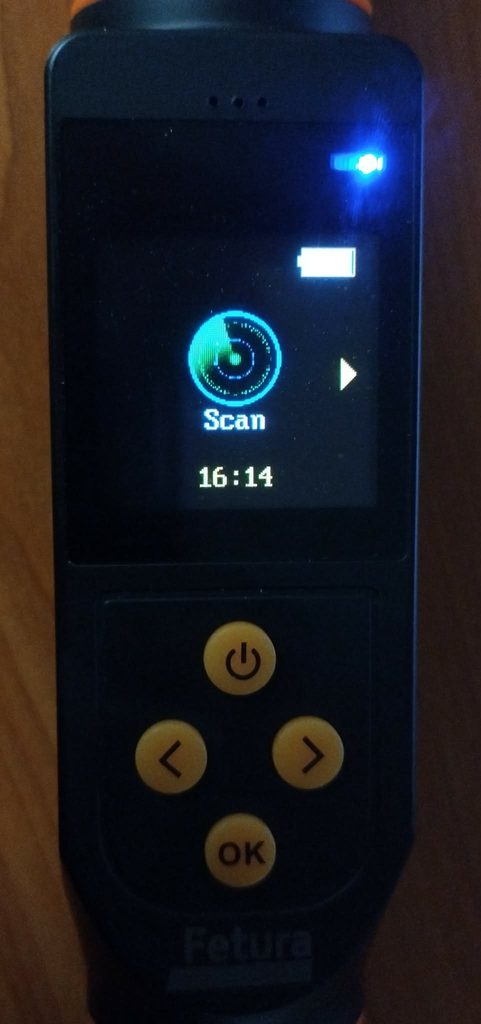
Double-click the right arrow button to go to the Bluetooth panel, and then click the OK button to open the Bluetooth settings.
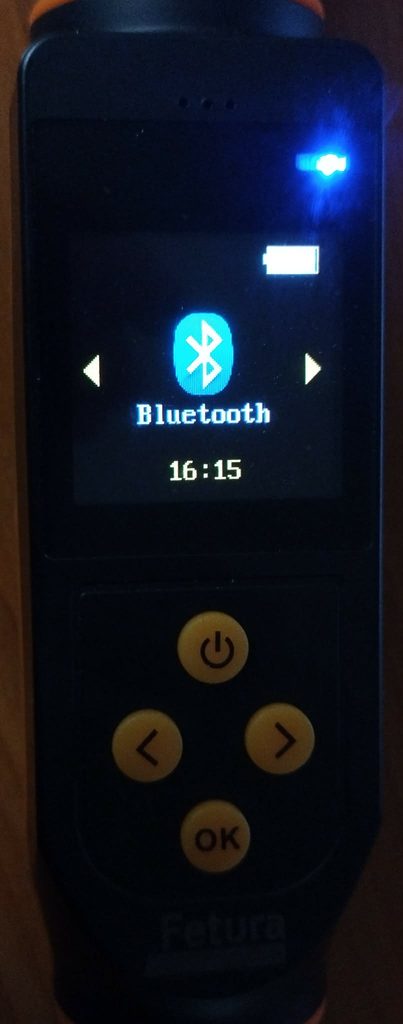
In the Bluetooth settings, use the arrow keys to select the ” HID Keyboard” option, then confirm by clicking the OK button.
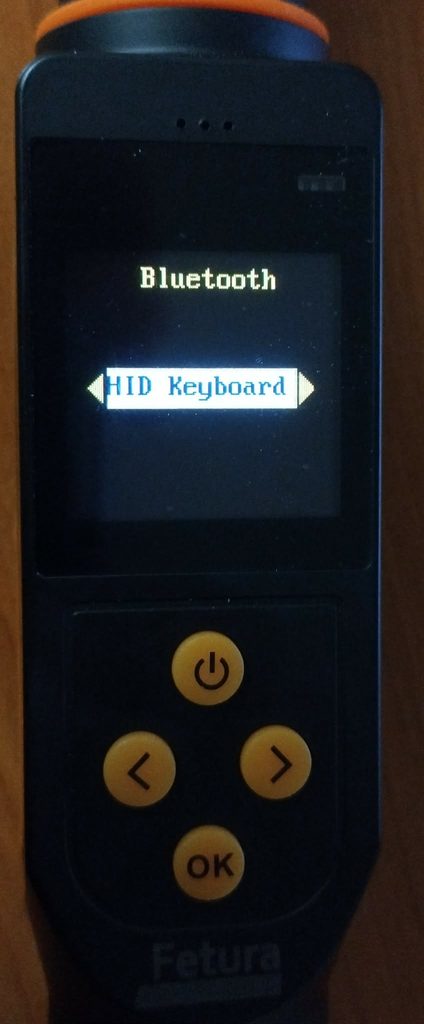
After configuring the device, click the power button to return to the main menu.
The next step will be to connect the scanner to your phone.
- Take out your phone,
- Go to Bluetooth settings,
- Click ” Pair a new device,”
- Search for devices named RFID_Keyboard,
- Pair the device with your phone.
Type 2 and 3 scanners
First, let’s figure out what each button does.
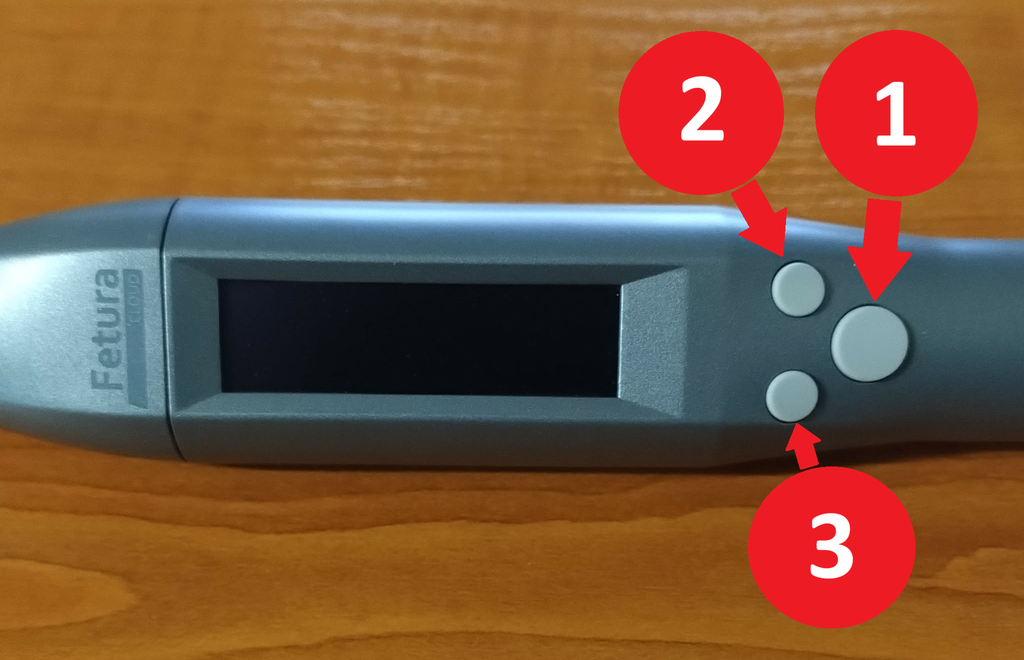
| The number in the photo | Button Name | Button Function |
|---|---|---|
| 1 | Power button | Turning the Power On and Off / Back |
| 2 | OK button | Confirming the option |
| 3 | Skip button | Move to the next menu item |
To begin, press the power button to turn on the device.
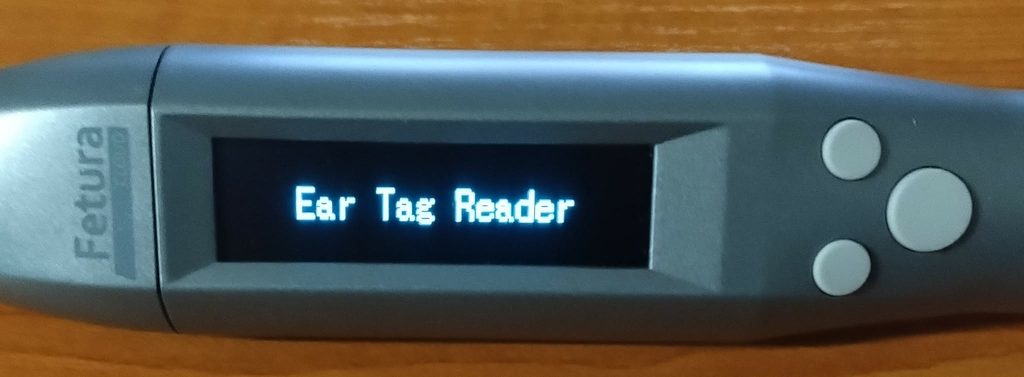
Double-click the button to open the Bluetooth panel, and then click the OK button.
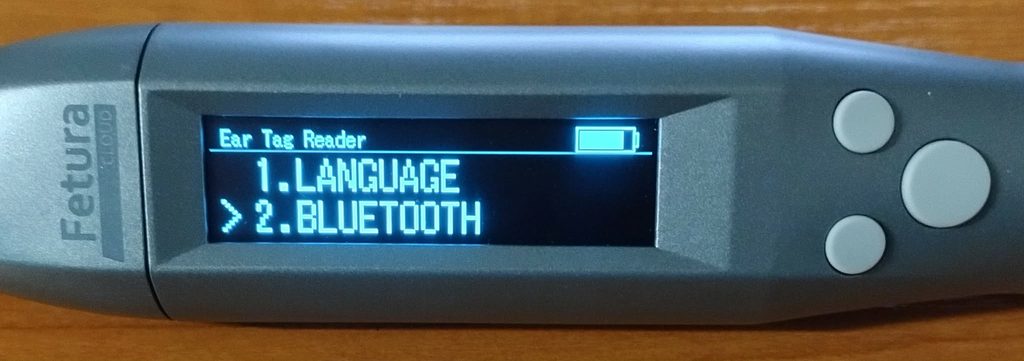
In the Bluetooth settings, use the arrow keys to find the “EMU KBD STD” option, then confirm by clicking the OK button.
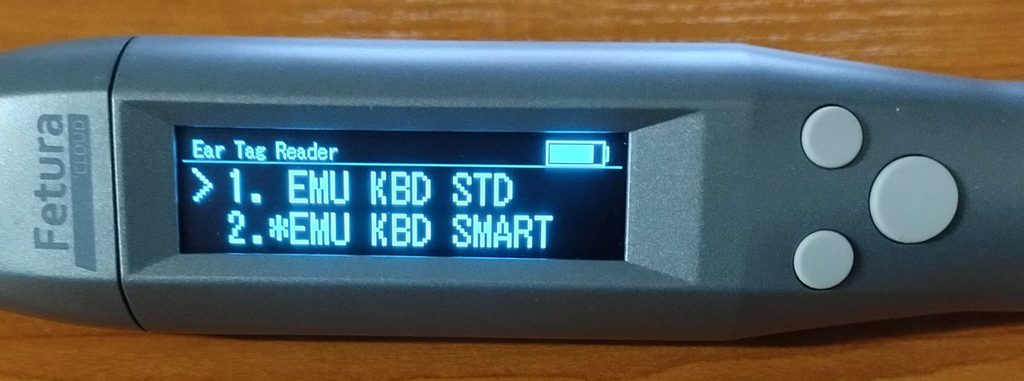
After changing the setting, the device will reset.
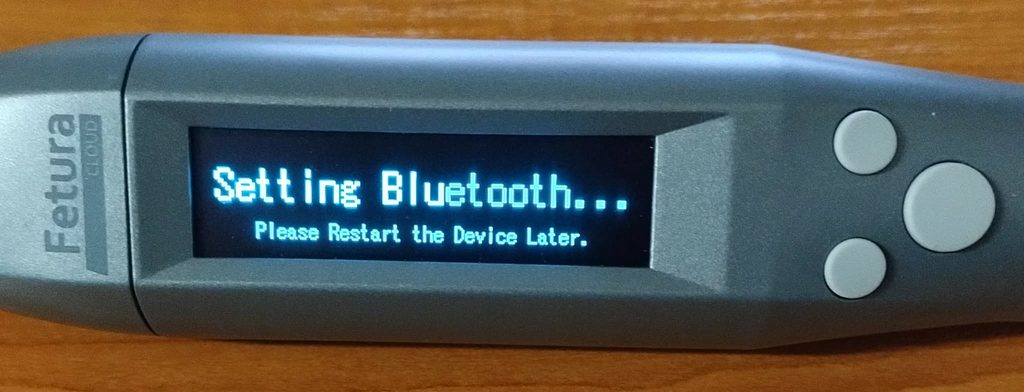
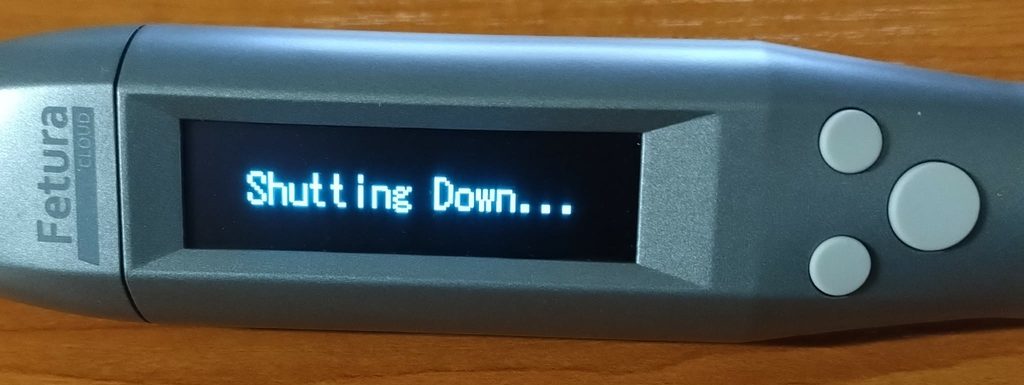
Restarts the device. The next step is to connect the scanner to your phone.
- Take out your phone,
- Go to Bluetooth settings,
- Click ” Pair a new device,”
- Search for devices named TagReader,
- Pair the device with your phone.