1. Home
  2. FarmWatch Pro
  3. How do I change the theme and screen brightness on the FarmWatch Pro control panel?

How do I change the theme and screen brightness on the FarmWatch Pro control panel?

Customizing the FarmWatch Pro control panel display allows you to tailor the device to your individual preferences and operating conditions. In the display settings, you can switch the screen theme to light or dark and adjust the brightness level as needed.

Changing the theme

To change the screen theme:

  1. Click the gear icon labeled “Settings.”
  2. Next, select the gear icon labeled “General.”
  3. In the menu that appears , select the ” Display” tile .
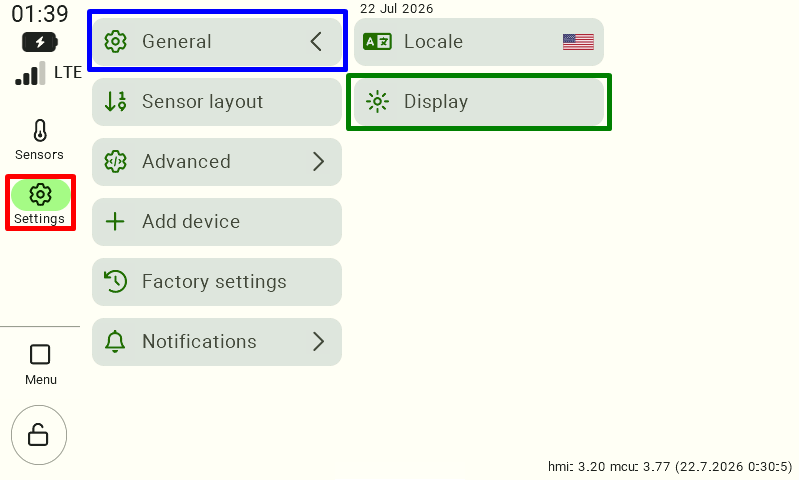
A view of the FarmWatch Pro control panel settings. In the left-hand menu, the “Settings” section has been selected, followed by the “General” category. On the right side, you can see the “Language and Units” and “Display” options; the “Display” option is highlighted with a green border and is used to configure the screen brightness and theme.
  1. To the right of the “Theme” option, click the currently selected theme (“Light” or “Dark”).
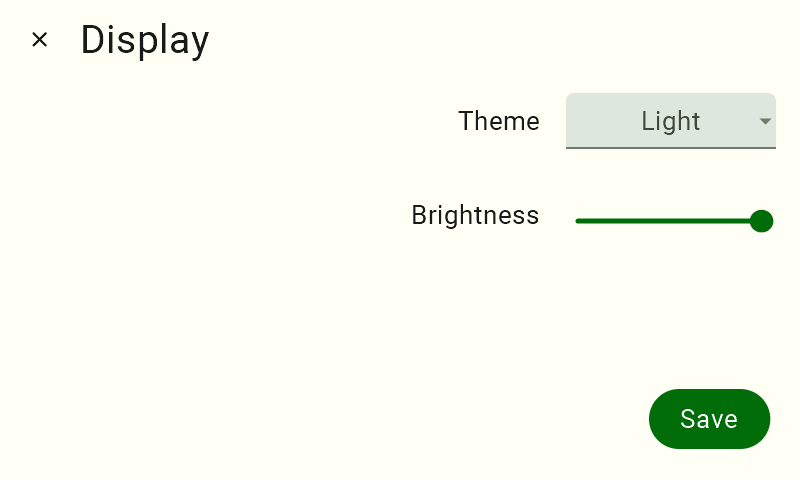
A view of the FarmWatch Pro display settings. In the upper-left corner is the label "Display"; to the right is the label "Theme," and to the right of that is the theme selection tile labeled "Light." Below that is the label “Brightness,” and to its right is a slider with a green dot positioned all the way to the right.
In the lower-right corner is a green button with the white text “Save.” The screen is in the light theme.
  1. Select your preferred theme from the drop-down list.
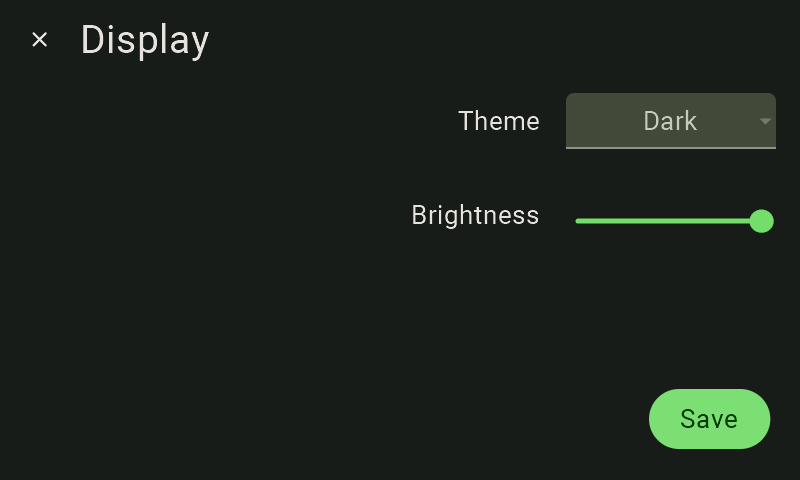
A view of the FarmWatch Pro display settings. In the upper-left corner is the label "Display"; to the right is the label "Theme," and to the right of that is the theme selection tile labeled "Dark." Below that is the label “Brightness,” and to its right is a slider with a green dot positioned all the way to the right.
In the lower-right corner is a green button with the white text “Save.” The screen is in dark mode.

The change will take effect immediately after you select the new option.

Adjusting the Brightness

To adjust the screen brightness:

Swipe right to increase the screen brightness.

  1. Follow steps 1–3 described in the ” Changing the Theme” section.
  2. Under “Brightness,” click and hold the slider.
  3. Move the slider:
    • Swipe left to dim the screen,
    • Swipe right to increase the screen brightness.

By default, the screen is set to 100% brightness.

Once you have finished configuring the settings, click the green “Save” button to confirm the changes you have made.

We hope you found this article helpful. We hope you enjoy using FarmWatch Pro!

Updated on 2026-07-23
Was this article helpful?

Related Articles

Need Support?
Can't find the answer you're looking for?
Contact Support

Leave a Comment