1. Home
  2. FarmWatch Pro
  3. How do I set the time and number for the status SMS?

How do I set the time and number for the status SMS?

A status SMS is an automated message sent by FarmWatch Pro that informs the user that the system is operating normally and that the base station is available on the network.

By default, a status SMS is sent daily at 12:00 p.m. to the phone number provided when the device was first set up.

If you want to change the phone number to which the status SMS is sent, or set a different time for it to be sent, go to:

Settings → Advanced → SMS Status
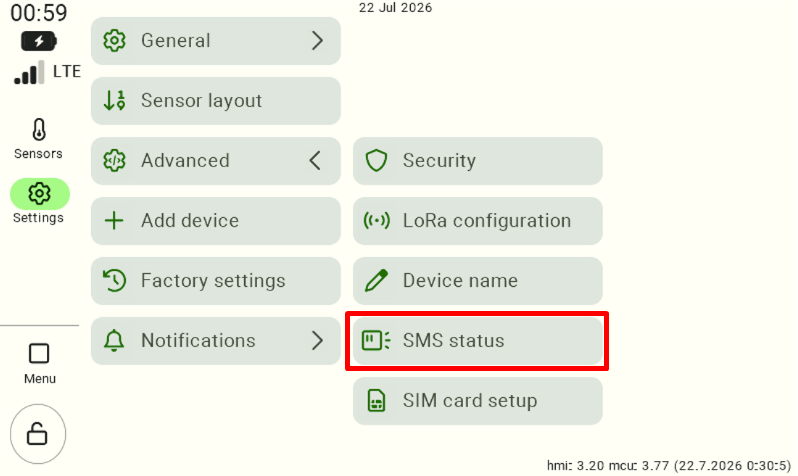
The control panel settings screen with the "Advanced" tab expanded. To access the daily report configuration, the user must locate and click the "SMS Status" button, which is highlighted with a red border on the interface.

Changing the phone number for status SMS messages

To change the phone number to which the status SMS is sent, click the gray box next to the “Phone number” option .
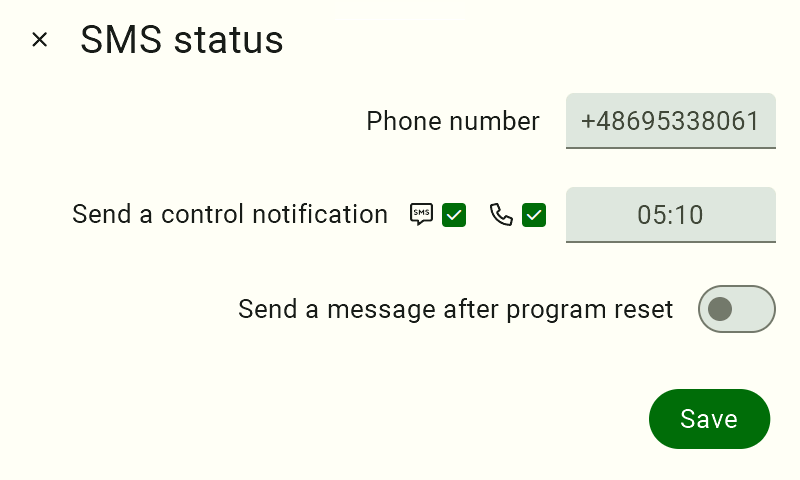
The configuration screen titled "SMS Status." There are two light gray fields to fill in: "Phone Number," which you should click to enter the recipient's phone number, and "Message Send Time," used to set the time for the daily notification. After correctly entering both parameters, the user must confirm the configuration by clicking the dark green "Save" button located in the lower-right corner of the screen.

Enter your new phone number and confirm the changes.

Change in the time the status SMS is sent

To change the time the message is sent, click the gray box next to the “Send a control notification” option .
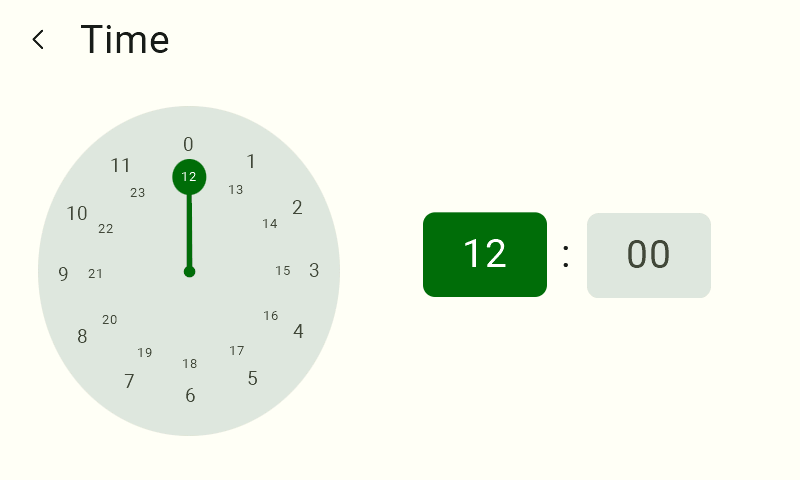
The time selection interface labeled "Time," currently in time-setting mode. The user selects the desired hour (in 24-hour format, from 0 to 23) by tapping the corresponding number on the circular clock face displayed on the left side. Hour-setting mode is indicated by the left tile (with the hours) on the right side of the screen being highlighted in dark green.

First, select the hour field, then set the appropriate value on the clock face. After setting the hour, select the minute field and set the desired value.
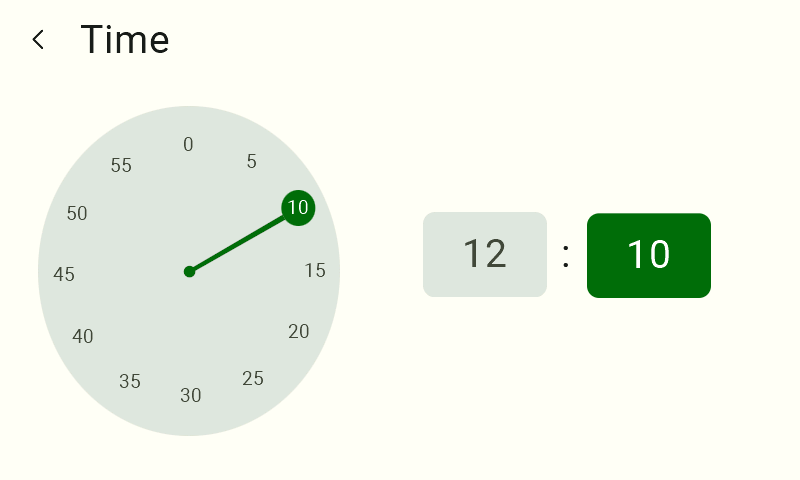
The time selection interface labeled "Time" has moved to the second step, which is the minute-setting mode. The user sets the time by selecting the minutes (from 0 to 55) by tapping the corresponding value on the circular dial. The minute editing mode is visible on the right side of the screen, where the right numeric tile is highlighted in dark green.

Once you have finished the configuration , click the “Save” button to save your changes .

Important!
If the status SMS is not delivered at the set time, check the device’s status directly on the FarmWatch Pro control unit.
A status message will not be sent in the following cases:
no cellular network access (indicated by an X icon),
no mains power.
FarmWatch Pro has a built-in battery that allows the device to continue operating for approximately 3 hours in the event of a power outage.

We hope this article has helped you set up status SMS messages in FarmWatch Pro. We hope you enjoy using the system!

Updated on 2026-07-23
Was this article helpful?

Related Articles

Need Support?
Can't find the answer you're looking for?
Contact Support

Leave a Comment