How to add a feed?

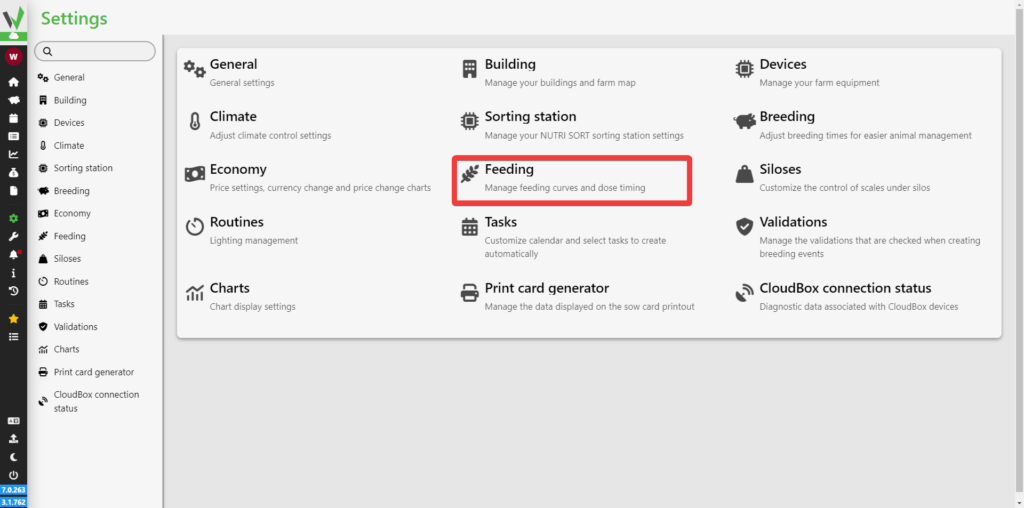
After logging in, go to the Settings tab.
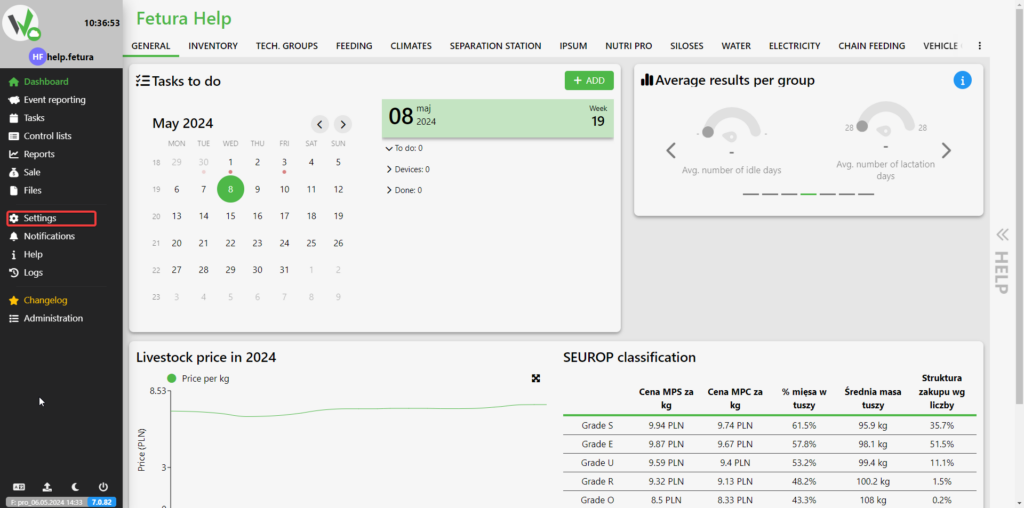
Fetura Help desktop dashboard with the top navigation tabs (General, Inventory, Tech Groups, Feeding, Climates...) and the "Settings" item in the left sidebar highlighted in red.

Then go to the Feeding tab.

Settings screen tiles with the "Feeding" tile highlighted in red, used to manage feeding curves and dose timing.

Find the List of forages tab and navigate to it.
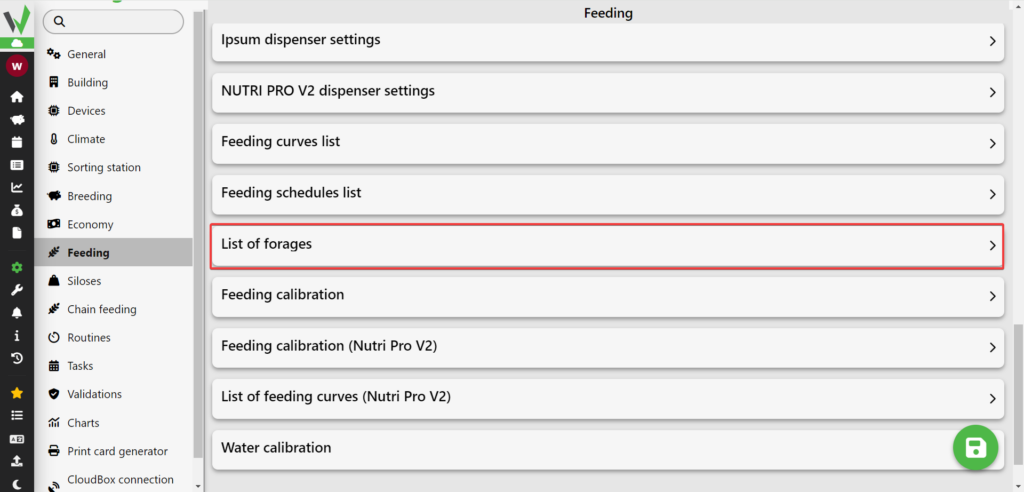
Feeding settings list with the "List of forages" option highlighted in red.

Click the highlighted button to add a new feed.
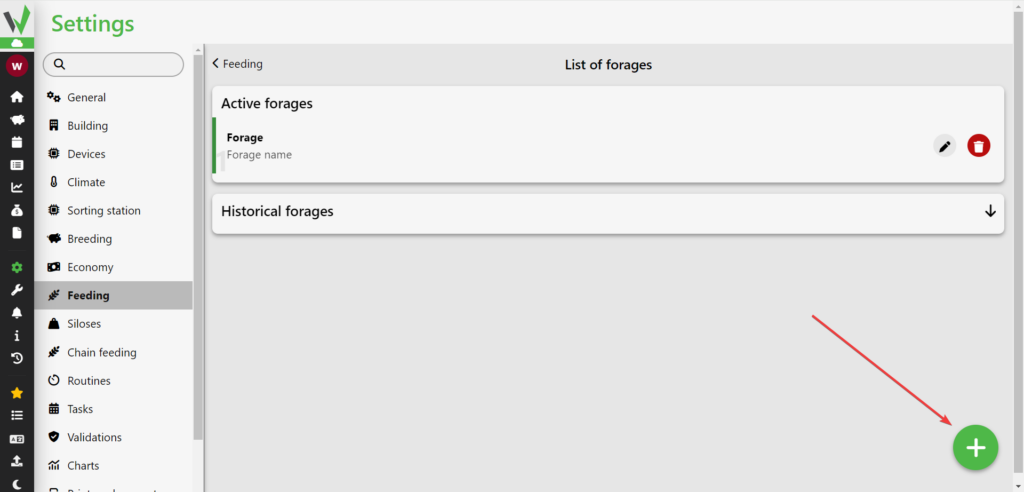
List of forages screen showing one active forage and a red arrow pointing to the "+" button in the bottom-right corner, used to add a new feed.

Enter what name the feed should be named [1], what color it should be marked with [2 ], optionally what ingredients it consists of in percentage [3] and optionally what chambers it is used in [4]. After entering the data, click the save button [5].
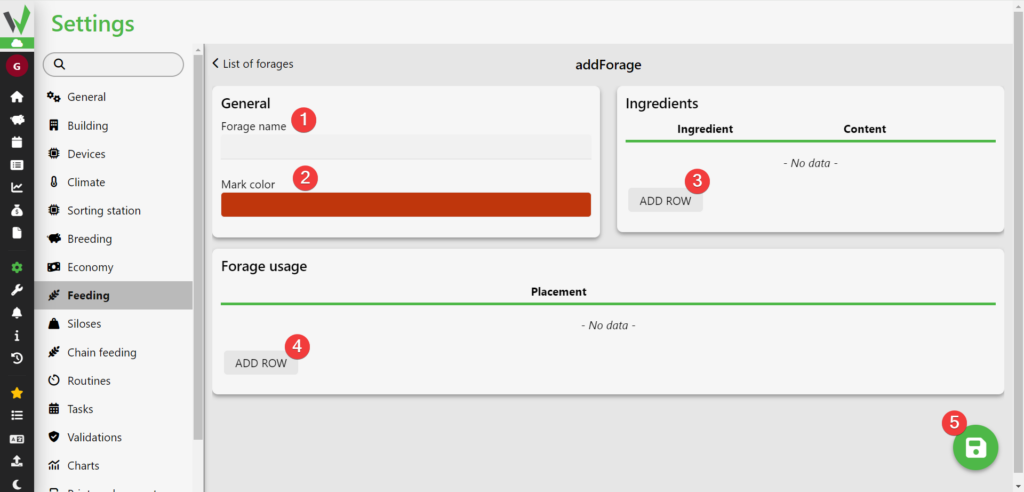
Add Forage form with red numbered circles 1-5 marking the forage name field, mark color picker, the "Add row" button for ingredients, the "Add row" button for chamber usage, and the save button.
Updated on 2026-07-22
Was this article helpful?

Related Articles

Need Support?
Can't find the answer you're looking for?
Contact Support

Leave a Comment