1. Home
  2. FarmWatch Pro
  3. How to Add a New Phone Number for Alarm Notifications?

How to Add a New Phone Number for Alarm Notifications?

This article explains how to add and manage phone numbers used for alarm call notifications in FarmWatch Pro.

To modify the list of phone numbers that will receive alarm calls, navigate to:

Settings → Notifications → Phone Calls
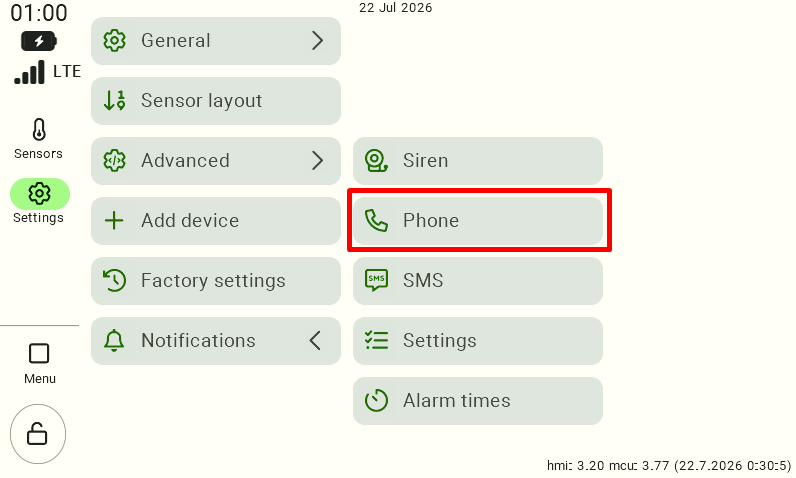
Control panel settings screen with the "Notifications" section expanded. To configure the phone numbers that will receive alarm calls, the user must click the "Phone Calls" option, highlighted with a red frame on the screenshot.

After opening the Phone Calls section, the list of currently configured phone numbers will be displayed.
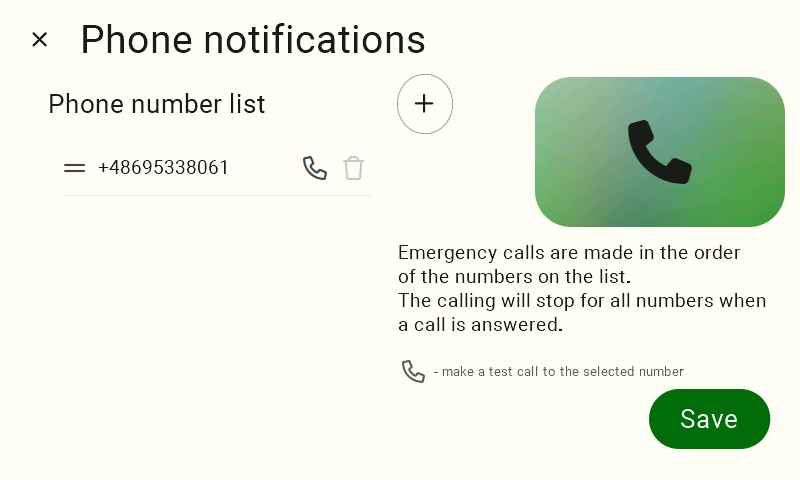
Screen titled "Phone Call Notifications". On the left side, the current list of phone numbers assigned to receive alarm calls is displayed. Next to the list is a circular button with a plus sign ("+"), which is used to add a new phone number.

To add a new phone number, click the “+” button.
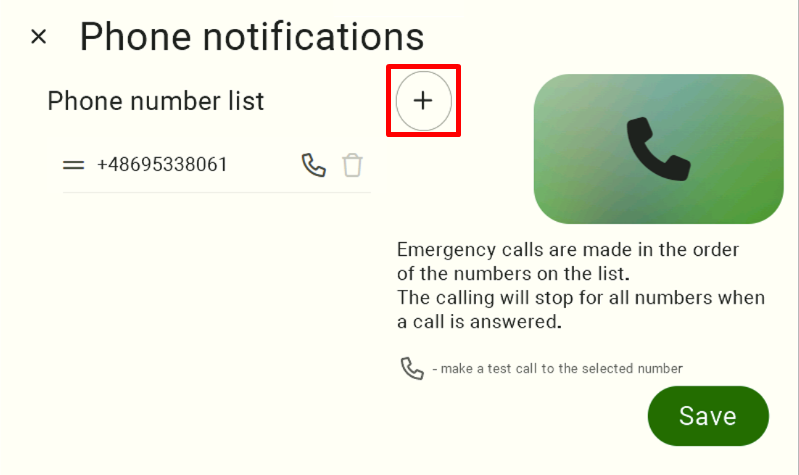
Phone call notification management screen. To begin adding a new phone number, click the circular "+" button highlighted with a red circle at the top of the interface.

Enter the phone number using the on-screen keypad and confirm your selection.
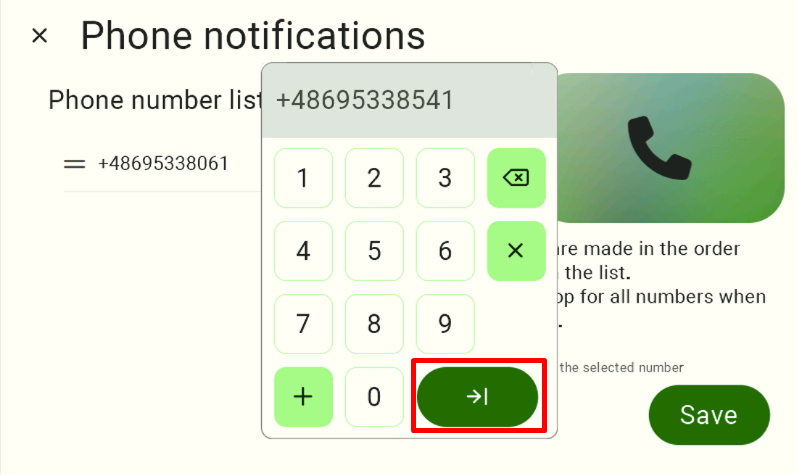
Screen with the numeric keypad displayed in the center. Use the keypad to enter the desired phone number. Once the number has been entered correctly, confirm the operation by clicking the dark green arrow button located in the lower-right corner of the keypad (highlighted with a red frame in the image).

If the operation was completed successfully, the newly added phone number will appear on the list.
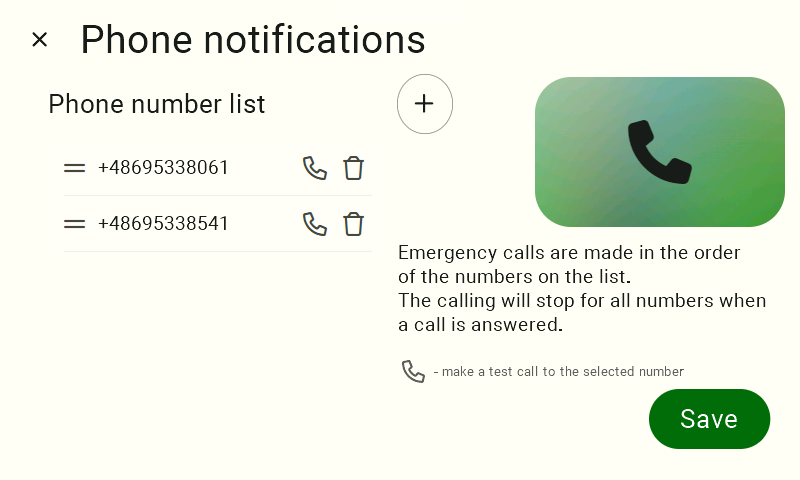
Updated "Phone Call Notifications" screen showing the newly added number. To apply and save the new alarm call configuration, click the large green "Save" button located in the lower-right corner of the screen.

Remember to save your changes before leaving the screen.

Important!
Alarm calls are made according to the order of phone numbers shown in the list.
When an alarm occurs, FarmWatch Pro will first call the person at the top of the list. If the call is not answered and the alarm is not acknowledged, the system will automatically proceed to the next number on the list.
Calls will continue until one of the recipients answers the call and acknowledges the alarm.

You can easily change the order of phone numbers in the list.
Press and hold the “=” icon located next to the selected phone number, then drag the entry up or down to the desired position.

We hope this article helped you configure phone call notifications in FarmWatch Pro. Enjoy using the system!

Updated on 2026-07-23
Was this article helpful?

Related Articles

Need Support?
Can't find the answer you're looking for?
Contact Support

Leave a Comment