
The FarmWatch Pro control panel software can be updated using the microSD card inside the device. The update involves copying the appropriate files to the memory card and then starting the control panel with the prepared card.
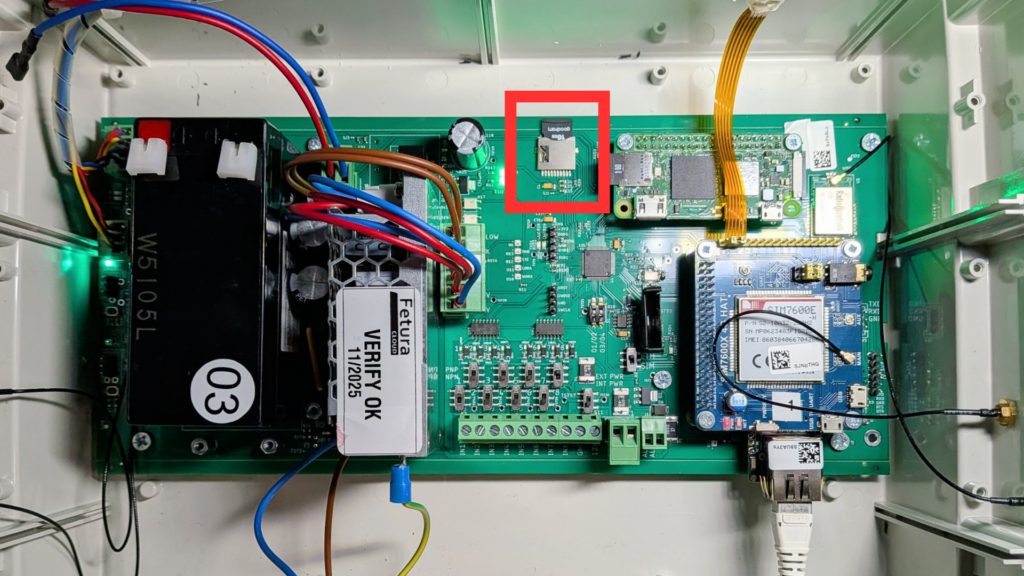
Once launched, the device will automatically detect the update files and begin the installation process.
1. What will you need?
To perform the update, please have the following ready:
- the microSD card removed from the FarmWatch Pro control unit,
- a computer with a microSD card reader,
- an update package for the FarmWatch Pro device.
The update files should be downloaded from the provided software package.
2. Important Information Before You Begin
For a standard update, use only the files located in the following folder:
firmware
Before copying the new update files, you must delete any old update folders from the microSD card, if they are present.
This applies in particular to the following folders:
- tmp_down
- temp_rdy
Leaving old update folders in place may cause problems with detecting or running a new update.
Do not copy the entire update package to the card or create any additional folders. The microSD card should contain a “firmware” folder, and the update files must be placed directly in that folder.
3. Update files
The firmware folder should contain software update files, including:
- ctrl_prg.bin — the file responsible for the main operation of the device’s program,
- hmi_prg.bin — a file responsible for the user interface, i.e., the screen and operation of the HMI panel.
The correct file structure on a microSD card:
SD:/firmware/ctrl_prg.bin
SD:/firmware/hmi_prg.bin
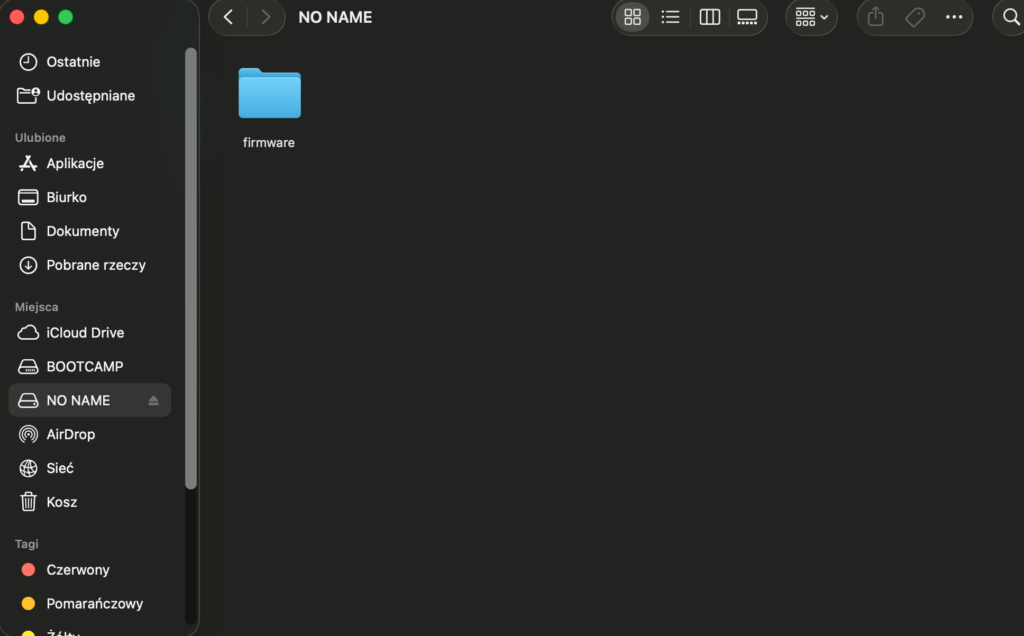
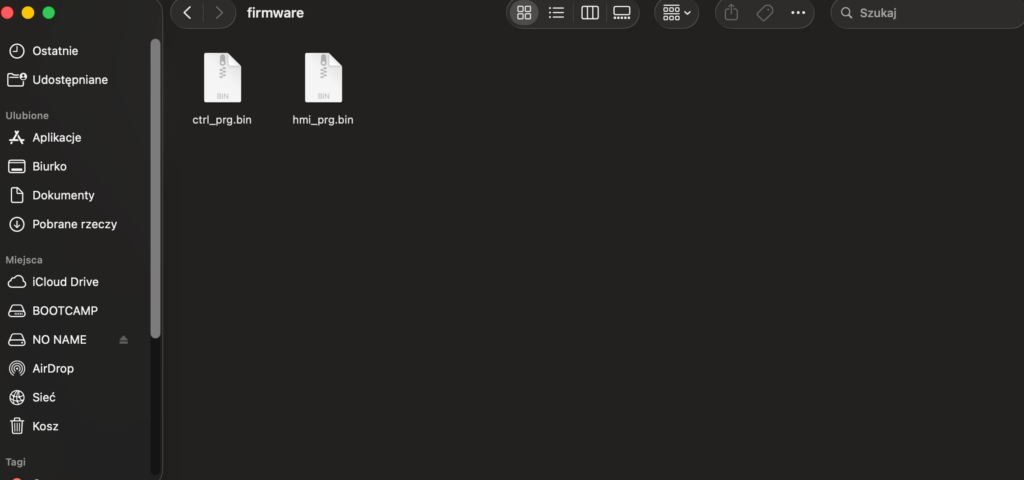
These files must be located directly in the firmware folder.
Do not place them in an additional subfolder.
Correct:
SD:/firmware/ctrl_prg.bin
SD:/firmware/hmi_prg.bin
Incorrect:
SD:/firmware/firmware/ctrl_prg.bin
SD:/firmware/firmware/hmi_prg.bin
If the folder structure is incorrect, the central server may not detect the update.
4. Preparing the microSD card
- Turn off the FarmWatch Pro control unit.
- Remove the microSD card from the device.
- Insert the microSD card into your computer.
- Open the contents of the tab.
- Delete any previous update folders from the tab, if there are any.
In particular, delete the following folders:- tmp_down
- temp_rdy
- Unzip the downloaded update package on your computer.
- Open the extracted folder containing the update.
- Copy the firmware folder to the microSD card.
After copying, the contents of the card should look like this:
SD:/firmware/ctrl_prg.bin
SD:/firmware/hmi_prg.bin
Do not create an additional “firmware” folder inside the “firmware” folder.
5. Launching the update
After preparing the microSD card:
- Safely eject the microSD card from your computer.
- Reinsert the card into the FarmWatch Pro control unit.
- Start up the control panel.
After startup, the control panel will check the contents of the microSD card. If the update files are prepared correctly, the device will automatically begin the update process. Do not turn off the control panel during the update.
6. Problem Solving
If the update does not start automatically after the control panel is turned on, check the following one by one:
- Is there a “firmware” folder on the microSD card?
- Are the update files located directly in the firmware folder?
- Are the required update files, such as ctrl_prg.bin and hmi_prg.bin, on the card?
- Was the firmware folder accidentally copied a second time to the root directory, for example, SD:/firmware/firmware/?
- Have the old update folders, specifically tmp_down and temp_rdy, been deleted from the card?
- Was the correct update package used for the FarmWatch Pro device?
- Has the microSD card been inserted correctly into the control panel?
If the problem persists, reformat the microSD card from scratch. Be sure to delete the old update folders and ensure that the firmware folder structure is correct.


